

Waves Nx Virtual Mix Room is a monitoring-only binaural plugin designed to place stereo, surround or first-order Ambisonics material into a virtual speaker room over ordinary headphones. It includes adjustable room ambience and speaker positions, optional camera/Nx Head Tracker motion tracking, personalized head measurements, and model-specific headphone EQ correction. [1][2]
The most important practical point is also the simplest: Nx is for monitoring, not for printing into the mix. Waves instructs you to place one instance on the master bus and bypass it when you bounce the final mix. [1]
My Short Version
Insert Nx on the final monitoring/master bus, not on individual tracks. Select the component that matches your session—stereo, 5.0, 5.1, 7.1 or first-order AmbiX—and make sure Nx is bypassed for the final bounce. [1]
Start with the documented defaults. Set your real head measurements if you can, choose a headphone correction profile only when your exact model is in the menu, and avoid changing Room Ambience or Speaker Position aggressively before you have acclimated to the default room. [1]
Head tracking is optional. You can use the computer camera, an Nx Head Tracker, or Sensor Fusion. With tracking off, the guide says the simulated image returns to the center position. [1]
I did not monitor through Nx for this article, so no translation accuracy, reduced fatigue, or sonic superiority is claimed from firsthand testing.
Components and routing
The current manual documents these components: [1]
- Mono to Stereo
- Stereo to Stereo
- 5.0 to Stereo
- 5.0 to 5.0 — only L/R outputs carry the binaural result
- 5.1 to Stereo
- 5.1 to 5.1 — only L/R outputs carry the binaural result
- 7.1 to Stereo
- 7.1 to 7.1 — only L/R outputs carry the binaural result
- 1st-order AmbiX Ambisonics to Stereo on quad channels
- 1st-order AmbiX Ambisonics to Quad — only L/R outputs carry audio [1]
In every case, the headphone-monitoring result is a binaural stereo signal. The guide documents the headphone outputs in its component appendix and notes that surround output-channel numbers may vary with the host's surround-channel configuration. Confirm the route for the component and host in use. [1]
The appendix documents 5.0, 5.1, 7.1 and AmbiX channel assignments. For AmbiX the input order is W, Y, Z, X. [1]
Monitoring-only placement and bounce rule
Waves explicitly calls Nx a monitoring-only plugin. The quick-start procedure says to insert one instance on the master bus and bypass it when bouncing the mix. [1]
That is not an editorial preference. It is the documented operating boundary of this plugin.
For surround sessions, the surround-to-stereo components are the simplest option when your goal is merely to feed stereo headphones. The surround-to-surround variants are useful when you want to leave the host's multichannel routing intact and route only the L/R binaural outputs to headphones. [1]
Input meters
Nx displays input meters corresponding to the component format. A mono instance has one input meter; stereo has two; surround and Ambisonics display their respective channel counts. [1]
The current guide describes their role but does not publish a common numeric scale or reset behavior for these input meters. Those details are not inferred here.
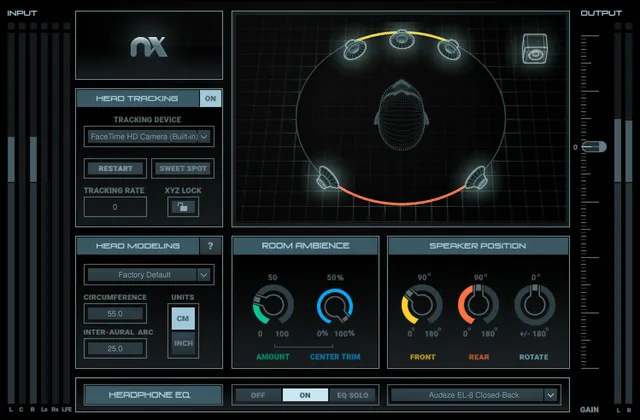
Head Tracking On/Off
Tracking On/Off enables or disables head tracking. [1]
When tracking is off, the guide says the simulated image returns to the center position; this control is documented as toggling head tracking. [1]
Tracking Device
Tracking Device selects how Nx receives head-motion data: [1]
- Camera
- Nx Head Tracker when a tracker is available
- Sensor Fusion — combines the Nx Head Tracker with the camera's X/Y/Z positional information [1]
Waves says Sensor Fusion can reach a total tracking rate up to 80 fps and can be used by one person at a time because the camera and hardware tracker must follow the same listener. [1]
Multiple Nx instances can use different tracking devices for different listeners, but each instance needs a separate headphone output. A simple headphone splitter will not provide independent tracking for multiple listeners. [1]
Restart
Restart restarts the separate Nx head-tracking application. [1]
Use it when the tracking application has been closed or is not functioning correctly. The guide describes Restart as restarting the separate head-tracking application; it does not state that this control resets the plugin's mix-room parameters.
Sweet Spot
Sweet Spot tells the tracking system that your current centered head position is the reference point. [1]
The button blinks until you set it once. Reset the sweet spot when you move yourself or the camera to a new position. [1]
Tracking Rate
The Tracking Rate readout reports head-tracking speed in frames per second. Waves publishes these optimal ranges: [1]
- Camera: 25–30 fps
- Nx Head Tracker: 35–50 fps
- Sensor Fusion: 45–80 fps [1]
This is a tracking-rate readout in frames per second (fps), not a frame-rate control or a tracking/audio-latency measurement.
XYZ Lock
XYZ Lock applies to mono, stereo and surround components. When enabled, Nx represents head rotation while locking translational left/right, forward/back and up/down movement, keeping the virtual listener at the sweet spot. [1]
The guide says XYZ Lock applies only to Camera Tracking, because the Nx Head Tracker itself does not track X/Y/Z translation. [1]
Virtual speaker window
The main room display shows the virtual head and speaker positions. [1]
- Double-click a speaker icon to mute or unmute that virtual speaker. Speakers are unmuted by default.
- Click and drag a left or right speaker to change the spread symmetrically. This also changes the corresponding Speaker Position control below the graph. [1]
These gestures are functional controls even though they are performed directly in the display rather than with conventional knobs.
Ambisonics display
The Ambisonics component accepts first-order AmbiX W, Y, Z, X channels and decodes them to a binaural headphone stream. [1]
Instead of virtual speaker icons, the room window displays directional dots with frequency color coding: [1]
- Red: lows
- Orange: low mids
- Yellow: high mids
- Light blue: highs [1]
Click-drag changes the viewing perspective. Alt+Click resets the view to the default top view. [1]
The display is a spatial visualization; it is not a substitute for the input/output routing rules in the component appendix.
Head Circumference
Circumference customizes Nx's head model. [1]
- Range: 35–75 cm / 13.8–29.5 in
- Default: 55 cm / 21.6 in [1]
Waves says the default represents an average adult value. If you are not entering your actual measurement, the manual recommends leaving the default rather than choosing an arbitrary value. [1]
Inter-Aural Arc
Inter-Aural Arc is the ear-to-ear distance around the back of the head on a horizontal plane. [1]
- Range: 15–40 cm / 5.9–15.8 in
- Default: 25 cm / 9.8 in [1]
Nx uses these head-model values in its approximation of inter-aural timing/filter/gain behavior. [1]
Units
Units switches head measurements between centimeters and inches. [1]
This changes the measurement system, not the modeled head size itself.
User / Factory Default head-model presets
The Head Modeling section has its own User/Factory Default preset system, separate from the plugin's top WaveSystem preset toolbar. [1]
You can save multiple personal head-measurement presets and select one as User Default. The manual emphasizes that these presets are isolated from the main plugin-preset system. [1]
Head-model help button
The ? button opens guidance for measuring the head-model parameters. It blinks until you enter individual measurements or load the plugin with a User Default already in place. [1]
Room Ambience Amount
Amount sets the simulated room-reflection level. [1]
- Range: 0 to 100
- Default: 17 [1]
Waves says increasing ambience increases the sense of distance, while decreasing it produces a more focused presentation. [1]
The current product page summarizes this as making the virtual room wetter or drier. [2]
Center Trim
Center Trim is available only in surround components and reduces room ambience for the Center speaker. [1]
- Range: 0% to 100%
- Default: 100%, meaning the Center receives the same ambience amount as the other speakers [1]
This can keep center-channel content such as dialogue more focused while maintaining ambience on the other virtual speakers.
Front speaker position
Front controls the angular spread of the front left/right speakers in Stereo and Surround components. [1]
- Range: 0° to 180°
- Default: 60° [1]
Waves identifies 60° as the recommended/default stereo geometry.
Rear speaker position
Rear is available in surround components. [1]
- Range: 0° to 180°
- Default in 5.1: 90°
- Default in 7.1: 60° [1]
The guide identifies these defaults as within ITU-standard positions.
Side speaker position
Side appears in 7.1 components. [1]
- Range: 0° to 360°
- Default: 180° [1]
Rotate
Rotate turns the entire virtual room around the listener. [1]
- Range: -180° to +180°
- Default: 0° [1]
Mono has Rotate as its only Speaker Position knob; Stereo adds Front; Surround adds the additional speaker-spread controls relevant to the format. [1]
Output meters and output gain
Nx always displays two output meters representing the binaural signal reaching the left and right headphone channels. [1]
The manual prints the meter scale as -24 dB to +12 dB and marks 0 dB as the default/reference. [1]
Waves also warns that Nx can clip at its output even when the incoming signal has already been limited, and instructs you to reduce the Output Gain fader when that occurs. [1]
The current guide does not publish an exact range or default for the Output Gain fader in the control text. Its function is documented; its unpublished numeric bounds are left unspecified rather than inferred from artwork.
Headphone EQ Select
The Select menu chooses a correction curve for a specific headphone model. [1]
The product page's advertised count is over 270 headphone models. This is a source-specific catalog claim, not an independently enumerated menu, a version guarantee, or a verified profile for your headphones. [2]
Waves recommends using the correction section only when your actual headphone model appears in the menu. [1]
Headphone EQ Off / On / EQ Solo
The headphone-correction section has three documented states: [1]
- Off — default; disables correction.
- On — engages the selected model's correction curve.
- EQ Solo — bypasses Nx's spatial binaural processing while leaving only the headphone correction active. [1]
EQ Solo is useful for distinguishing the model correction from the virtual-room processing, but this article did not perform that comparison audibly.
Head-tracking application: Camera tab
The companion tracking application opens with the plugin and needs to remain open for tracking. Camera controls include: [1]
- On/Off — enables camera tracking or turns it off to save CPU resources.
- Camera menu — selects among connected cameras.
- Reset Face Detection — restarts the face-detection algorithm; Waves recommends it when changing users or when tracking seems poor.
- Low Light Mode — available only with certain built-in FaceTime HD cameras on Mac; darkens the picture to increase frame rate in poor lighting. [1]
These are companion-app controls, not audio-processing parameters inside the Nx plugin window.
Head-tracking application: Bluetooth tab
For Nx Head Tracker hardware, the Bluetooth tab documents: [1]
- Device List with Connected/Disconnected/Connecting/Unavailable states; up to seven trackers can be detected and connected simultaneously.
- Connect checkbox for each device.
- Refresh Device List to rescan.
- Automatic Connect, On by default.
- Open Bluetooth Settings for manual un-pairing when troubleshooting.
- Rename, with a permanent 5–15 character device name.
- Identify, which makes the selected tracker blink white.
- Update, which initiates firmware updates when the application reports one is available. [1]
The existence of an Update command is documented here; this writing assignment did not update hardware or software.
WaveSystem toolbar
The top WaveSystem bar handles preset save/load, comparison, undo/redo and interface resizing. [1]
Remember that the Head Modeling User/Factory Default system is separate from these main presets. [1]
A practical Nx workflow
Use the component that matches your session format and keep Nx on the monitoring/master path. Confirm the final bounce bypass before export. [1]
Start at defaults. Enter your real head measurements, select your exact headphone model only if it appears in the correction menu, then allow some listening time before changing ambience or speaker angles. That follows Waves' quick-start guidance rather than inventing a custom calibration recipe. [1]
If you use head tracking, set the Sweet Spot while centered and check the Tracking Rate readout. If tracking becomes unreliable, the manual's troubleshooting path starts with lighting, tracker-app status, Sweet Spot, and buffer/routing checks rather than changing unrelated audio controls. [1]
Best for / skip if
Nx is best when you need a portable headphone monitoring reference for stereo, surround or first-order Ambisonics, especially when you want adjustable speaker geometry, room ambience, headphone correction or optional head tracking. [1][2]
Skip it when you simply need ordinary headphone playback without room virtualization, or when you are looking for a processor that should be rendered into the master. Waves explicitly defines Nx as monitoring-only. [1]
Limitations and evidence boundary
This is a documentation-led control reference. I did not test translation against speakers, compare headphone models, measure HRTF accuracy, measure tracking latency, benchmark CPU, validate supported hosts, or listen to Nx.
Earlier screenshot attempts in the writing runtime returned cache-miss errors. For this later source review, I visually inspected the acquired official V3 manual interface/control pages and the original Graphic Library artwork. This supports a qualified control-family correspondence, not an installed build or runtime behavior.
Related guides
For current product details and the latest product-linked guide, visit the Waves Nx product page and the Nx Virtual Mix Room V3 User Guide.
Bottom line
Nx is a headphone monitoring environment, not a mix processor to print. Its control set covers monitoring format, head tracking, head anatomy, room ambience, speaker geometry, binaural output monitoring and optional headphone-model correction. [1][2]
The most consequential operational rule is to keep it on the monitoring/master path and bypass it for the final bounce. [1]
Sources
Sources rechecked October 18, 2026. No listening, native-host, tracking-hardware, CPU, compatibility or independent measurement test was performed.
- Waves Nx Virtual Mix Room V3 User Guide, current product-linked guide. The September writing runtime could not display its interface pages; the October 17 source review inspected the acquired manual renders and Library original without testing an installed plugin.
- Waves Nx product page, current product identity, over-270 headphone-profile statement and current official max-image paths.
- Waves Graphic Library, reuse permission for product images on that page requires a backlink to the relevant Waves product page.
FAQ
Should Nx stay active when I bounce or export a mix?
No. Waves defines Nx as monitoring-only, recommends placing one instance on the master bus, and says to bypass it when bouncing the mix.
Which session formats does Nx document?
The guide lists Mono-to-Stereo, Stereo-to-Stereo, 5.0, 5.1, 7.1 and first-order AmbiX components. The headphone result is binaural stereo; consult the component appendix for routing details because surround output-channel numbers can vary with the host configuration.
Do I need an Nx Head Tracker to use head tracking?
No. The guide documents Camera, Nx Head Tracker, and Sensor Fusion tracking choices. Tracking can also be switched off; the manual says the simulated image then returns to center.
What do the Nx Tracking Rate numbers mean?
They are tracking-rate readouts in frames per second: 25–30 fps for Camera, 35–50 fps for Nx Head Tracker, and 45–80 fps for Sensor Fusion. They are not latency measurements.
What are the documented head-measurement ranges and defaults?
Circumference is 35–75 cm (13.8–29.5 in), default 55 cm (21.6 in); Inter-Aural Arc is 15–40 cm (5.9–15.8 in), default 25 cm (9.8 in). If you do not enter personal measurements, Waves recommends leaving the average defaults rather than choosing arbitrary values.
Should I enable Headphone EQ for any headphones?
Only when the exact model is available in Nx's Select menu. The guide recommends leaving it off otherwise; the current product page describes over 270 profile models.
What does EQ Solo do?
The guide says EQ Solo bypasses the spatial binaural processing and leaves only the selected headphone correction active. No listening comparison was performed for this review.
What does the Speaker Position section let me adjust?
Front controls the front-speaker spread in stereo and surround; Rear is available in surround; Side is available in 7.1; and Rotate turns the virtual room. The guide documents 60° Front, 90° Rear in 5.1, 60° Rear and 180° Side in 7.1, and 0° Rotate as defaults. Ranges are listed in the article's control reference.

About the Author
Joseph Nilo has been working professionally in all aspects of audio and video production for over twenty years. His day-to-day work finds him working as a video editor, 2D and 3D motion graphics designer, voiceover artist and audio engineer, and colorist for corporate projects and feature films.