
Waves OneKnob Brighter is a single-control treble booster. Waves describes it as adding brightness from the mid-high range upward, with higher knob positions moving the treble emphasis toward a higher frequency region.
That last distinction matters: the manual does not describe the knob as a simple gain control at one fixed frequency. It also does not supply a frequency map, boost range or measured response curve. This guide explains the documented operation; I have not auditioned or measured the plug-in.
My Short Version
Use Brighter when the decision is “Does this track need more top-end emphasis?” rather than “Which exact frequency and bandwidth should I change?” Its appeal is one processing decision instead of a full parametric EQ panel.
The trade-off is precision. You do not get separately documented Frequency, Gain and Q controls. Higher positions change the manufacturer's described treble emphasis; the source does not say which position corresponds to a particular frequency or gain.
My practical advice is to judge the change in the mix, not only on a soloed track. A brighter presentation may help a part stand out, but it is not automatically the right treatment for an already sharp recording. That is editorial guidance, not a result from testing Brighter here.
What the Brighter knob changes
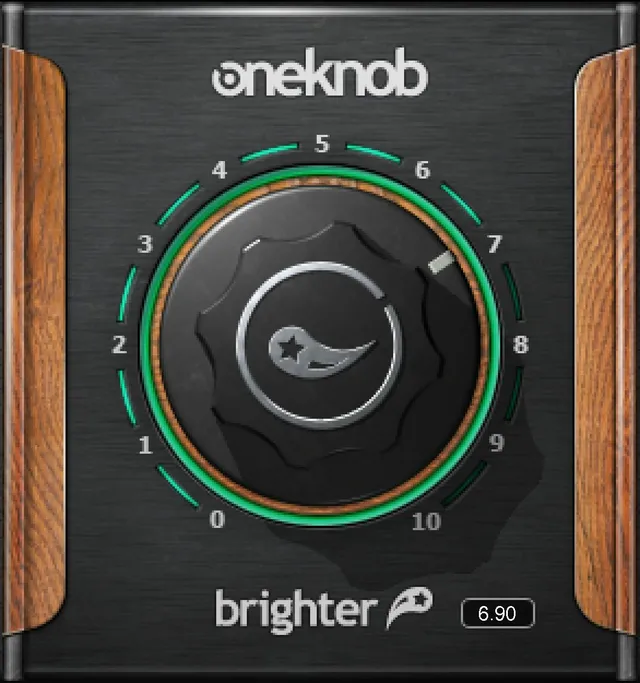
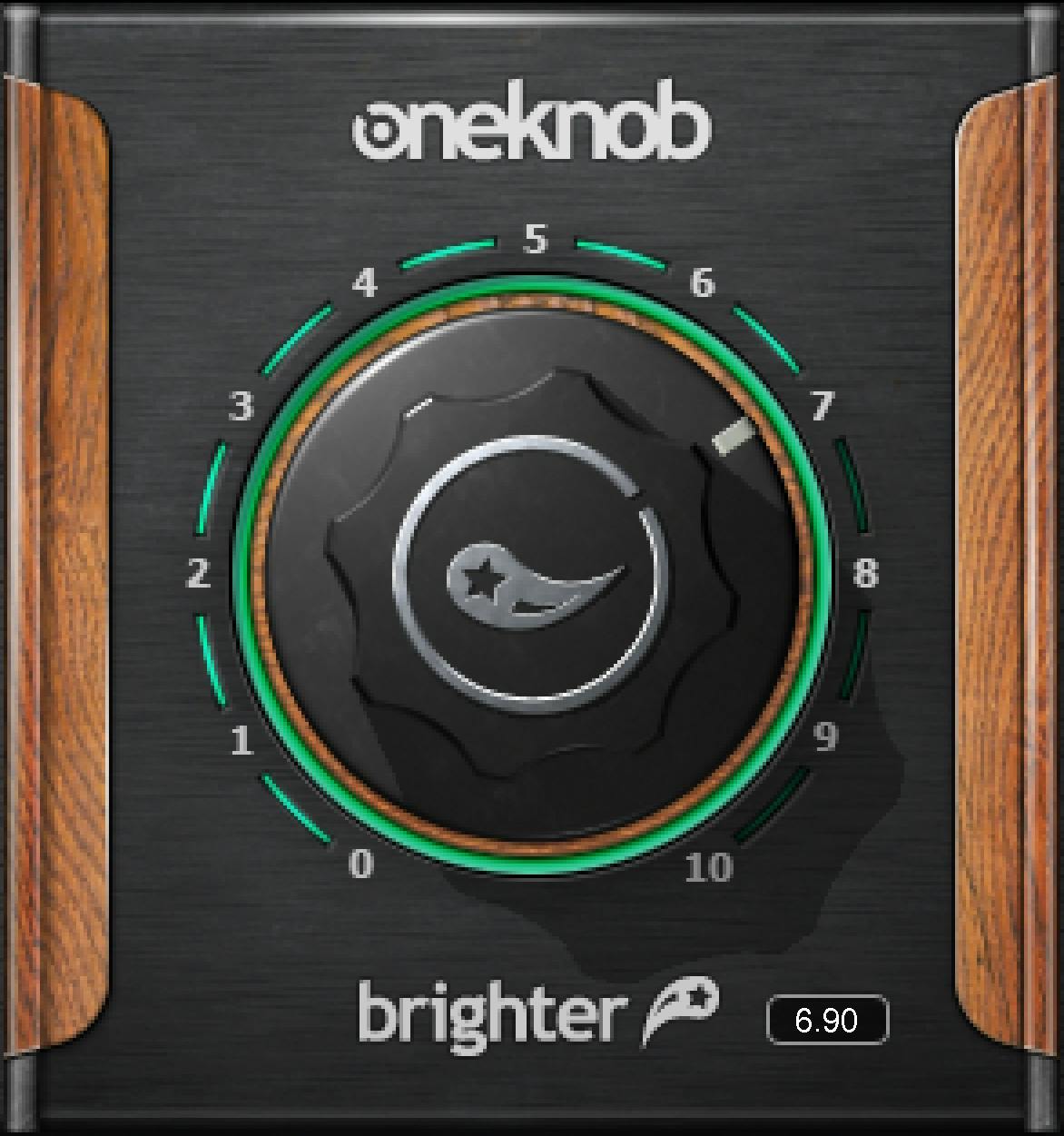
The large processing knob is the product's central control. The linked guide calls Brighter a treble booster and locates its action broadly from the mid-high range upward.
Waves says that higher values move the boost toward a higher frequency region. Its suggested distinction is more air without too much presence for some instruments. This describes an intended tonal relationship, not a calibrated setting chart.
Do not translate a particular knob number into kilohertz or decibels. The guide does not document that conversion, a fixed shelf frequency, a filter slope, or an exhaustive internal EQ design.
The official artwork includes scale markings and, in the full-size Library original used here, a numeric readout. Those show an illustrated interface state. They do not establish operational endpoints, a universal initial value, or whether a particular host supports typing into that readout.
There is no separate processing Frequency, Gain, Q or wet/dry control documented for Brighter in this source. That is the deliberate simplicity of this control map, not a reason to invent extra parameters from another plug-in.
Where it belongs in a session
The family guide says OneKnob products are intended for DAW track inserts, not auxiliary send/return setups. Follow that product-specific guidance rather than borrowing the usual send workflow of a separate reverb or delay.
Brighter is listed with Mono and Stereo components. The current product page also identifies those configurations. Neither source establishes a separate Mid/Side component or independent left/right processing controls.
Choose the component that fits your actual track and host routing. The presence of a stereo component does not establish an undocumented stereo-link mode or channel-specific behavior.
The guide is shared with other OneKnob products. Their additional controls do not become Brighter controls: Filter's Resonance button and Pressure's input button are documented for those different owners.
Defaults, scale markings and missing numbers
The family manual says most OneKnob products start at zero and names Filter as an exception. It does not explicitly identify the starting state of every other product. That general wording is not enough to promise a universal Brighter default.
Likewise, a pictured knob position is not a reset specification. The linked guide does not provide a Brighter-specific numeric range, startup value or reset gesture.
This leaves a useful boundary: explain the documented direction of change without pretending the guide is a complete engineering specification. If you need repeatable frequency, gain and bandwidth values, use a tool whose controls expose those decisions directly.
For that different workflow, the F6 control guide explains a more detailed EQ interface. It is not presented here as a tested replacement or a sonic ranking against Brighter.
Presets, comparison and the WaveSystem toolbar
The guide documents the WaveSystem toolbar for saving and loading presets, comparing settings, undoing and redoing changes, and resizing the plug-in. Its upper-right icon opens the WaveSystem Guide.
The manual's interface figure shows a setup area with Load, Save and help access. The family's written toolbar description supplies the utility functions; this article does not infer extra mouse gestures or a factory preset list from that picture.
Comparison is useful when your question is whether the tonal change helps the part. Keep the source and listening context consistent, and account for any level difference rather than assuming the more obvious presentation is better.
That is a suggested decision process. No preset comparison, host operation or listening experiment was performed for this article.
Watch the level after adding brightness
The family guide describes Native floating-point processing and says the plug-ins do not clip internally. That is a manufacturer statement about the described processing path, not an independently verified result or a guarantee for every downstream device.
The same guide warns that a OneKnob output can exceed full scale and clip at a digital-to-analog converter. It discusses reducing the level with a DAW fader or another suitable level control.
Do not turn the internal-floating-point statement into “clipping is impossible.” No Brighter true-peak ceiling, loudness target or independent output limiter is documented here.
Brighter is a tonal processor, not a calibrated loudness meter. For that separate task, see the WLM Plus guide. This is a distinction between jobs, not evidence that either product was measured for this page.
A restrained way to decide
First identify the problem in plain language: insufficient top-end emphasis, an overly sharp recording, or a narrow frequency issue. Brighter's documented role addresses the first of those; the others may call for a different decision.
Then evaluate a change in context. Listen for whether the part is easier to place without distracting from the rest of the mix. The guide does not prescribe a universal knob value for vocals, drums or instruments, so no numeric starting recipe is supplied here.
If you need separate control over a troublesome band, consider a parametric EQ rather than treating one knob as a hidden multi-parameter editor. If the tonal balance already works, using no additional processing remains an option.
The Waves audio-post resources hub organizes other guides by task. Purchase-model questions belong in the separate subscription versus perpetual guide; this article makes no current price or entitlement claim.
Sources and explicit limits
Checked October 19, 2026. The official OneKnob Brighter product page links the complete eight-page OneKnob Series User Manual. Page 4 covers family operation, components and utilities; page 5 supplies Brighter's description and interface figure.
This is the shared series guide, not the separate OneKnob Pumper manual. Historical publication metadata does not prove current installed-version behavior, compatibility or a named factory default.
Authentic interface imagery comes from the Waves Graphic Library, under attribution and relevant-product-backlink terms. Static artwork is not a running instance, response measurement or proof of initialized settings. No host, plug-in, render or listening test was performed here.
FAQ
What does Waves OneKnob Brighter do?
Waves describes Brighter as a treble booster that adds brightness from the mid-high range upward. Its single processing knob changes the tonal emphasis, and the manual says higher values move the boost toward a higher frequency region. This is documented product intent, not a measured response from this article.
Does turning Brighter up only increase gain at one fixed frequency?
The guide does not describe it that way. It says higher knob values move the treble boost toward a higher frequency region. No per-position frequency map, boost amount or measured curve is supplied, so a knob number should not be translated into an invented frequency or decibel value.
Can I adjust Frequency, Gain and Q separately?
Separate processing Frequency, Gain and Q controls are not documented for Brighter in the linked guide. Its processing interface centers on one knob. If your task requires independent values for those parameters, a more detailed EQ interface is a different workflow to consider rather than an undocumented Brighter mode.
What is OneKnob Brighter's default setting?
The shared guide says most OneKnob products default to zero and names Filter as an exception, but it does not explicitly establish Brighter's universal startup value. Static artwork and its displayed number are not default-state evidence. The source also does not provide a Brighter-specific numeric reset value or gesture.
Does Brighter have Mono and Stereo components?
Yes. The guide's component list names Mono and Stereo configurations for Brighter, and the captured product page also identifies them. These sources do not establish a separate Mid/Side component, independent left/right processing controls or an undocumented stereo-link mode.
Should I put Brighter on an auxiliary send?
The OneKnob Series guide says these products are designed for DAW track inserts rather than auxiliary send/return setups. That is the documented placement guidance for Brighter. This article does not replace it with a parallel-send recipe or claim that a host-routing experiment was performed.
Does OneKnob Brighter make output clipping impossible?
No. The guide's floating-point discussion concerns the manufacturer's described internal processing. It also warns that an output can exceed full scale and clip downstream, including at a digital-to-analog converter. No true-peak ceiling, calibrated loudness target or separate Brighter output limiter is established here.
Was Brighter's sound tested for this guide?
No. This article is based on the complete official linked manual, the current product-page capture and authentic Waves interface artwork. The practical suggestions are editorial guidance, not listening findings, host-compatibility tests, measured EQ curves or proof that a particular setting improves a recording.

About the Author
Joseph Nilo has been working professionally in all aspects of audio and video production for over twenty years. His day-to-day work finds him working as a video editor, 2D and 3D motion graphics designer, voiceover artist and audio engineer, and colorist for corporate projects and feature films.