
Waves OneKnob Filter is a sweepable creative filter effect controlled by one large knob and a Resonance button. The knob moves from an open, neutral sound toward a low-range “club-style” rumble; the manual identifies 10 as the neutral default. Resonance adds emphasis at the filter cutoff, with the manual describing its span from none to extreme whistling.
The simple interface makes broad movement quick, but it does not show the technical filter details that would let you predict a precise cutoff or slope. Treat the knob as a musical sweep control: move it while listening, stop where the change serves the part, and check the result in context. The manual describes sliding out of the filter as an alternative to bypassing, which might cause clicks or pops; it does not promise a click-free transition.
This is a guide to the supplied Waves documentation and captured product interface. I have not auditioned or measured the plugin, and the currently installed build has not been checked.
My Short Version
Use OneKnob Filter when you want a hands-on sweep for a full mix, loop, synth or other source. 10 is the documented neutral, open setting; turning the control down moves toward the low-range rumble described in the manual. There is no supported mapping here from a knob number to a frequency in hertz.
The Resonance button is documented as moving from no resonance toward extreme whistling at the cutoff. The supplied manual and interface image do not establish a numbered option count or a factory default for this control, so check the state shown in your installed version. If resonance makes the input feel too hot, Waves suggests ensuring the source level entering the plugin is not too high to preserve headroom.
Put it on a track insert, as the OneKnob guide says the series is designed for inserts rather than auxiliary send/return setups. Sweep the control in the musical passage, compare the filtered result with the neutral position, and use your DAW’s meters to watch the signal path. The plugin image shows no dedicated level meter, and the manual does not claim that the processor prevents clipping later in the chain.
What OneKnob Filter does
The official OneKnob Filter page describes it as a sweepable filter for full mixes, loops, analog synths and more. The OneKnob Series User Guide describes the Filter as a creative effect whose single knob ranges from a neutral open sound down to a low-range rumble. It also says the tool can be useful in live situations.
This is a broad tonal effect rather than a documented surgical equalizer. The sources do not identify its exact filter topology, cutoff range, slope, Q, or an analog circuit model. That means you can explain the direction and intended character of the sweep, but should not infer precise frequency response from the control markings.
Main knob: the filter sweep
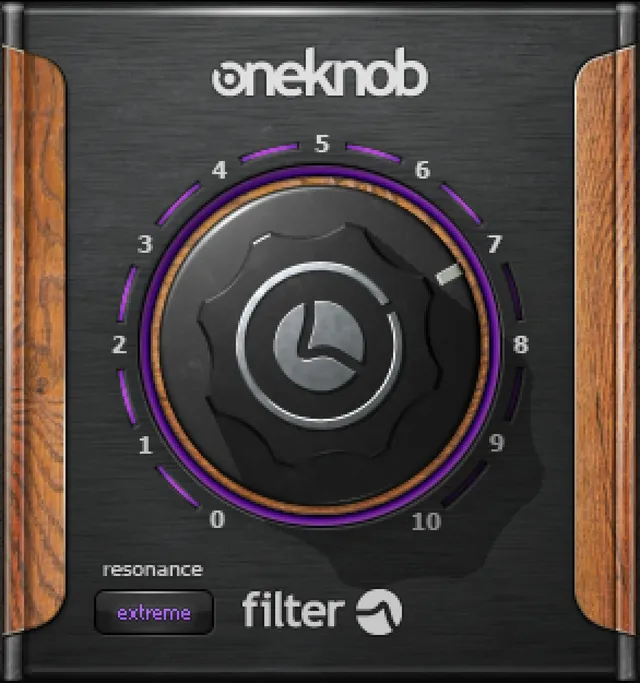
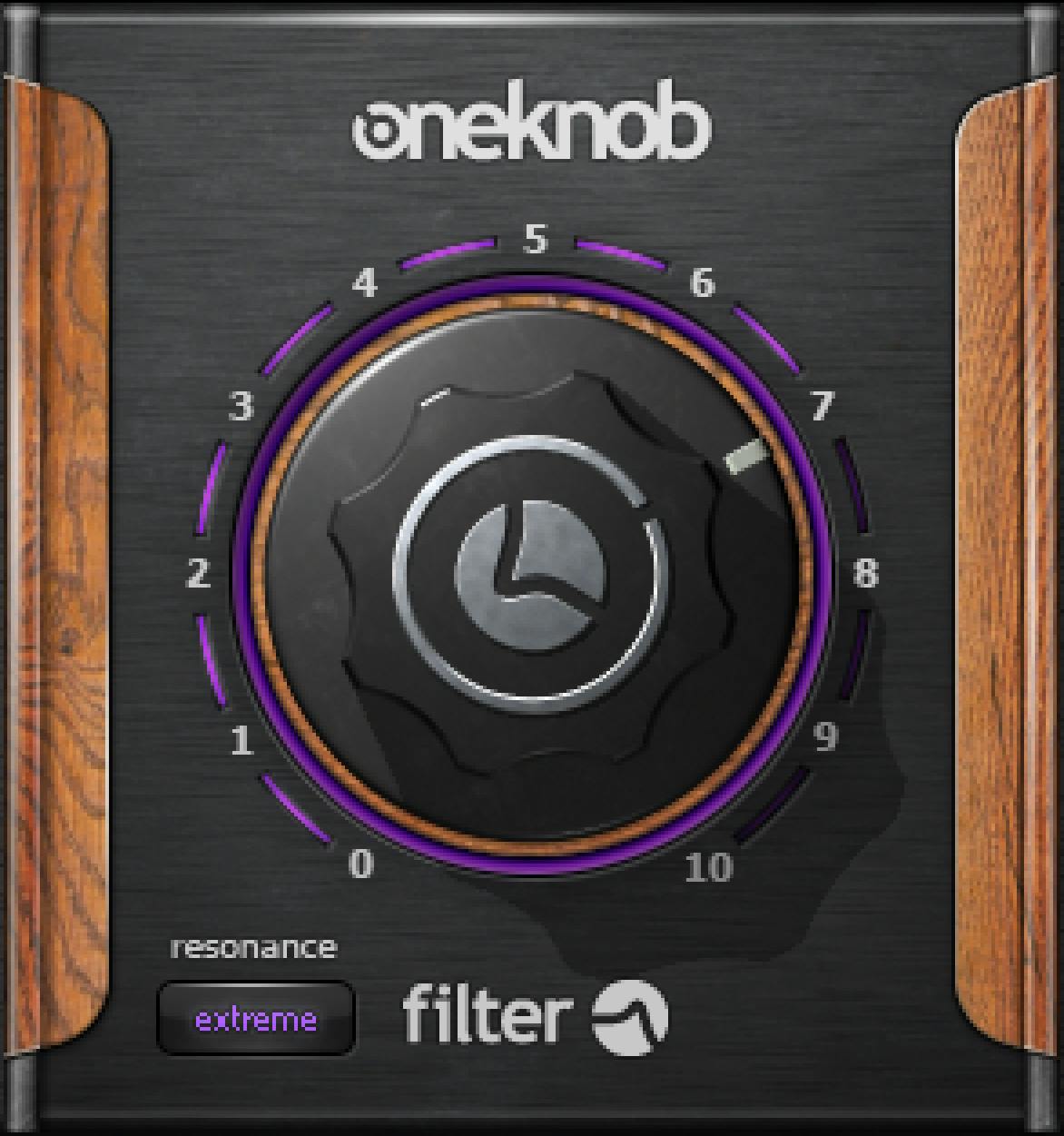
The large control is labeled 0–10 in the captured interface. The manual states that OneKnob Filter is the exception to the series’ usual zero-neutral convention: its maximum value of 10 is the default and neutral sound. From that open position, moving the knob down sweeps toward the low-range rumble described by Waves.
The scale communicates control position, not a calibrated frequency. Neither the manual nor the captured interface supplies a mapping from each number to hertz, nor a documented slope or Q. Don’t describe positions as particular cutoff frequencies or assume that evenly spaced numbers correspond to even frequency changes.
The manual calls this knob’s movement a “filter sweep” and suggests using it to slide out of the filter instead of bypassing the plugin. That can be a useful performance approach, especially when shaping a transition, but the guide does not guarantee that automation will be free of clicks or other artifacts. Listen to the actual transition in the host and rendered passage.
Resonance button
The manual describes the Resonance button as setting how much resonance is applied at the filter cutoff, from none to extreme “whistling.” The supplied interface capture shows the button displaying “extreme.” It is one observed label/state; available intermediate steps, exact selection count, and default state are not specified by these sources.
Resonance emphasizes the cutoff region and can make that point more prominent. Waves cautions that the boost created by resonance might benefit from increased headroom and suggests ensuring the incoming source is not too hot. Use the DAW input and output meters to check levels around the insert; do not treat the plugin’s apparent simplicity as a level-safety guarantee.
Signal flow, components and meters
The shared OneKnob manual says these plugins are designed for track inserts, not auxiliary send/return setups. It lists OneKnob Filter in both mono and stereo components. Choose the component that matches the track and routing available in your host; the manual does not say that the controls behave differently between those components.
The supplied Filter interface capture has no dedicated meter. Use your host’s meters to monitor the level before and after the insert. The OneKnob manual says Native floating-point processing does not clip internally, but also warns that a plugin may output a hot signal above full scale and that the following device or digital-to-analog converter can clip. Its caution applies to the series; it is not a promise that OneKnob Filter prevents overload. Reduce level in the DAW signal path where needed and check the complete route.
WaveSystem toolbar
The shared manual documents the WaveSystem toolbar at the top of the plugin window for saving and loading presets, comparing settings, undoing and redoing steps, and resizing the plugin. It says the icon in the upper-right corner opens the WaveSystem Guide. These are interface utilities rather than extra filtering parameters. The toolbar and icon do not appear in the supplied cropped product-interface image.
A cautious workflow
- Insert the plugin on the track you want to shape; the manual does not recommend an auxiliary send/return setup for OneKnob plugins.
- Begin at 10, the documented neutral default, then move the knob down to hear the sweep toward the low range.
- Try the Resonance control only as needed. The manual spans none to extreme, and the captured image shows the “extreme” label; verify the available state in the installed version.
- Compare the filtered passage with the neutral position in musical context. For an automated sweep, listen through the transition and inspect the render rather than assuming bypass-like or click-free behavior.
- Check input and output levels on the DAW meters, especially with resonance. Trim elsewhere in the signal path if needed.
This workflow translates the vendor’s descriptions into a cautious editing sequence; it is not a listening test or a guarantee that a setting will suit a particular source.
When to skip it
Choose another tool when the task requires a specified cutoff in hertz, a known slope or Q, a verified filter topology, or repeatable technical settings that this interface and manual do not document. It may also be the wrong fit when you need frequency-selective cleanup rather than a broad, performable sweep, or when a hot resonant peak would be difficult to manage in the track’s gain structure.
Related Waves references
For a contrasting one-control tonal adjustment, see Waves OneKnob Brighter, described in the shared manual as a treble booster. For low-frequency emphasis, see Waves OneKnob Phatter, which that manual describes as a bass booster. These official product references are related tools, not independently tested alternatives.
For broader Waves workflow and product navigation, use the Waves Audio Post Resources hub, a starting point for the site's audio-post guides. For ownership decisions separate from filter operation, see Waves Subscription vs Perpetual, the site's published guide to perpetual licenses and the Waves Update Plan.
Sources
Primary sources checked October 18, 2026.
- Waves OneKnob Series User Guide, printed pp. 3–4 and 6. Shared series conventions, components and toolbar: pp. 3–4; OneKnob Filter description and Resonance: p. 6.
- Waves OneKnob Filter product page, official product identity and product-page snapshot.
- Waves OneKnob Brighter and Waves OneKnob Phatter, official related-product references only.
FAQ
What does Waves OneKnob Filter do?
It provides a sweepable creative filter. The manual describes a range from a neutral, open sound toward low-range “club-style” rumble, for sources such as full mixes, loops and analog synths.
What is the neutral setting on OneKnob Filter?
The manual identifies the maximum value, 10, as OneKnob Filter’s default neutral sound. This is an exception to the OneKnob Series’ general zero-neutral convention.
What frequency does each knob number represent?
The supplied manual and interface capture do not give a frequency-in-hertz mapping. The 0–10 scale shows knob position; it should not be presented as calibrated cutoff values.
What does the Resonance button do?
It sets resonance at the filter cutoff. The manual describes the range from none to extreme whistling; the captured interface shows “extreme.” The sources do not specify a precise option count or default state.
Does OneKnob Filter include a dedicated level meter?
No dedicated meter is shown in the supplied product-interface capture or documented for this effect in the shared manual. Monitor the insert’s signal with your DAW meters.
Should I use OneKnob Filter on an auxiliary send?
The shared OneKnob Series guide says the plugins are designed for track inserts and are not meant for auxiliary send/return setups.
Is it safe to add strong resonance to a loud source?
The manual cautions that resonance may create a boost that benefits from more headroom and suggests keeping the incoming source from being too hot. Check levels through the host signal path; no clipping-prevention guarantee is documented.
Can I sweep the knob instead of bypassing the plugin?
Waves describes sliding out of the filter as an option because bypass might cause undesired clicks or pops. The manual does not promise click-free automation, so audition the transition in your host and check the render.

About the Author
Joseph Nilo has been working professionally in all aspects of audio and video production for over twenty years. His day-to-day work finds him working as a video editor, 2D and 3D motion graphics designer, voiceover artist and audio engineer, and colorist for corporate projects and feature films.