
Waves Playlist Rider automatically adjusts gain across multiple program sources toward a perceived-loudness Target. Its manual describes a workflow for bringing mixed sources—such as a host, guest, music, and clips—into a shared program feed without manually riding every source fader throughout a show.
The plugin uses input Sense and peak metering, short- and long-term loudness detectors, a Target in LKFS, an automatic Gain Ball display, Attack behavior, and output meters. The guide documents a multi-source live/broadcast use example, but it does not turn Playlist Rider into a track-export normalizer, an adjustable compressor, a standards-compliance checker, or a substitute for checking the signal path and final program yourself.
My Short Version
Route the program sources you want to balance to a common group and insert Playlist Rider on that group. Choose a Target preset that fits the desired program level: the manual calls −18 LKFS average, −14 LKFS loud, and −24 LKFS softer. It does not identify a factory default. Play the sources and adjust their input gain on the feeding channels until the Sense light is mostly green; Playlist Rider does not provide a separate input-trim control in the documented interface.
If the processor rides quiet fade-ins or fade-outs that you want to leave alone, raise Detector Threshold so the detector ignores input below that threshold. This is a detector instruction, not a claim that audio below threshold is muted or gated. Set Attack to Fast for quicker reactions or Slow for smoother transitions, then decide whether Tonal Character should be on. Those are listening choices for the program; this article did not audition the plugin or test settings.
Use the real-time meters and peak LEDs to monitor input and output. The Output Short Term display is in LKFS. The manual says its result is close to—but not identical to—the Waves Loudness Meter short-term measurement with Method = LM1 and Short Time = 400 ms, and says ±1 dB deviation is acceptable for that comparison. That qualification applies only to the stated WLM comparison; it is not a universal measurement-accuracy guarantee or proof that a delivery meets a broadcast or streaming standard.
What Playlist Rider is designed to do
The Waves Playlist Rider product page describes it as an automatic volume rider for multiple audio sources. The linked User Guide explains the use case as live sound, broadcast, and other program situations where levels from different sources are unpredictable. It describes continuous gain adjustment toward a specified perceived-loudness target and presents the result as a way to reduce manual fader riding.
The manual's example routes multiple program input channels to one stereo group, inserts Playlist Rider there, selects a Target, optionally enables Tonal Character, sets each source's input gain so Sense is mostly green, and then adjusts Detector Threshold if needed to avoid riding fades. The guide lists both mono and stereo components. It does not document different ranges or processing behavior for those components, so select the one that matches the host routing rather than assuming a different control set.
The product page lists Playlist Rider in Waves versions V17 through V11. The linked guide is a 2020 document modified in 2022 and does not map its behavior to a particular current version. This explanation therefore describes the published guide and current product listing, not an installed build.
Components and shared toolbar
Playlist Rider has Mono and Stereo components. The sources do not specify component-specific control ranges or behavior. The manual's example uses multiple channels routed to a single stereo group; it is an example, not a requirement that every session use the same routing.
The panel's top bar is a shared WaveSystem toolbar, not an additional Playlist Rider processing parameter. The manual documents the following toolbar functions.
WaveSystem Toolbar
The manual summarizes the toolbar functions as preset save/load, settings comparison, undo/redo, plugin-window resizing, and opening the WaveSystem Guide. It does not enumerate menu contents or shortcuts; these are shared window utilities, not Playlist Rider processing parameters.
Controls and readouts
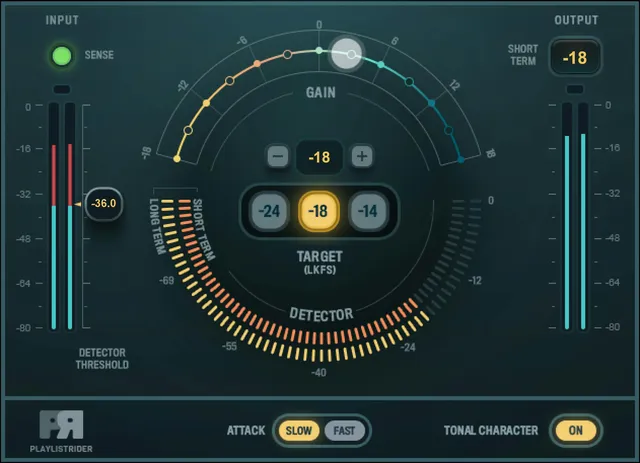
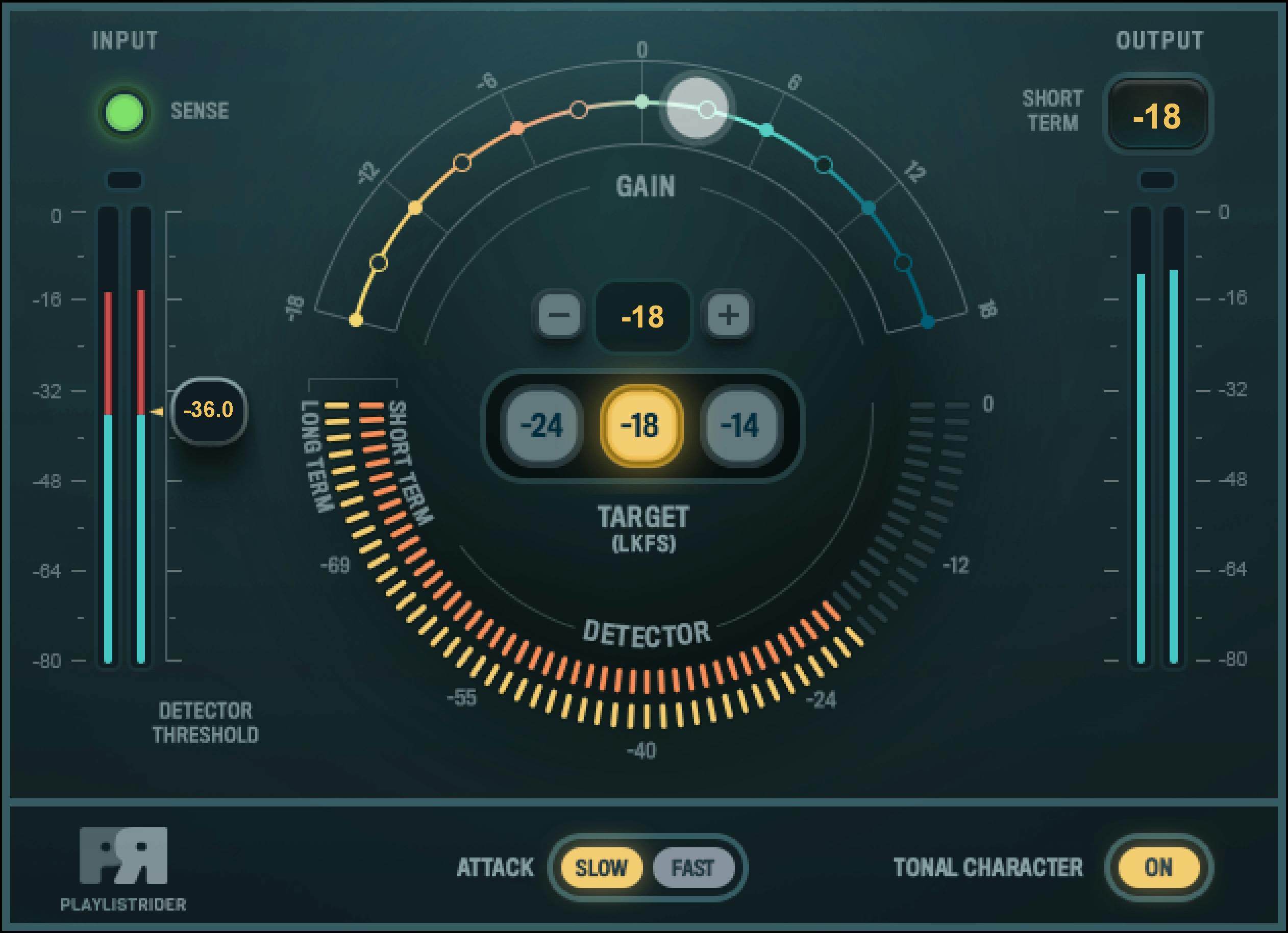
The panel combines source-level suitability and peak readouts, a detector threshold, two loudness detectors, a target selector and automatic gain display, response and tonal options, and output-level readouts. The controls below explain each function and distinguish editable settings from indicators and meters.
Input Sense and level meters
Sense light
Sense helps set input level. The manual says to adjust the input gain of the source channels feeding the plugin: no light means the level is too low; green is optimal for the guide's stated results; yellow means it is too high and should be lowered; red means it is too high for the plugin to manage. The guide gives color categories, not numeric thresholds or a plugin input-gain range. The adjustment it describes is on the incoming source channels, not a separate Playlist Rider trim.
Realtime Input Meter
The Realtime Input Meter shows the input signal's real-time peak level. The guide provides no full formal range, calibration specification, or default. Treat it as a live peak readout, separate from the perceived-loudness detector meters described below.
Input Peak LED
The Input Peak LED turns red when real-time input is too high to be processed. The manual says to click the LED to reset it. It does not give a numeric trip level or describe the action as changing input gain; adjust the source channel if its input level needs correction.
Detector Threshold and loudness detectors
Detector Threshold
Detector Threshold helps avoid processing fade-ins and fade-outs. The manual says input below the threshold is ignored by the plugin detector. It also says above-threshold audio changes the input meter color to indicate which part of the signal the detector will use, and that a soft-knee curve starts riding gradually as the signal approaches the threshold.
The guide does not specify a numeric range, unit, increment, or default. Its interface diagram shows a value, but that pictured value is not a stated default or range endpoint. The control is not documented as a gate, mute, or output cutoff: the source only says what the detector ignores and how the gain-riding process responds. Do not assume below-threshold audio is removed from the signal.
Short-Term Detector Meter
Playlist Rider's Short-Term Detector Meter is one of two variable measurements used to assess perceived source loudness. The manual says the short- and long-term detectors use different time constants to measure average level; it does not give the short-term window, time constant, complete range, calibration, or default.
Long-Term Detector Meter
The Long-Term Detector Meter is the other variable loudness measurement. The manual says a dynamic calculation among multiple sources in the plugin's internal chain provides perceived input loudness for gain adjustment. Its time constant, complete range, calibration, and default are unspecified.
Neither internal detector is the Output Short Term comparison with Waves Loudness Meter below: the manual's 400 ms WLM setting is specified for that output-display comparison only. Do not assign it to either internal detector.
Target and automatic Gain Ball
Target (LKFS)
The Target radio buttons select a desired perceived-loudness level in LKFS. The manual's example identifies three presets: −18 LKFS as average, −14 LKFS as loud, and −24 LKFS as softer. A variable Target window above the radio buttons allows manual adjustment, with plus and minus controls shown in the interface diagram.
The manual does not specify the factory-selected preset, the variable field's complete range, step size, or default. The presets are operating choices, not promises of compliance with any delivery specification. Choose a target for the program and verify the resulting output against the requirements that actually apply to it.
Gain Ball
The Gain Ball displays the gain adjustment made by the plugin, based on perceived input loudness and the Target. It communicates the processor's automatic gain movement; the manual does not describe it as a user-draggable output fader or a manual gain control. Although the illustration shows a curved scale, it does not establish a formal Gain Ball range, unit, or default. The display is not a separate control for setting the Target.
Attack and Tonal Character
Attack
Attack sets how quickly the process reacts to input changes. The manual's options are Fast, for quicker reactions, and Slow, for smoother transitions. It does not give millisecond timings or specify a factory default. Use the named behavior to choose the response that suits the program; do not translate the switch labels into undocumented time values.
Tonal Character
When Tonal Character is on, the manual says the source is gently and slowly matched to a pink tonal curve to help smooth tonal differences between sources. The interface presents it as an on/off choice. The guide does not specify the curve, time constants, amount, numeric range, or default. This is not a user-editable equalizer, and the vendor's description is not a measured or auditioned result from this article.
Output metering and limiter statement
Realtime Output Meter
The Realtime Output Meter shows the real-time peak level of the output. The manual does not specify its full formal range, calibration, or default. It is a peak-level readout, separate from the LKFS Output Short Term display.
Output Peak LED
The Output Peak LED turns red when real-time output exceeds what the guide calls an acceptable level; click the LED to reset it. The manual does not specify the LED's numeric trip level or a true-peak ceiling. A reset clears the indicator as described; it is not a processing or output-level control.
Output Short Term Display
Output Short Term displays the result of Playlist Rider processing in LKFS. The guide says its value is close to, but not identical to, Waves Loudness Meter's Short Term Measurement when WLM is set to Method = LM1 and Short Time = 400 ms. It calls a deviation of ±1 dB acceptable in that comparison.
Keep that statement narrow: it is a vendor-described comparison with those named WLM settings. It does not establish that Playlist Rider's display is identical to WLM, that its own detectors use 400 ms, or that every program or delivery meets a loudness standard. A separate Waves WLM Plus Loudness Meter guide covers that metering product; consult the applicable delivery specification and measure the finished program independently when compliance matters.
Internal limiter statement
The manual says Playlist Rider's internal limiter is not look-ahead and provides zero-latency operation. This is the vendor's statement in the guide, not a latency measurement performed here. The manual does not expose a limiter threshold, ceiling, release, bypass control, or protection guarantee for downstream routing or export. Keep appropriate headroom and inspect the signal path rather than treating the statement as proof that a session cannot clip.
A cautious multi-source workflow
- Decide which program sources should be balanced together and route them to a common group. The manual's example uses one stereo group; follow the host's routing and component requirements.
- Insert the matching Mono or Stereo Playlist Rider component on that group.
- Choose a Target preset as a starting point: the manual describes −18 LKFS as average, −14 as loud, and −24 as softer. It does not identify a default, and those presets are not compliance guarantees.
- Decide whether to enable Tonal Character. The manual describes its intended pink-curve matching, but this guide does not claim an audible result.
- Play or monitor the sources one by one and adjust their input gain on the source channels until Sense is mostly green, following the manual's example. Sense's numeric thresholds are unspecified.
- If you do not want the gain rider responding to fade-ins or fade-outs, adjust Detector Threshold so the detector ignores the quieter signal below threshold. Do not treat this as an output gate or mute.
- Choose Fast or Slow Attack according to the desired documented response behavior. No millisecond values or default are stated.
- Monitor the real-time input/output peaks and their peak LEDs. Reset the LEDs only as the manual describes; no separate meter reset or peak-hold behavior is documented.
- Review Output Short Term in LKFS. If comparing it with WLM, keep the manual's LM1/400 ms and ±1 dB qualification intact, and separately check any delivery target or standard that applies.
- Listen to the complete program in its intended context and verify downstream headroom. These are prudent production checks, not evidence that this manuscript auditioned or measured the plugin.
Best for, and when to choose something else
Playlist Rider is a candidate when several program sources need automatic gain riding toward a shared perceived-loudness target—for example, a live or recorded sequence of hosts, guests, music, and clips. The product page and manual describe that purpose; this article does not report an audio test or promise that its settings will sound natural in every context.
If you need one vocal to move within a mix, see the existing Waves Vocal Rider guide for a vocal-focused rider. If your task is measuring loudness rather than automatically adjusting gain, see the existing Waves WLM Plus Loudness Meter guide. If you need a conventional compressor with documented compressor controls, the existing Waves Renaissance Compressor guide covers that different processor type. These links are related references, not claims that the products are interchangeable.
Sources and documentation limits
Primary sources checked October 18, 2026.
- Waves Playlist Rider product page, for current product identity, Mono/Stereo components, the listed V17–V11 versions, and its linked User Guide.
- Playlist Rider User Guide, all seven pages. PDF metadata names Waves Audio Ltd.; created April 2, 2020 and modified June 19, 2022. Pages 3–7 cover the use example, interface legend, control descriptions, Output Short Term comparison, and toolbar summary.
- Waves Graphic Library and its original Playlist Rider interface image, used only with credit and a link back to the relevant product page under the Library terms.

The product page lists V17 through V11, but the linked 2020/2022 guide does not identify a current plugin build. The guide does not specify numeric Sense or peak-LED thresholds, the Detector Threshold range or default, detector time constants, Target field range/step/default, Gain Ball limits, Attack times/default, or the Tonal Character curve's detailed behavior. It does not document a gate/mute action below threshold, an adjustable limiter, or standards compliance. The zero-latency limiter description is attributed to Waves, not measured. The WLM comparison is limited to LM1, 400 ms and the stated ±1 dB tolerance; it is not generalized to the internal detectors or to other standards. No conflicting control description was found in the official sources. No audio, current installation, runtime meter behavior, or host latency was tested.
FAQ
What does Waves Playlist Rider do?
The manual describes it as automatically adjusting gain across multiple program sources toward a perceived-loudness Target. Its example routes sources to a common group; it is not documented as a track-export normalizer or a delivery-compliance checker.
What does Detector Threshold do, and does it mute audio below the threshold?
It tells the plugin detector to ignore input below the threshold and uses a soft knee for gradual riding near the threshold. The manual does not describe it as a gate or mute, so do not assume below-threshold audio is removed.
Which Target level should I choose?
The manual calls −18 LKFS average, −14 LKFS loud, and −24 LKFS softer. It does not state a factory default or promise that any preset meets a broadcast or streaming standard; choose for the program and verify the applicable delivery requirement separately.
How do I set the Playlist Rider input level?
Adjust the input gain on the source channels feeding the plugin until Sense is mostly green, as the manual's example recommends. No numeric Sense thresholds or separate plugin input-trim control are documented.
What do Attack and Tonal Character change?
Attack offers Fast for quicker reactions and Slow for smoother transitions; no timings or default are specified. When Tonal Character is on, the manual says it slowly matches sources toward a pink tonal curve, but does not document curve details or a numeric amount.
Can I drag the Gain Ball to set output gain?
The manual describes the Gain Ball as displaying the plugin's automatic gain adjustment based on perceived input loudness and Target. It does not document the ball as a draggable gain control or give its formal range, so treat it as a readout.
What does the Output Short Term display's WLM comparison mean?
It displays processed output in LKFS. The manual says its value is close to but not identical to WLM Short Term Measurement with Method LM1 and Short Time 400 ms, and that ±1 dB deviation is acceptable in that comparison. This is not a universal accuracy or standards-compliance guarantee.
Does Playlist Rider's limiter guarantee zero latency or prevent clipping?
The manual says the internal limiter is not look-ahead and provides zero-latency operation, but no measurement was made for this guide. It documents no limiter threshold or downstream protection guarantee; verify latency and headroom in the actual host and signal path.

About the Author
Joseph Nilo has been working professionally in all aspects of audio and video production for over twenty years. His day-to-day work finds him working as a video editor, 2D and 3D motion graphics designer, voiceover artist and audio engineer, and colorist for corporate projects and feature films.