
Waves Q-Clone stores a sampled EQ/filter response and applies it as a plugin. Q-Capture supplies the sampling loop; Q-Clone processes audio using the resulting filter.
The important distinction is between capturing a response and using one that is already stored. Factory or saved presets can be used without owning the hardware that produced them.
This guide follows the complete official manual and current product description. I have not run the sampling system, auditioned its filters or tested current host compatibility.
My Short Version
It captures the linear response, not the whole analog device. Distortion, noise and other nonlinear properties are excluded.
Capture updates; Hold preserves; Add accumulates. Switching directly between Capture and Add is not documented: pass through Hold.
Q-Capture is mono-only. A Stereo Q-Clone applies the same sampled mono EQ to both channels.
Gain, Trim and graph Scale have different jobs. Scale changes the display, Gain changes level, and clicking Trim applies its measured margin to Gain.
Best for and when to choose another tool
Best for: retaining and reusing a linear EQ curve, combining sampled curves, or using the supplied filter presets on multiple tracks.
The current product also advertises plugin cloning through virtual cables without an audio interface. That is a product claim; the retained guide supplies hardware and older-host setup instructions rather than a named modern virtual-cable tutorial.
Choose another approach when: you need the noise, saturation, compression behavior or level-dependent response of a complete analog chain. Q-Clone explicitly does not clone those nonlinear properties.
Its response display is also not documented as an EQ with draggable frequency nodes or a real-time spectrum analyzer.
What is captured and what is not
The guide says Q-Clone captures the linear part of a connected system, including its filters and phase response.
It does not replicate distortion, noise or other nonlinear properties. The supported-device discussion covers working EQ devices with analog or digital I/O and channel strips with an EQ section, but not combinations of EQ with compression or other nonlinear processing.
Waves' accuracy and replication descriptions are vendor claims, not measurements from this article.
The sampled filter can be retained inside a session or a preset. The guide says presets include the complete filter and do not need external media files.
Q-Capture, Q-Clone and channel components
Q-Capture is mono-only, and only one instance can work at a time. It is placed on a live I/O path used for sampling.
Q-Clone is available in Mono or Stereo. The Stereo processor applies the same sampled mono response to both channels; it does not independently sample the two sides of a stereo hardware unit.
The hardware loop described in the guide is:
- Q-Capture sends its test signal through a dedicated interface output to the EQ input.
- The EQ output returns through a dedicated interface input to Q-Capture.
- A separate audio track uses Q-Clone to process program material with the sampled response.
This is a description of the documented architecture, not a loop performed for this guide. The sampling path needs a dedicated input and output in addition to the main monitoring path.
The product's virtual-cable claim does not supply a particular software package, installation procedure or current host routing recipe.
Q-Capture status and calibration controls
The bottom Transmitting section indicates that Q-Capture is sending the test signal. The upper Receiving section reports Receiving or Waiting and shows the returned input level.
Waiting means the expected loop or initialization is not established. It is not a new editable signal-generator mode.
Headroom adjusts the Q-Capture test signal's input and output together. The In and Out meters help with calibration and level matching.
The guide says the calibration fader opens with 14 dB of headroom. Its figure shows a −14.0 readout. Those are the source observations; they should not be converted into a claim that Q-Capture adds +14 dB output gain.
No complete Headroom range or numeric step size is given. The guide's calibration aim is matched In/Out levels and a flat response around the graph's 0 dB axis, adjusted with the hardware's general output level where necessary.
That is a source workflow, not a universal guarantee of safe headroom for every device.
Capture, Hold and Add
Capture adapts Q-Clone's filter to the connected EQ while Q-Capture is active. The guide describes repeated updates and says hiding the Q-Clone interface automatically places it in Hold.
Hold continues processing with the currently sampled filter without accepting further changes. It is not bypass.
A newly launched Q-Clone opens in Hold with a flat response, according to the manual.
Add receives a new response on top of the existing one. It is conceptually like accumulating serial EQ responses in one displayed filter rather than discarding the old response.
The manual requires Hold between Capture and Add, in either direction. It also says to start the new hardware EQ contribution from a flat setting when adding.
No response-update benchmark, capture accuracy test or CPU measurement was performed here.
Response graph, Scale and Gain
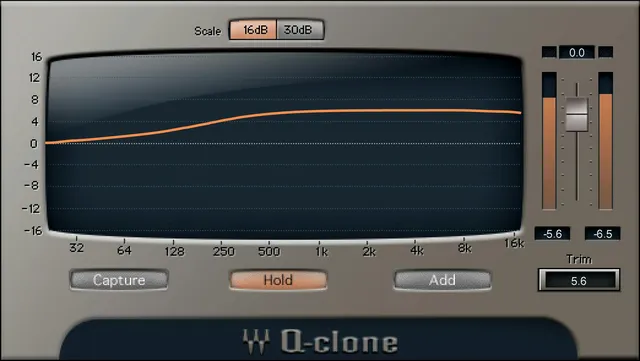
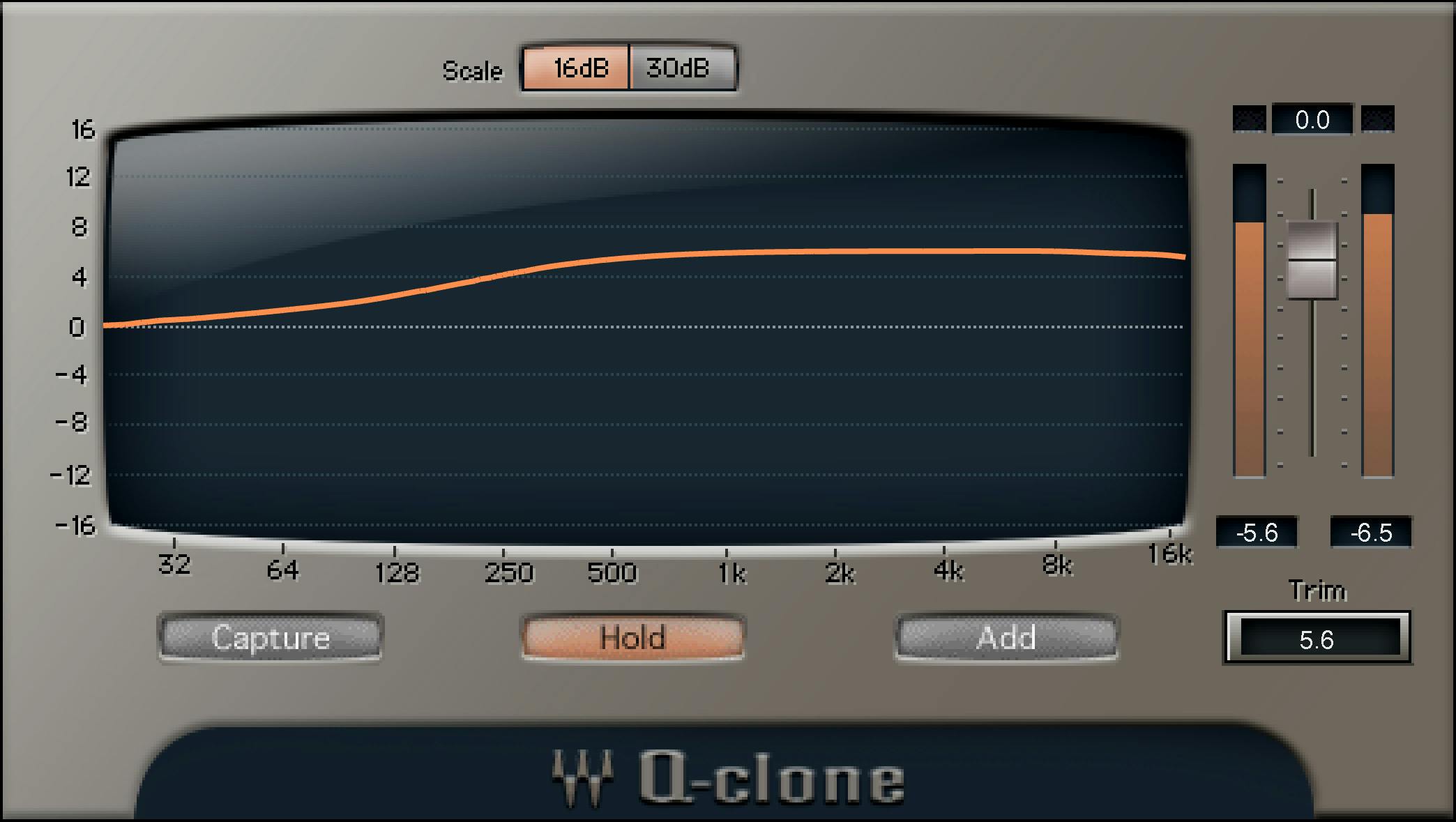
The graph uses a logarithmic frequency view from 25 Hz to 16 kHz. A first labeled artwork tick of 32 Hz does not redefine the documented axis minimum.
The Scale buttons select ±16 dB or ±30 dB vertically. They change how the response is displayed, not the sampled EQ's gain or the audio level.
Gain is a continuous level fader from −48 to +12 dB, with an explicit default of 0 dB.
Output metering appears to the right of the graph. The guide does not publish a full meter scale, ballistics or a Q-Clone-specific reset gesture.
The displayed curve is not documented as directly draggable control points. No extra filter nodes, bands, spectrum trace or editable graph gestures should be inferred.
Trim and clipping indications
Trim shows the margin between program peaks and full digital scale, in dB. Clicking it applies the displayed value to Gain.
Although trimming commonly reduces level, the guide permits an upward adjustment of up to +12 dB.
This is not an always-running limiter or an automatic loudness-normalization scan. The manual recommends considering a whole passage or its loudest portion rather than repeatedly making sudden gain changes.
The guide discusses clip lights, but that does not establish true-peak or downstream-converter protection. Its instruction to reset meters by clicking them appears specifically in the Q-Capture troubleshooting context, not as a contract for every Q-Clone readout.
Load, preset Add and session storage
Load replaces the existing sampled EQ. Add superimposes a preset on the current response.
The guide describes both choices in the preset workflow. They should remain distinct from the live Add mode, which receives a new response from the active sampling loop.
The guide explicitly distinguishes the replacement Load choice from the additive version, so Load does not simply mean “always adds.”
Preset files use the .xps extension, and the Q-Clone Full Reset preset is explicitly discussed. The complete EQ filter is included in the preset rather than stored as a separate impulse media file.
The WaveSystem toolbar supports save/load, settings comparison, undo/redo, resizing and opening its guide through the upper-right icon.
The genuine Library original shows the Q-Clone processor without that toolbar, not the separate Q-Capture interface.
What the guide says about host setup
The manual contains complete examples for Pro Tools, Cubase/Nuendo, Sonar, Logic and Digital Performer. Their menu labels and versions are historical source instructions, not verified current-host support or a fresh installation test.
The common idea is a live, correctly monitored sampling loop plus a separate Q-Clone processing path.
The Pro Tools example uses a dedicated AUX loop, Q-Capture as its only plugin, calibration and solo-safe for that AUX. The Cubase/Nuendo example uses a dedicated mono audio track, its first insert, monitoring enabled and different I/O for the Q-Clone audio track; it also discusses disabling Direct Monitoring.
The Sonar example specifies record and Input Echo. Logic's example uses Software Monitoring and recording activation. Digital Performer's uses Audio Patch Thru and Always input monitoring.
Some examples instruct bypassing other processors on the Q-Clone track while setting the EQ. These details belong to their documented host context, not a universal claim that Q-Clone cannot coexist with other processing.
No virtual routing tool was installed or configured for this article.
Known issues and troubleshooting boundaries
The guide's known-issue section advises against capturing while the curve has ripples. It also says to close plugin instances before changing session sample rate in Cubase/Nuendo, then reopen them.
It discusses clicks during transport changes in Logic and Sonar while in Capture, with Hold around the transport change as its stated workaround.
A flashing No Transmission can be associated with high-CPU dropouts. The same general message can also indicate missing routing, disabled/bypassed Q-Capture or a signal too low to sample. It is not a unique diagnosis.
The guide separately describes a returned-signal boost in Sonar and corrective gain before Q-Capture. These are documented observations, not reproduced failures here.
The full loop checklist and troubleshooting tables also cover incomplete I/O, insufficient initialization, clipping/headroom, excessive ripples, sync problems, low signal, an empty response and capture of silence. In the last case, silence in the sampled response can mute the processed audio.
The source's curve-color wording varies between red and orange across host examples; the genuine original is orange. No color-coded operational-state system is inferred.
A practical conceptual sequence
Start by deciding whether a factory/saved response already solves the task. If so, there is no need to sample hardware merely to use Q-Clone.
For a new capture, the documented order is to establish the separate loop, confirm status, calibrate, choose Capture, then preserve the desired response in Hold.
Use Add only when the aim is to accumulate another response, with the newly contributing EQ starting flat as the guide instructs. Separate display Scale from level Gain, and use Trim as its own level decision.
This is an explanation of the manual's workflow, not a report that any hardware or plugin was sampled.
Related Waves guides
The F6 guide explains directly editable EQ parameters. Q-Clone instead uses a sampled response whose documented controls are different.
The WLM Plus guide is relevant for separate level and loudness analysis; Q-Clone's Trim is not a loudness target.
Other live articles are in the Waves resources hub. Subscription versus perpetual licensing is separate from the capture architecture.
Sources and documentation limits
Checked October 19, 2026, America/New_York. The official Q-Clone page links the complete 32-page manual, read in full.
Pages 2–12 cover linear scope, the two plugins, controls and calibration. Pages 13–29 give host examples and known issues; pages 30–32 contain the full loop/troubleshooting checklists. Actual pages 3, 5–9, 12, 21 and 32 and the genuine Graphic Library original were inspected.
The product's virtual-cable/plugin-cloning claim is retained without inventing a current setup procedure. Legacy host instructions, omitted numeric ranges and meter details are not promoted into tested compatibility or modern runtime evidence.
FAQ
Does Q-Clone copy analog distortion and noise?
No. The guide defines it as cloning linear filters and phase response, not distortion, noise or other nonlinear properties. It excludes combinations of EQ with compression or other nonlinear processing from the stated device scope. Vendor replication claims are not measurements from this guide.
How do Q-Capture and Q-Clone differ?
Q-Capture sends and receives the sampling-loop test signal; it is mono-only and only one instance can work at a time. Q-Clone processes audio using the sampled filter and has Mono and Stereo components. Stereo Q-Clone applies the same sampled mono EQ to both channels rather than independently sampling two hardware channels.
What is the difference between Capture, Hold and Add?
Capture updates the filter while Q-Capture is active. Hold keeps processing with the last sampled response and accepts no further updates. Add accumulates a new response on top of the existing one. The guide requires passing through Hold between Capture and Add and says hiding the interface automatically assumes Hold.
What are the documented Gain and initial settings?
Gain is continuous from minus 48 to plus 12 dB, with a stated default of 0 dB. A newly opened Q-Clone starts in Hold with a flat EQ response. The guide says Q-Capture opens with 14 dB of headroom, but that should not be rewritten as plus 14 dB of output gain or a complete Headroom range.
Do Scale and Trim change the sampled EQ in the same way?
No. Scale changes the graph's vertical display between plus/minus 16 and 30 dB. Trim shows the program peak-to-full-scale margin; clicking it applies the displayed value to Gain, with upward trimming up to plus 12 dB. Neither is a documented draggable EQ-band editor, loudness target or always-on limiter.
Does loading a preset replace or add to the current filter?
The guide distinguishes Load, which replaces, from Add, which superimposes a preset response on the current EQ. The preset workflow includes both choices. Live Add mode is a separate way to accumulate a newly sampled response, and the source says to start that new hardware contribution from flat.
What can No Transmission mean?
The guide associates it with missing or disabled sampling-loop transmission, a signal too low to sample, or high-CPU dropouts when it flashes. Waiting can also reflect routing or initialization problems. These source possibilities are not a single automatic diagnosis, and none was reproduced in this article.
Can Q-Clone sample plugins without an audio interface?
The current product advertises plugin cloning using virtual cables without an interface. The retained manual provides hardware-loop and older-host examples, not a named current virtual-cable installation or routing recipe. That claim does not justify inventing a modern setup, supported-host test or capture result.

About the Author
Joseph Nilo has been working professionally in all aspects of audio and video production for over twenty years. His day-to-day work finds him working as a video editor, 2D and 3D motion graphics designer, voiceover artist and audio engineer, and colorist for corporate projects and feature films.