
Waves Q10 is a parametric equalizer with up to ten independently adjustable bands. Choose a shape for each band, use Frequency to place it and Gain to cut or boost it where the shape supports gain changes. The graph shows the combined response and provides another way to edit the bands.
This guide is based on Waves’ documentation. I did not audition the plug-in. The cover is an AI-generated editorial illustration.
My Short Version
Choose a component with the number of bands you need. Start with one band and decide whether the job calls for a bell, shelf or pass filter. Set Frequency, then listen to what the shape changes. In Stereo, check L, R and Link before adjusting a band.
Components and views
The guide documents Mono and Stereo components with one, two, three, four, six, eight or ten bands. Modern Full shows all available band rows. Modern Focused shows the selected band’s row with more room for the graph. The manual says switching between Modern and Legacy changes the interface appearance.
Select a band and set Frequency
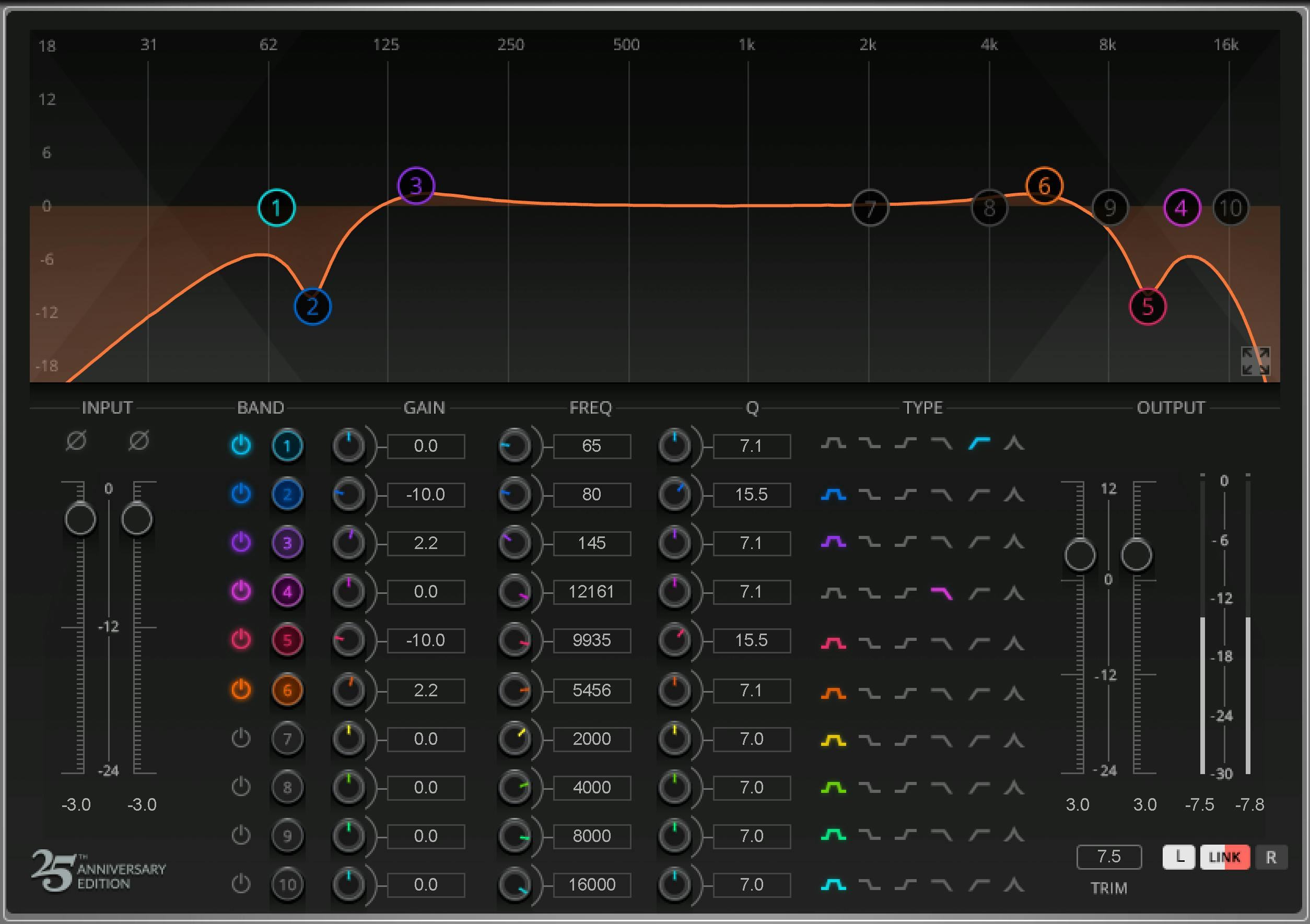

Select a band in its row or by clicking its graph marker. Use the band’s On/Off control to include or bypass that band. In the graph, horizontal movement changes Frequency and vertical movement changes Gain.
For a bell, Frequency locates the center. For a shelf it places the transition toward the shelf region. For a pass filter it sets the cutoff. Work from what you hear and the shape on the graph, without relying on the example positions in the image.
Choose a filter shape and Q
The current product and manual describe six shapes in the modern interface: Bell, Low Shelf, High Shelf, Low Pass, High Pass and Proportional Q. A bell boosts or cuts around its center. A shelf raises or lowers one end of the spectrum. A pass filter attenuates outside its cutoff.
For a bell, a higher Q narrows the affected region. The manual says the Q control has no effect on shelf or pass shapes. A Proportional Q band changes width with gain.
Edit left and right
Use L or R to edit one side of a Stereo component. Engage Link to move both sides together from the selected side’s controls. The manual shows that the two channels can have different settings. Check the markers before making a change that should affect the whole stereo image.
Check input and output level
Input and Output let you adjust level around the EQ. Check the output meters and clip indicators after changing bands, especially if several boosts overlap. The manual describes Trim as an adjustment you apply by clicking it. Click the peak-hold box to reset the peak and clip indications.
Related Waves guides
The Waves F6 guide covers frequency-dependent changes that can respond to the incoming signal. The Waves V-EQ3 guide covers the different workflow of an analog-style equalizer.
Sources
Waves documents the controls in its user guide and on the official product page. The interface image is from the Waves Graphic Library.
Frequently Asked Questions
What does Frequency do in Q10?
It positions the selected filter. It sets a bell’s center, a shelf’s transition or a pass filter’s cutoff.
How many EQ bands can Q10 use?
Waves documents components with one, two, three, four, six, eight or ten bands.
Does Q affect the shelf filters?
Waves states that Q does not affect shelf or pass filter types. For a bell, higher Q narrows the affected region.
How do I edit one stereo side?
Select L to edit the left side or R to edit the right side. Use Link when you want the two sides to move together.
What is the difference between Full and Focused?
Full exposes all band rows. Focused shows the selected band’s controls and leaves more space for the graph.

About the Author
Joseph Nilo has been working professionally in all aspects of audio and video production for over twenty years. His day-to-day work finds him working as a video editor, 2D and 3D motion graphics designer, voiceover artist and audio engineer, and colorist for corporate projects and feature films.