
Waves S1 Stereo Imager is a stereo-image processor for changing the width, balance and apparent position of material that is already stereo. It combines Width, Asymmetry and Rotation with optional low-frequency Shuffling, M/S input and metering, polarity/channel correction, gain and a stereo-vector display. [1][2]
Waves’ current product page positions S1 for widening stereo images and correcting stereo balance. The manual is more specific: S1 works by manipulating an existing stereo field; it does not claim to manufacture a three-dimensional soundfield from two speakers or create pseudostereo from a mono source. [1][2]
My Short Version
Use Width for the broadest narrow/wide move. Use Rotation when the whole stereo image feels off-center but you do not want to change the left-versus-right internal balance. Use Asymmetry when left and right elements need rebalancing while center material should stay centered. [1]
If you use the full S1 Shuffler component, Shuffling and Frequency can expand the low-frequency stereo impression separately from the main Width control. Keep an eye on output level: Waves explicitly warns that S1 processing can create new peaks even at otherwise neutral settings. [1]
I did not audition S1 for this article. The descriptions below are documentation-led.
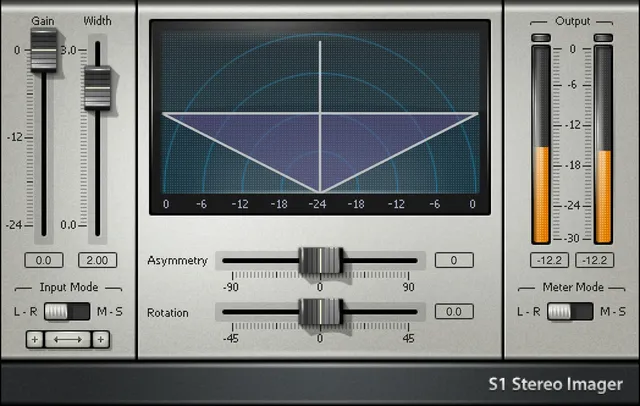
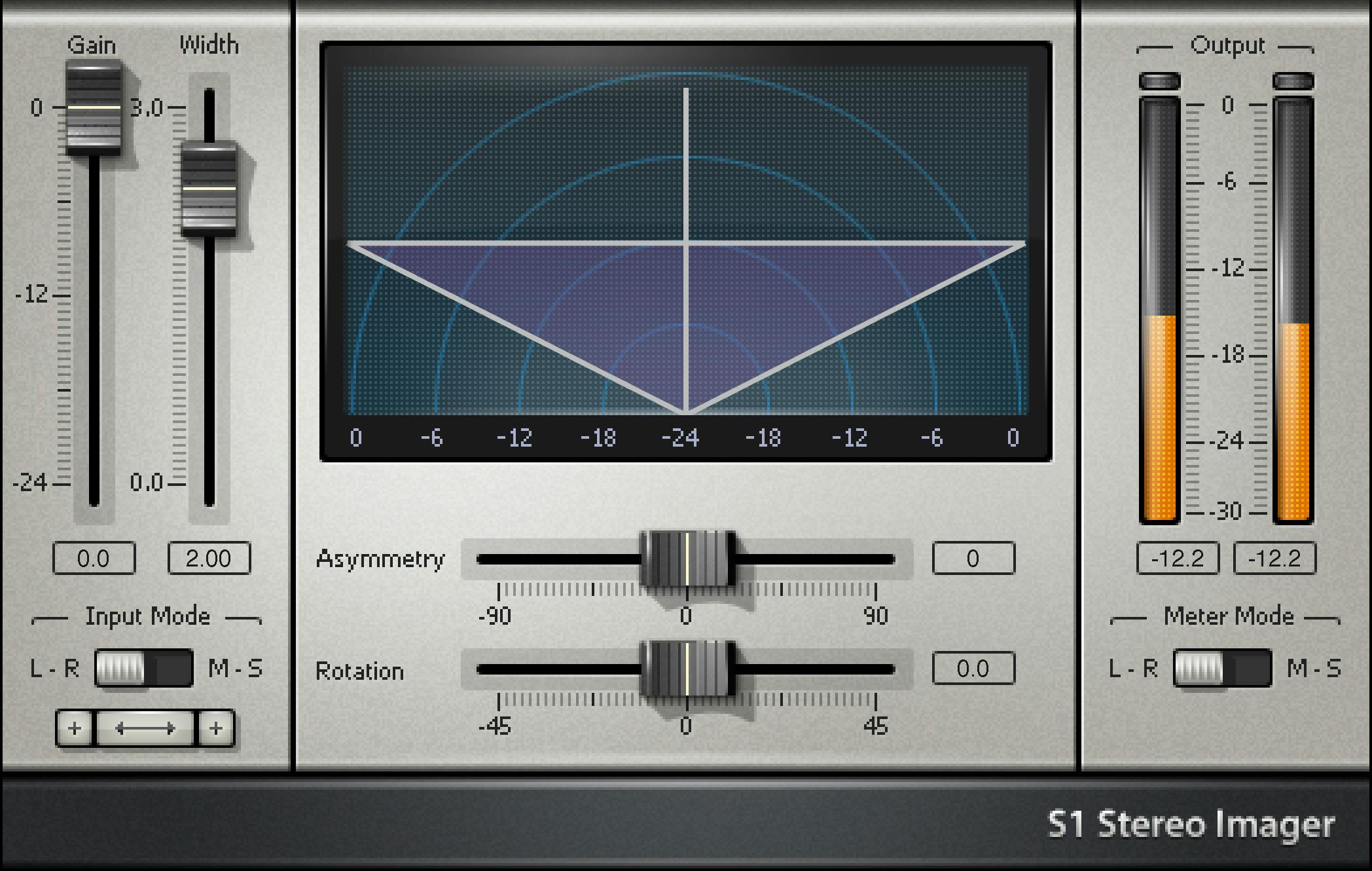
S1 components
The manual documents three S1 components. [1]
- S1 Shuffler — the full processor. It includes Width, Rotation, Asymmetry, Shuffling, Frequency, Bass Trim and the channel controls.
- S1 Imager — omits Shuffling and Bass Trim. Use it when Width, Rotation and Asymmetry are the required image controls.
- S1 MS — an L/R-to-M/S or M/S-to-L/R matrix with no controls or metering. The guide says the matrix reduces level by 3 dB per conversion to avoid clipping; two S1 MS matrices in a chain therefore produce a nominal 6 dB drop before considering any processing between them. [1]
All documented S1 processing components have stereo output; the manual does not describe a mono-to-mono component. [1]
Stereo Vector Display
The large semicircular Stereo Vector Display is a control and visualization surface. It shows the output positions and changed levels of the original left, center and right material after Gain, Width, Asymmetry and Rotation. [1]
It is important not to over-read the display: the manual explicitly says the vector graphic does not show the Shuffling effect and is not an input analyzer. [1]
The display can also be dragged as a graphical control. Waves documents direct manipulation of Gain/Width and free-form adjustment of Gain, Width, Asymmetry and Rotation while preserving relationships between selected controls. [1]
Vertical or horizontal dragging on the center line or in the vector display adjusts Gain and Width together. Free-form dragging adjusts Gain, Width, Asymmetry and Rotation; a box selection links contiguous controls while preserving their offsets. Alt/Option-click resets an individual control. These are documented gestures, not host-tested shortcuts. [1]
Gain
Gain changes overall output level without changing the stereo image relationship. Its readout is in dB. [1]
Waves warns that S1’s phase-compensated image processing can change peak levels, so normalized or peak-limited sources can clip after S1 even when the image controls are near neutral. The manual recommends watching the output meters in L/R mode and reducing Gain as needed rather than assuming unity settings guarantee peak headroom. [1]
The current manual text reviewed here does not publish a formal minimum/maximum Gain range in its control description, so this article does not infer one from the artwork.
Width
Width narrows or widens the existing stereo stage. [1]
- 0 collapses the image to mono.
- 1 leaves stereo width unchanged.
- Values below 1 narrow the stage.
- Values above 1 widen it. [1]
Waves gives roughly 1.2 as a moderate starting point in the manual, but that is a vendor suggestion, not a universal target.
Width changes the relationship between center and side information; it should not be confused with Rotation, which repositions the stereo image without the same internal level rebalance.
Asymmetry
Asymmetry adjusts the relative level of left- and right-side material while leaving central in-phase material centered. [1]
That makes it useful when one side of a stereo mix or stereo-miked source is stronger than the other but the center image itself should not simply be panned. Waves distinguishes this from a conventional balance control. [1]
The reviewed manual does not provide a formal numeric min/max range for Asymmetry in the prose control specification, so no numeric range is invented here.
Rotation
Rotation changes the centering of the entire stereo image without changing the relative levels of sounds within the stereo stage in the same way Asymmetry does. [1]
Waves describes it as a true-stereo panning/recentering control—for example, correcting a stereo recording biased to one side or positioning a stereo-miked source in a mix. [1]
Dragging Rotation and Asymmetry together can behave like a conventional stereo balance adjustment. [1]
Shuffling
The full S1 Shuffler component adds Shuffling, a phase-compensated low-frequency stereo-width process. [1]
- Range: 1 to 3.
- 1 = no Shuffling.
- 3 = maximum documented bass-width increase. [1]
Shuffling is applied after Width, Asymmetry and Rotation in the documented signal order. The vector display does not visualize it. [1]
Shuffling Frequency
Frequency sets the region below which the Shuffling effect increases. [1]
- Range: 350–1400 Hz. [1]
Waves’ manual discusses 600–700 Hz as a typical monitoring-oriented starting area, with different values useful for different speaker spacing/source techniques. Treat those as vendor guidance rather than a required setting.
LR/MS input mode
The LR/MS input button tells S1 whether the incoming signal is standard left/right stereo or M/S. [1]
This is an input-matrix choice, not the same as the independent meter mode selector described below. The documented processing order begins with LR/MS input selection, then polarity and channel-swap correction before the spatial processing controls. [1]
Input polarity and channel swap
S1 includes per-channel polarity correction and a channel-swap function for common stereo wiring/orientation errors. [1]
The manual cautions that these controls behave differently when the input is in M/S mode because of the matrix mathematics. In particular, swapping conventional left/right while working from M/S input is not equivalent to simply pressing the normal channel-swap button. [1]
These are corrective controls, not creative width controls; do not flip polarity solely because an M/S meter shows strong Side content without first confirming the source actually has a polarity problem.
Bass Trim
Bass Trim is available in the S1 Shuffler component. [1]
It adjusts low-frequency level compensation while Shuffling is active. Waves states that 0 keeps bass level approximately unchanged and notes that some material may benefit from roughly 1–2 dB of compensation at stronger Shuffling settings. [1]
The reviewed manual prose does not publish a complete numeric Bass Trim min/max range, so only the documented neutral point and guidance are stated here.
Reset
The S1 Reset button restores Width, Asymmetry, Rotation and Shuffling to settings where they have no effect on the incoming stereo image. [1]
It does not reset Gain, channel polarity or channel swap. The WaveSystem toolbar’s S1 Full Reset preset is the documented way to restore the whole plugin to factory state. [1]
L/R and M/S meter modes
S1’s level meters can display L/R or M/S. Switching meter mode does not change the audio. [1]
- L/R shows conventional left and right levels.
- M/S shows Mid (average/mono-related information) and Side (difference/stereo-related information). [1]
Waves explicitly warns that peak and clipping indications are valid in L/R mode, not M/S mode. When returning to L/R after M/S metering, reset peak/clip indicators before relying on them. [1]
Peak and clip indicators
The peak/clip indicators report left/right peaks and clipping when the meters are in L/R mode. [1]
Because S1 can alter peak structure, use these readouts after image changes instead of assuming that unchanged average loudness means unchanged peaks. This is especially relevant on already-limited material. [1]
Signal order
Waves documents the control order as: [1]
- LR/MS input mode.
- Channel polarity.
- Channel swap.
- Width.
- Asymmetry.
- Rotation.
- Shuffling/Frequency.
- Gain. [1]
That order explains why corrective input operations should be settled before judging the later spatial controls.
WaveSystem toolbar
The shared WaveSystem toolbar saves and loads presets, compares settings, provides undo/redo and resizes the interface. Its upper-right Help icon opens the WaveSystem Guide. These are settings and interface utilities, not additional stereo-processing stages. The separate S1 Full Reset preset is described above. [1]
A practical S1 workflow
First confirm the stereo source is actually correct: choose the correct LR/MS input mode, verify polarity/channel orientation, and use L/R meters for trustworthy peak/clip information. [1]
Then set Width for the overall spread. If the image is merely shifted to one side, try Rotation before changing the internal balance. If one side is stronger while center content is correctly positioned, use Asymmetry. [1]
On the Shuffler component, add Shuffling only if you specifically want more low-frequency spaciousness, then set its Frequency and use Bass Trim if the low end’s apparent level changes. Finish by checking output peaks and adjusting Gain. [1]
This is a documentation-led workflow; I did not listen to or measure these settings.
Best for / skip if
S1 is best for existing stereo material that needs width adjustment, recentring, left/right rebalance, stereo-mic positioning, M/S correction or controlled low-frequency spaciousness. [1][2]
Skip it when the source is genuinely mono and the goal is to synthesize new independent stereo content. The manual explicitly distinguishes S1 from pseudostereo generation. Also skip aggressive widening when mono compatibility is the primary constraint unless you can check the downstream mono result.
Limitations and evidence boundary
This article is documentation-led. I did not listen to S1, measure correlation/mono compatibility, test host automation, compare component latency/CPU, or verify peak behavior with test signals.
The current official S1 manual was parsed completely for its control sections, and the manual UI/control page was visually inspected in this writing pass. The manual is an older-format Waves guide and does not publish formal numeric ranges/defaults for every graphical control; those missing values remain not specified rather than being inferred from artwork. [1]
Related guides
Waves’ official Center information describes center-versus-sides rebalance, Brauer Motion covers animated spatial movement, and Nx covers headphone spatial monitoring. These are related tools, not listening comparisons.
Bottom line
S1 is a stereo-image correction and enhancement toolkit, not a mono-to-stereo generator. Width controls overall spread, Rotation recenters the stage, Asymmetry changes side balance while preserving center placement, and the Shuffler component adds frequency-limited low-end spaciousness. M/S tools, polarity/channel correction and peak metering make it useful for both creative stereo changes and technical cleanup. [1][2]
Sources
Checked October 16, 2026. No listening or native-host test was performed.
- Waves S1 Stereo Imager Manual, current product-linked manual; complete control sections parsed and interface/control page visually inspected.
- Waves S1 Stereo Imager product page, current product identity and positioning.
- Waves Graphic Library, current S1 listing and stated image-reuse rule requiring backlink to the relevant Waves product page.
FAQ
What does Waves S1 Stereo Imager do?
S1 changes the width, balance and apparent position of audio that is already stereo. It can narrow or widen the stage, recenter the image, rebalance left/right material and, in the Shuffler component, add low-frequency stereo spaciousness. [1]
Can S1 turn a mono track into true stereo?
No. Waves’ manual explicitly says S1 does not purport to create pseudostereo from a mono source. It manipulates stereo information that is already present. [1]
What is the difference between Width and Rotation?
Width changes how narrow or wide the stereo stage is. Rotation moves the whole stereo image left or right without changing the internal stereo balance in the same way. [1]
What does Asymmetry do?
Asymmetry changes the relative level of left- and right-side material while leaving centered in-phase material centered, making it useful for correcting a lopsided stereo balance. [1]
What does Shuffling do in S1?
Shuffling increases stereo width at lower frequencies. Its amount ranges from 1 to 3, and its Frequency control sets the affected region from 350 to 1400 Hz. [1]
Why can S1 clip even at neutral-looking settings?
The manual says S1’s phase-compensated processing can alter peak structure. Already-normalized or peak-limited files may therefore need Gain reduction after spatial processing. [1]

About the Author
Joseph Nilo has been working professionally in all aspects of audio and video production for over twenty years. His day-to-day work finds him working as a video editor, 2D and 3D motion graphics designer, voiceover artist and audio engineer, and colorist for corporate projects and feature films.