

Waves Scheps Parallel Particles is a four-process parallel enhancement plugin designed with Andrew Scheps. Instead of exposing conventional EQ/compressor parameters, it gives you Sub, Thick, Bite and Air amount controls, plus a Sub frequency setting, individual process switches and gain staging. Waves documents Mono (mono in/mono out) and Stereo (stereo in/stereo out) components. [1][2]
Waves describes the four processes in terms of result: Sub adds/enriches low-frequency energy, Thick adds lower-mid/mid body, Bite adds attack/intensity, and Air adds high-frequency sheen. The underlying multi-parameter chains are intentionally abstracted; the current manual does not expose their internal thresholds, EQ curves or compression ratios. [1][2]
My Short Version
Set Input so the Sensitivity LED is in the useful range—Waves calls yellow optimal—then bring in one process at a time. Choose Sub Frequency before turning Sub up. Use Thick for body, Bite for attack/aggression and Air for top-end sheen. [1]
Keep I/O Link on while gain staging if you want an inverse input/output relationship as you drive the plugin. Bypass individual process switches to learn which particle is doing what instead of judging all four at once. [1]
I did not audition the plugin. The descriptions below come from Waves’ current documentation.
The WaveSystem toolbar supports preset save/load, Compare, Undo/Redo, resizing and opening the WaveSystem Guide. [1]
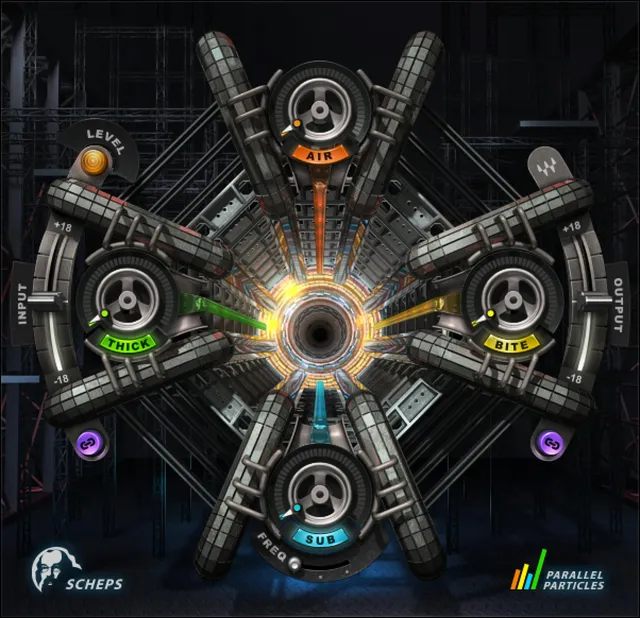
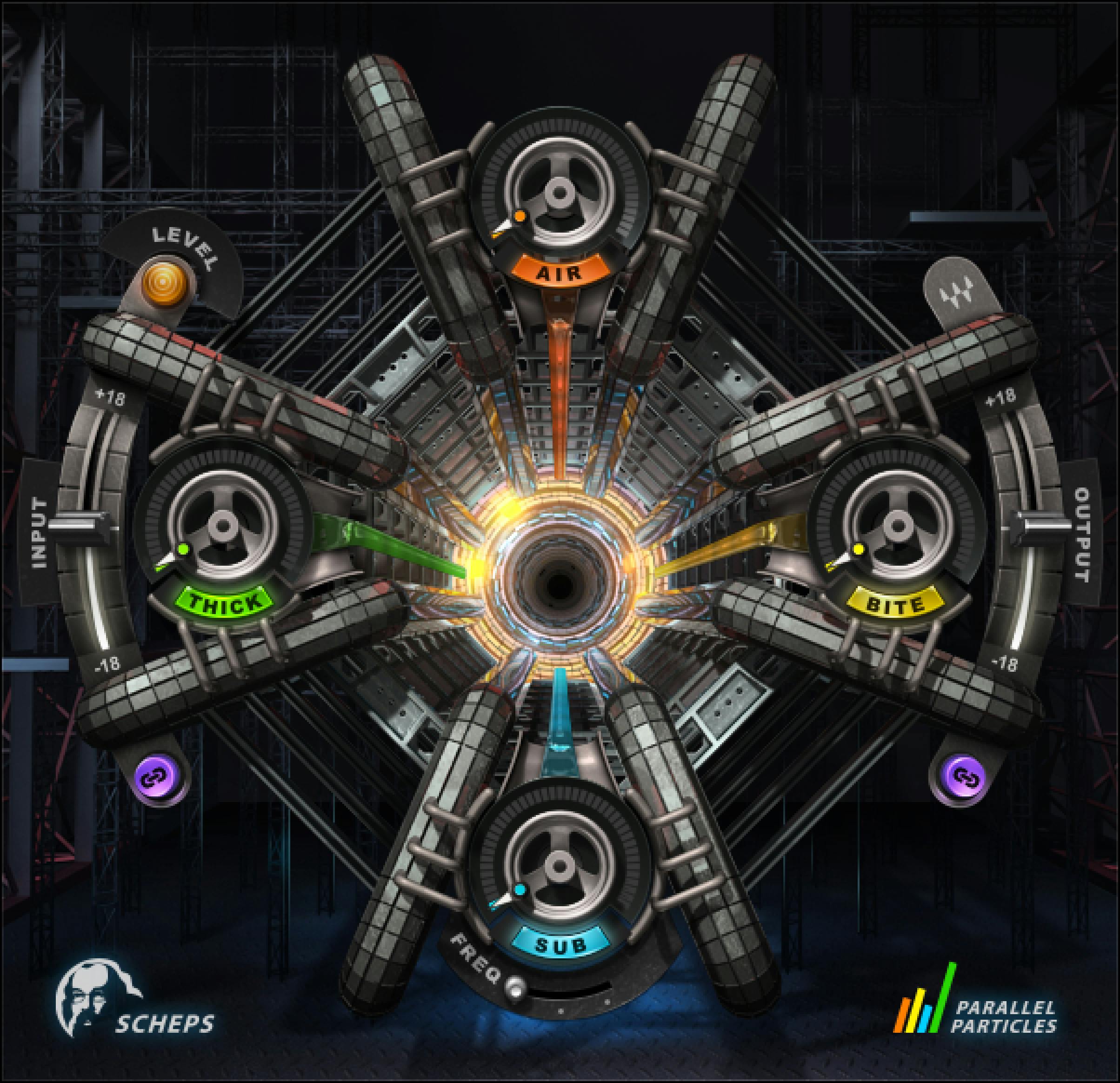
Input
Input sets plugin input level. [1]
- Range: -18 to +18 dB.
- Resolution: 0.1 dB.
- Default/reset: 0 dB. [1]
The manual says Input does not change when a factory preset is loaded, which helps preserve your gain staging while trying presets. [1]
Sensitivity LED
The Sensitivity LED indicates how strongly the incoming level is driving the plugin’s internal processing. [1]
Documented states:
- Off — too low.
- Green — good.
- Yellow — optimal.
- Red — very hot. [1]
Waves recommends setting Input while listening to the loudest/peak-rich part of the source. This LED is a level guidance readout, not a processing amount control. [1]
Sub
Sub sets how much of the low-frequency enhancement process is mixed in. [1]
- Range: 0–100.
- Resolution: 0.1.
- Default/reset: 0. [1]
Waves describes Sub as both enriching existing sub content and generating low-frequency content that was not in the original signal. The manual does not publish the internal harmonic-generation algorithm, so this article does not infer one. [1][2]
Sub On/Off
The separate Sub On/Off switch toggles the Sub process. [1]
- Default/reset: On. [1]
The guide does not specify amount-value retention when the process is switched off.
Sub Frequency
Sub Frequency sets the frequency the Sub process focuses on. [1]
- Range: 32–80 Hz.
- Resolution: 0.1 Hz.
- Default/reset: 32 Hz. [1]
Set this according to the useful low-end region of the source rather than treating 32 Hz as a recommended setting for every track.
Thick
Thick controls the amount of the body/lower-mid enhancement process. [1]
- Range: 0–100.
- Resolution: 0.1.
- Default/reset: 0. [1]
Waves describes it as adding solid body while smoothing lower mids and midrange. The product page frames it as useful on guitars, vocals, snares, toms and other sources; that is vendor positioning, not a claim from a new listening test. [2]
Thick On/Off
The Thick On/Off switch bypasses/enables only the Thick process. [1]
- Default/reset: On. [1]
Bite
Bite controls the amount of the aggressive/attack-oriented process. [1]
- Range: 0–100.
- Resolution: 0.1.
- Default/reset: 0. [1]
The product page describes Bite as adding snap and energy to attacks, with lower settings for added intensity and higher settings for a more aggressive character. [2]
Bite On/Off
The Bite On/Off switch independently enables/bypasses Bite. [1]
- Default/reset: On. [1]
Air
Air controls the amount of the high-frequency enhancement process. [1]
- Range: 0–100.
- Resolution: 0.1.
- Default/reset: 0. [1]
Waves describes it as bringing high-frequency “air” forward. The product page says the process synthesizes high-frequency harmonics, but the current guide does not publish an exact center frequency, shelf curve or harmonic formula; none are invented here. [1][2]
Air On/Off
The Air On/Off switch independently enables/bypasses the Air process. [1]
- Default/reset: On. [1]
I/O Link
I/O Link inversely links Input and Output. [1]
When Input rises, Output falls by the corresponding linked amount, and vice versa. That makes it easier to increase drive/sensitivity without automatically increasing final level by the same amount. [1]
- Range: On/Off.
- Default/reset: On. [1]
This is gain-stage linkage, not automatic perceptual loudness matching.
Output
Output sets plugin output level. [1]
- Range: -18 to +18 dB.
- Resolution: 0.1 dB.
- Default/reset: 0 dB. [1]
Like Input, Output does not change when loading a preset. [1]
Signal flow and parallel architecture
The guide describes Sub, Thick, Bite and Air as parallel processing controls. Its signal-flow diagram depicts Thick and Bite as one parallel pair, followed by Air and Sub as a second parallel pair. [1] The diagram shows those branches and recombinations but does not disclose the processing algorithms or exact interactions between them.
The amount controls are not documented as conventional EQ gains in dB or as an overall plugin wet percentage. [1]
A practical workflow
Start with Input and the Sensitivity LED. Waves’ own quick-start procedure says to adjust input until the LED is solid yellow during the loudest section, then counter-adjust Output if needed to keep the comparison useful. [1]
Next, work one particle at a time. If using Sub, set Sub Frequency first; then add Sub until the low end reaches the intended weight. Add Thick for body, Bite for attack/intensity and Air for top-end sheen. Use each process’s On/Off switch for quick checks. [1]
Finally, compare at a sensible output level. I/O Link can help maintain an inverse Input/Output relationship, but it is not a guarantee of equal perceived loudness. This workflow is documentation-led; I did not audition it.
Best for / skip if
Scheps Parallel Particles is best for fast broad enhancement when you want low-end weight, body, attack and/or air without managing a large conventional EQ/dynamics chain. Waves positions it for individual tracks, buses and masters. [2]
Skip it when you need precise manual access to filter frequency/Q/gain, compressor timing/ratio or the exact processing topology. Those parameters are intentionally not exposed by this plugin.
Limitations and evidence boundary
This article is documentation-led. I did not listen to the plugin, measure generated harmonics, inspect transfer functions, test CPU/latency, compare its parallel paths with manually built processing, or infer hidden settings.
This guide follows Waves’ product-linked manual and official interface artwork. Neither establishes an exact installed build or runtime behavior. The manual and product page agree on the four-process concept and documented controls. [1][2]
Related guides
For more information, see the official Waves Scheps Parallel Particles product page, Renaissance Bass, F6 Floating-Band Dynamic EQ, and MV2 pages.
Bottom line
Scheps Parallel Particles reduces a complex set of parallel tone/dynamics ideas to four result-oriented controls. Sub adds low-end weight, Thick adds body, Bite adds attack/intensity and Air adds high-frequency sheen. Input/Sensitivity and Output/I-O Link handle the gain staging around those four processes. [1][2]
Sources
Checked October 18, 2026. No listening or native-host test was performed.
- Waves Scheps Parallel Particles User Guide, current product-linked eight-page guide; fully read, with rendered pages visually inspected. This is documentation/artwork evidence, not installed-build or runtime proof.
- Waves Scheps Parallel Particles product page, current product identity and process descriptions.
- Waves Graphic Library, current Scheps Parallel Particles listing and stated backlink-based image-reuse condition.
FAQ
What does Scheps Parallel Particles do?
The manual describes four parallel processes—Sub, Thick, Bite and Air—that shape a signal. Their underlying processing settings are not exposed as conventional EQ or compressor controls.
How does the manual depict the signal flow?
The signal-flow diagram shows Thick and Bite as parallel branches that recombine, followed by Air and Sub as a second parallel pair. The diagram does not disclose the internal algorithms or their exact interactions.
What does Sub do, and what is its frequency range?
Waves describes Sub as enriching existing low frequencies or adding sub-frequency content. Sub Frequency is adjustable from 32 to 80 Hz in 0.1 Hz increments; its documented default and reset are 32 Hz.
What is the Thick process for?
The guide describes Thick as adding solid body and smoothing the lower mids and midrange. Its amount control ranges from 0 to 100 in 0.1 increments, with a documented default/reset of 0.
What does Bite change?
Waves says Bite can make a sound seem more aggressive and describes it as affecting note fronts and release. Its amount ranges from 0 to 100 in 0.1 increments, with a documented default/reset of 0.
What does Air do?
The guide describes Air as synthesizing high-frequency content from existing lower-frequency material. The amount ranges from 0 to 100 in 0.1 increments, with a documented default/reset of 0; the exact synthesis formula is not published.
What do the Sensitivity LED colors mean?
The manual labels Off as too low, Green as good, Yellow as optimal, and Red as very hot. It recommends setting Input while observing the loudest or highest-peak section of the program.
What does I/O Link do?
I/O Link inversely links Input and Output: an increase in one corresponds to a decrease in the other. It defaults and resets to On. The guide does not describe it as automatic perceptual loudness matching.

About the Author
Joseph Nilo has been working professionally in all aspects of audio and video production for over twenty years. His day-to-day work finds him working as a video editor, 2D and 3D motion graphics designer, voiceover artist and audio engineer, and colorist for corporate projects and feature films.