

Waves Silk Vocal is an adaptive vocal processor that combines resonance reduction, de-essing/high-frequency control and dynamics in one interface. It analyzes the vocal in frequency bands, applies suppressive processing where needed, and gives you separate Low, Mid and High Process Amount controls plus dynamics, gate, mix and audition tools. [1][2]
Silk Vocal and Silk Vocal Live share the same processing concept and most controls, but their filters differ. The standard component uses linear-phase filters for mixing/postproduction, while the Live version uses minimum-phase filters for very low latency and adds Curve Freeze. [1]
My Short Version
Choose Voice Type first. Then use the Low, Mid and High Process Amount controls as the broad amount knobs. Narrow the Mid processing range with its two handles when you only want Silk to work on a specific resonance region. Use Solo and Delta to hear what each range is removing instead of guessing from the main output. [1]
Open the expanded panel when you need the HPF, Speed, Precision, Makeup Gain, Gate or Mix controls. Treat the separate Dynamics section as post-EQ compression/expansion/output shaping, not as part of Silk's frequency-suppression detector. [1]
I did not process a vocal for this article. The behavior below comes from Waves' current documentation.
Silk Vocal versus Silk Vocal Live
The guide documents four components: [1]
- Silk Vocal Mono
- Silk Vocal Stereo
- Silk Vocal Live Mono
- Silk Vocal Live Stereo [1]
The standard Silk Vocal uses linear-phase filters. Waves positions it for mixing and postproduction and notes that the filters introduce latency that depends on session sample rate. [1]
Silk Vocal Live uses minimum-phase filters for very low latency. It has a dark-blue interface instead of the standard silver background and includes the extra Curve Freeze control. Waves says workflow and processing are otherwise the same, while also acknowledging that the filter difference creates a slight sonic difference. [1]
This article does not publish numeric latency because the manual directs readers to the current product page for those details and no native measurement was performed.
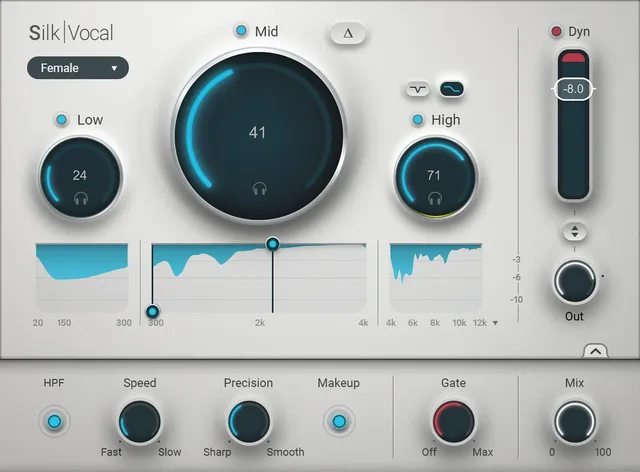
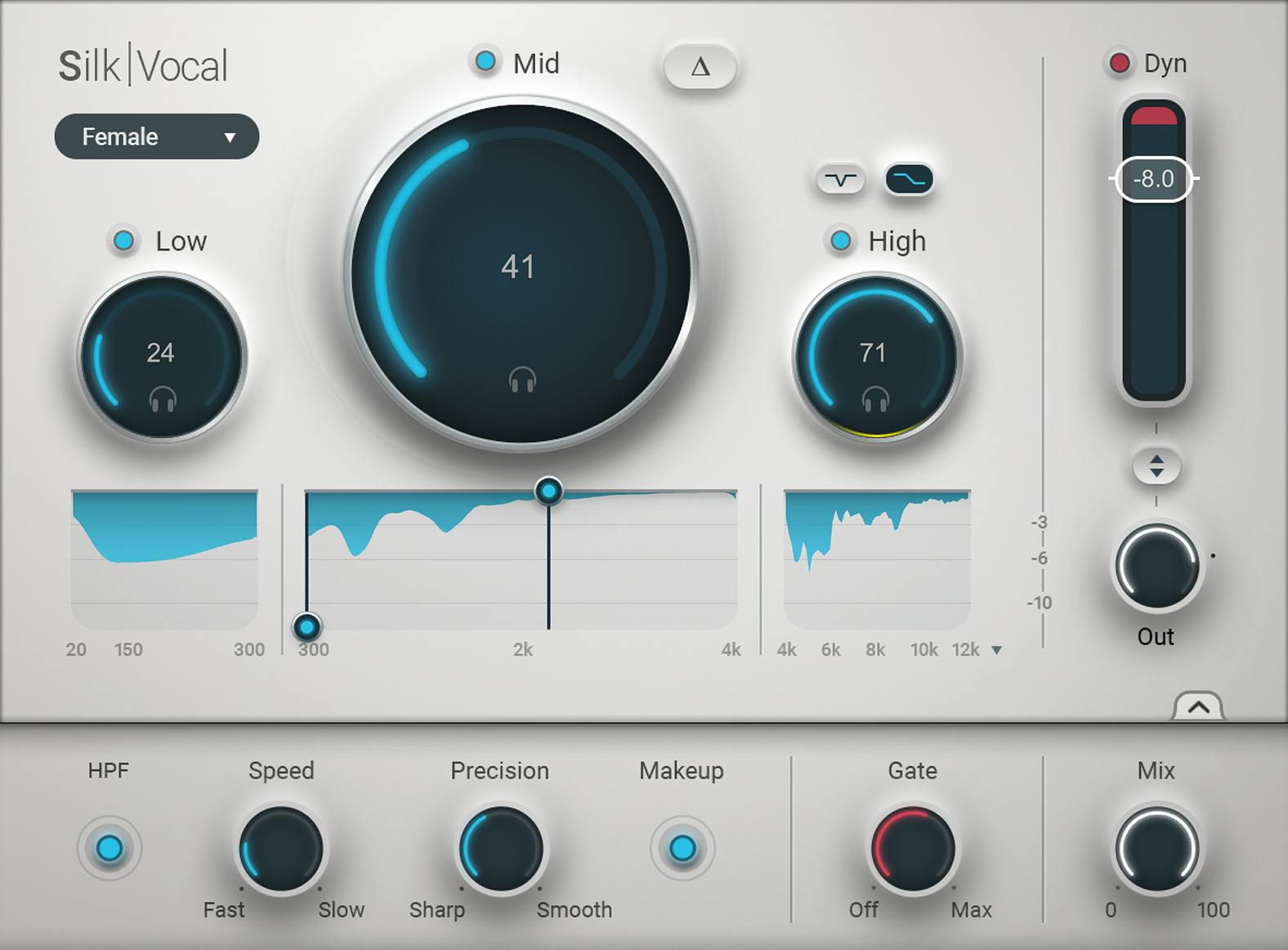
Voice Type
Voice Type sets the model Silk uses before processing. [1]
Options:
- Male
- Female [1]
Waves recommends choosing this first. The manual explicitly says Voice Type cannot be automated. [1]
The setting changes Silk's under-the-hood model; the guide does not publish the hidden model coefficients or exact frequency tables, so none are inferred.
The guide says the initial settings address high-end sibilance and low-end boominess. It does not publish numeric initial values for every knob; illustrative artwork values are not defaults. [1]
Low Process Amount
The Low Process Amount controls adaptive reduction in Silk's low range. [1]
- Frequency range: 20–300 Hz
- Process Amount range: 0–100
- Crossover slope: 24 dB/octave [1]
Waves describes this range as useful for boominess, low-end mud and chestiness. Turning the knob up exposes more of that range to Silk's suppressive processing. [1]
Mid Process Amount and range handles
The Mid Process Amount targets the main vocal midrange. [1]
- Maximum frequency range: 300 Hz–4 kHz
- Process Amount range: 0–100
- Crossover slope: 24 dB/octave [1]
Unlike Low and High, Mid has two Frequency Range Limiter handles. They narrow the active Mid region and can be moved together to target a smaller resonance area. Hovering a handle reveals its frequency. [1]
The default Mid range spans the full 300 Hz–4 kHz area. The manual notes that filter/Q interaction can create gentle processing bleed around the handles even when Low or High amounts are at zero; that is documented behavior rather than a hidden fourth band. [1]
High Process Amount and High mode
The High Process Amount controls the high-frequency region. [1]
- Frequency range: 4–20 kHz
- Process Amount range: 0–100
- Crossover slope: 24 dB/octave [1]
A switch above the High knob selects one of two processing shapes: [1]
- De-essing mode — bell-shaped reduction focused on problematic high frequencies.
- General high-frequency mode — broader high-range attenuation, described by Waves as shelf-like. [1]
The mode changes the shape of High processing, not the range shown by the separate analyzer-view selector.
Reduction graphs and High analyzer view
Each Low/Mid/High Process Amount knob has a Reduction Graph showing gain reduction by frequency. As processing increases, the blue reduction area grows. [1]
The High analyzer display can be switched among views extending from 4 kHz to 12, 16 or 20 kHz. [1]
This is a display-only view choice. The manual explicitly says it does not change the High processing range. [1]
Solo controls
Each band has a Solo headphone icon. [1]
- Click a headphone icon to solo that range.
- Click additional icons to add them to the solo group.
- Ctrl+right-click any solo icon to clear all solos. [1]
Solo is an audition tool for understanding what a frequency range contains; it is not a processing amount control.
Delta / DIFF
Delta / DIFF lets you hear the difference between Silk's processed signal and its input—the material being reduced. [1]
You can:
- Toggle Delta for the full process.
- Combine Delta with one band's Solo to hear only that band's removed material.
- Ctrl+right-click and drag a Process Amount knob to hear a temporary Solo/Delta view during the move. [1]
The manual says Delta is post-Mix in the signal flow. The temporary Solo/Delta switches used while dragging are not automated. [1]
Band bypass
A small blue On/Off / Bypass button above each Process Amount knob disables processing in that frequency range. [1]
This lets you compare one band's contribution without changing its Process Amount value. The current guide also documents Ctrl+right-click on any bypass to turn all bypasses off. [1]
High-pass filter
The expanded panel includes a fixed HPF. [1]
- Frequency: 60 Hz
- Slope: 72 dB/octave
- States: On / Off
- Position: before all Silk processing
- The HPF is not affected by Mix. [1]
Its purpose is to remove/reduce very low-frequency content before the adaptive processing analyzes the signal.
Speed
Speed adjusts Silk's reduction attack and release together. [1]
- Range: 0–100
- At 0, both documented attack and release values are effectively zero.
- Increasing the control increases both attack and release times. [1]
Waves does not publish a milliseconds conversion for the 0–100 scale in the cited guide, so this article does not invent one.
Precision
Precision changes how finely neighboring analysis bins are combined during processing. [1]
- Range: 0–100 [1]
The manual describes low settings as sharper/more localized but potentially edgier, and high settings as smoother and more generalized. [1]
The current guide also clarifies a vendor-marketing detail: analysis uses 1000 discrete frequency bins at 44.1/48 kHz and 2000 bins at 88.2/96 kHz. A generic “2000 bands” claim should therefore not be presented as sample-rate-independent. [1]
Smart Makeup Gain
Makeup Gain is an On/Off control. [1]
- Default: On [1]
When enabled, Silk compares input RMS/peak behavior with the processed signal and applies makeup dynamically according to the amount of suppression. The guide says no suppression means no makeup; more suppression produces more makeup. [1]
When Makeup is Off, use Output Trim or another downstream gain stage if you want manual level compensation. [1]
Gate
The expanded panel includes a soft-knee downward-expansion Gate control. [1]
- Threshold range: -80 dB to 0 dB [1]
When input falls below the threshold, downward expansion begins. Waves positions it mainly for reducing low-level background/noise during pauses. The Dynamics meter shows its activity along with other gain reduction. [1]
Mix
Mix blends Silk's processed output with the original input. [1]
- Range: 0–100 [1]
The fixed 60 Hz HPF is upstream of the Mix control and is explicitly not affected by Mix. [1]
Curve Freeze — Live only
Curve Freeze exists only in Silk Vocal Live. [1]
It sets a threshold below which the current processing curve stops updating. Waves says this is useful in live situations so the adaptive curve does not keep changing during pauses or between songs. [1]
The current guide explains the function but does not publish a numeric range/default in the parsed control text. This article therefore leaves those values not specified rather than guessing them from artwork.
Dynamics section
The main panel has a separate post-EQ dynamics section. The guide describes it as static dynamics processing that does not directly change the mechanics of the adaptive suppression process. [1]
Dynamics meter
The Dynamics Meter shows total gain reduction, including gate activity. It is a readout, not a threshold control. [1]
Dynamics fader / threshold
The dynamics fader controls compression amount by lowering the threshold/working level. [1]
- Range: 0 dB to -36 dB [1]
The manual says lowering the fader increases compression and makeup gain. [1]
Dyn On/Off
The Dyn button turns the dynamics section On or Off. [1]
Output Trim
Output Trim sets Silk's final output gain. [1]
- Range: -∞ to +12 dB [1]
This is separate from Smart Makeup Gain.
Dynamics / Gain Link
The Dynamics/Gain Link moves the Gain Reduction/Dynamics fader and Output Level together while maintaining their current offset. [1]
Use it when you want to change dynamics amount while compensating output level in a linked move; it does not erase the existing offset between the two controls.
Toolbar, panel view and host shortcuts
The WaveSystem toolbar saves and loads presets, compares settings, provides undo/redo and resizes the plugin. Its upper-right icon opens the WaveSystem Guide. These manage settings and interface state, not a separate audio-processing stage. [1]
Use the arrow on the right to open or close the expanded panel, and hover over a control to read its tooltip. [1]
The guide separately tells StudioRack and StudioVerse users to add Control to hotkey combinations. Follow that host-specific note alongside the documented shortcuts; this article has not tested how the modifier combinations behave in a host. [1]
A practical Silk Vocal workflow
Choose Voice Type first. Start with the three Process Amount controls and listen to the result before opening the expanded panel. If the vocal has one specific midrange resonance area, narrow the Mid handles rather than simply turning the whole Mid range higher. [1]
Use Solo and Delta to identify what Silk is removing. If you are hearing wanted vocal fundamentals or intelligibility in the removed signal, reduce the relevant Process Amount or narrow the Mid range. [1]
Open the expanded panel only as needed: enable the fixed HPF for unnecessary sub-60 Hz content, adjust Speed/Precision for how the suppression behaves, use Gate for low-level pauses, and choose whether Smart Makeup should compensate the reduction automatically. [1]
Finally, use the separate Dynamics section and Output Trim for post-EQ compression/level shaping. On Live components, set Curve Freeze so the adaptive curve remains stable during sufficiently quiet periods. [1]
That is a documentation-led workflow. I did not audition these settings on a vocal in this writing pass.
Best for / skip if
Silk Vocal is best for vocal-prep workflows where resonance, boominess, sibilance/high-frequency harshness and moderate dynamics cleanup need to be addressed together with relatively few top-level controls. Standard Silk is aimed at mixing/postproduction; Live is designed for low-latency live/broadcast use. [1][2]
Skip it when you need independent manual control over every EQ frequency/Q/gain and compressor timing parameter, or when the vocal problem is broadband noise/reverb rather than spectral resonance/dynamics. Silk's adaptive ranges are intentionally more abstract than a fully manual parametric EQ plus compressor.
Limitations and evidence boundary
This article is documentation-led. I did not listen to Silk Vocal, compare standard versus Live filters, measure latency/CPU, verify the analysis-bin behavior with a test signal, or benchmark it against manual EQ/de-essing/compression.
The current product-linked V16 update guide and its interface/control pages were inspected. The official standard-interface artwork corresponds to those documented controls, but its exact plugin build is not stated and no installation was tested. The article preserves the manual's sample-rate-dependent 1000/2000-bin statement rather than repeating a generic 2000-band marketing shorthand. [1]
Related guides
The Sibilance guide covers dedicated de-essing, the F6 guide explains manually targeted dynamic EQ, and the Vocal Rider guide covers automatic vocal-level riding. These solve overlapping but distinct problems.
Bottom line
Silk Vocal puts adaptive spectral reduction and vocal dynamics behind three main frequency-range knobs, detailed audition tools and a smaller set of deeper controls. Low/Mid/High determine where and how much spectral suppression happens; Speed, Precision, HPF, Gate, Mix and Makeup refine that behavior; the separate Dynamics section handles post-EQ compression/output shaping. [1]
Silk Vocal Live keeps the same core workflow with minimum-phase filters and a Curve Freeze control for live conditions. [1]
Sources
Checked October 16, 2026. No listening or native-host test was performed.
- Waves Silk Vocal / Silk Vocal Live User Guide, product-linked V16 update guide; complete control text and interface/control pages inspected. This is vendor documentation, not an installed-build or audio test.
- Waves Silk Vocal product page, current product identity and studio/Live positioning.
- Waves Graphic Library, current Silk Vocal listing and stated reuse rule for images on that page with a backlink to the relevant Waves product page.
FAQ
What does Waves Silk Vocal do?
Silk Vocal adaptively reduces vocal resonances across Low, Mid and High frequency regions and includes separate vocal dynamics, gate, makeup and output controls. It is designed as a combined vocal-prep processor rather than a fully manual EQ/compressor. [1]
What is the difference between Silk Vocal and Silk Vocal Live?
The standard component uses linear-phase filters and is aimed at mixing/postproduction. Silk Vocal Live uses minimum-phase filters for very low latency and adds Curve Freeze. The manual says the overall workflow and controls are otherwise the same. [1]
What do the Low, Mid and High knobs control?
They set adaptive Process Amount in three ranges: 20–300 Hz, up to 300 Hz–4 kHz for Mid, and 4–20 kHz for High. Each Process Amount knob ranges from 0 to 100. [1]
Can I narrow Silk's Mid processing range?
Yes. The Mid graph has two Frequency Range Limiter handles. They can narrow and move the active Mid region within the documented 300 Hz–4 kHz maximum range. [1]
What is the difference between High de-essing mode and the other High mode?
De-essing mode applies bell-shaped reduction at problematic high frequencies. The general High mode attenuates the broader high-frequency range in a shelf-like way. [1]
What do Speed and Precision do?
Speed raises or lowers attack and release together on a 0–100 scale. Precision changes how locally or smoothly analysis bins are combined, also on a 0–100 scale. Low Precision is sharper/more localized; high Precision is smoother/more generalized. [1]
Does Silk Vocal always use 2000 analysis bands?
No. The current manual says Silk divides the signal into 1000 bins at 44.1/48 kHz and 2000 bins at 88.2/96 kHz. [1]
What does Curve Freeze do?
On Silk Vocal Live, Curve Freeze sets a threshold below which the current adaptive processing curve stops updating. Waves describes it as useful during quiet gaps and between songs in live situations. [1]
Is Silk's Dynamics section the same as the adaptive EQ process?
No. The manual describes the Dynamics section as post-EQ static dynamics processing. It affects overall compression/gating/output but does not directly control the adaptive frequency-suppression mechanics. [1]

About the Author
Joseph Nilo has been working professionally in all aspects of audio and video production for over twenty years. His day-to-day work finds him working as a video editor, 2D and 3D motion graphics designer, voiceover artist and audio engineer, and colorist for corporate projects and feature films.