
Waves SoundShifter is a time-stretching and pitch-shifting processor that lets you change duration without necessarily changing pitch, change pitch without necessarily changing duration, or link the two for vari-speed-style processing. The current product remains listed by Waves, and its user guide documents three related components: Parametric SoundShifter, SoundShifter Pitch and Graphic SoundShifter. [1][2]
The current Waves product page limits Parametric and Graphic SoundShifter to Pro Tools’ offline AudioSuite format. SoundShifter Pitch is the insert component for supported DAWs; the three interfaces are not available in every host. [2]
The useful distinction is simple: the Parametric component applies fixed time and pitch ratios to a selection, the Pitch component is designed for real-time pitch processing, and the Graphic component lets the ratios change over time by drawing curves. [1]
My Short Version
Use Parametric SoundShifter when you know the target duration, tempo or pitch change and want one fixed conversion. Use SoundShifter Pitch when you need real-time pitch shifting while preserving duration. Use Graphic SoundShifter when the amount of time or pitch change needs to vary across the selection. [1]
For the Parametric component, set Mode for the type of material, choose whether Time and Pitch are independent or linked, then enter the Source and Destination values in the time/pitch units that make sense for the job. For the Graphic component, choose which curve you are editing, place points, and verify the total source duration before processing. [1]
I did not process audio for this article. All behavior below is documentation-led.
The three SoundShifter components
The guide documents three main processing components. [1]
Parametric SoundShifter
The Parametric component is an offline processor for a selection. It exposes both Time Ratio and Pitch Ratio, each with multiple ways to express the same conversion. Waves documents a maximum ratio of 2.0 or 0.5 in either direction, so duration can be doubled/halved and pitch can move up/down by an octave. [1]
SoundShifter Pitch
SoundShifter Pitch is the pitch section of the Parametric component adapted for real-time insert use. It maintains duration while changing pitch and introduces a fixed inherent latency. The current guide does not publish a numeric latency value in the cited section, so none is invented here. [1]
Graphic SoundShifter
Graphic SoundShifter is also intended as an offline processor, but instead of one fixed ratio it uses editable Time and Pitch curves across the selected audio. The guide documents up to 999 points without specifying a separate per-curve allowance. [1]
Time Ratio
Time Ratio controls the duration/speed relationship between the source and processed output. [1]
- Maximum speed-up ratio: 2.0
- Maximum slow-down ratio: 0.5 [1]
Rather than forcing you to calculate the ratio directly, SoundShifter presents Source and Destination fields. Editing either side updates the other or recalculates the ratio. This is especially useful when the requirement is concrete—such as fitting a selection into an exact duration. [1]
Time formats and source/destination fields
The Parametric component can express time conversions in several formats. They are views of the same underlying duration relationship rather than separate processing algorithms. [1]
Time
The basic time display uses hours:minutes:seconds:milliseconds. Entering a destination duration recalculates the Time Ratio from the source duration. [1]
Tempo
The Tempo view treats the numbers as musical speed rather than elapsed selection time. [1]
- Source Tempo default: 120 bpm [1]
The source tempo must be entered correctly for the conversion to mean what you expect.
Bars & Beats
Bars & Beats expresses duration in musical bars, beats and ticks. [1]
- 960 ticks = one beat
- Meter/time-signature default: 4/4 [1]
Accurate Bars & Beats conversion depends on both the source tempo and the musical meter.
Samples
The Samples view expresses duration directly as a sample count. Waves notes that this can represent ratios more precisely than coarser units such as frames or milliseconds because those formats may require rounding. [1]
SMPTE
The SMPTE view uses hours:minutes:seconds:frames. A SMPTE Format selector in the global setup area chooses the required frame-rate standard. [1]
The manual’s illustration shows 29.97ND, but its prose does not declare a default SMPTE format. A pictured value is not a documented universal default.
Feet + Frames
Feet + Frames uses a 16 frames per foot film-style representation. It is another display/conversion format rather than a separate stretch mode. [1]
Mode: Sync, Smooth, Transient and Punchy
Mode chooses one of four SoundShifter algorithm optimizations. [1]
- Sync — prioritizes timing relationships; Waves specifically points to phase-related multitrack material as an application.
- Smooth — intended to preserve smoother articulation; the guide cites voice, wind instruments and mixed classical material.
- Transient — places more emphasis on attack preservation for plucked/percussive articulation, with a slight compromise in attack timing.
- Punchy — intended for strongly percussive material and beat-oriented sources.
- Default: Transient. [1]
These are vendor-described optimization choices, not listening results from this writing pass.
Link Mode
Link Mode determines whether Time and Pitch remain independent. [1]
Options:
- Unlinked — Time and Pitch operate independently.
- Time — the Time Ratio drives both time and pitch; pitch controls are disabled while the link is active.
- Pitch — the Pitch Ratio drives both pitch and time; time controls are disabled while the link is active.
- Strapped — Time and Pitch can be linked or unlinked while preserving their current offset; when linked from the start it behaves as a resampling-style relationship.
- Default: Unlinked. [1]
The interface visually disables the non-driving section in Time or Pitch link modes. Settings in that disabled section are retained and return when the link mode changes. [1]
Pitch Ratio and Transpose
The Pitch section lets you specify the change musically or as a frequency ratio. [1]
Transpose
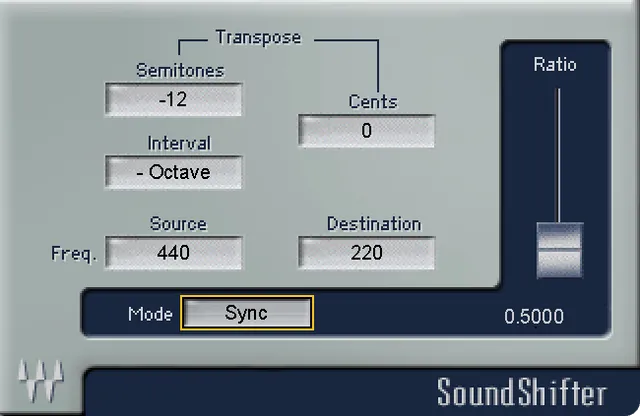
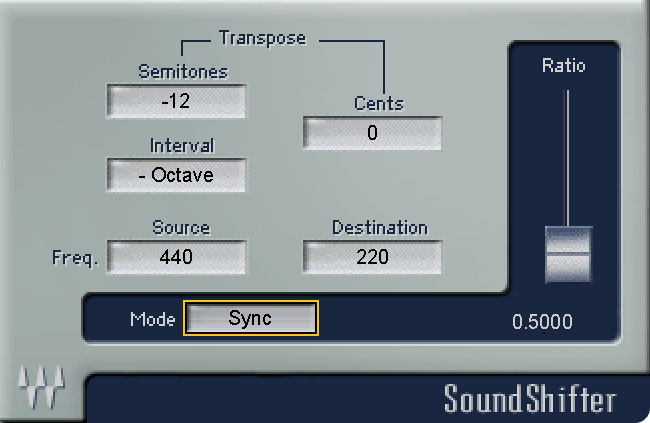
Transpose can be entered as semitones/intervals plus cents. [1]
- Semitones: -12 to +12
- Fine cents: 0 to 99 within the selected semitone/interval relationship [1]
The interface can also express common musical intervals rather than only numeric semitone values.
Frequency Source and Destination
The Pitch Ratio can also be set using Source and Destination Frequency values in Hz. [1]
The manual explicitly says SoundShifter does not detect the source pitch. The Source Frequency field therefore defaults to 440 Hz. Editing Source or Destination changes the relationship mathematically; it does not mean the plugin has analyzed the note in the audio. [1]
SoundShifter Pitch real-time component
The real-time SoundShifter Pitch component reproduces the Parametric Pitch controls while keeping the duration unchanged. [1]
Waves documents it as a channel-insert-style processor with fixed latency. Because the current guide section does not publish that latency as a numeric sample count, this article leaves the value unspecified. [1]
Use this component when the job is pitch change during playback rather than offline retiming of a selection. The guide warns that CPU demand can limit instance count and that real-time preview is limited with 96 kHz material. These are vendor-documented limitations, not measurements from this article. [1]
Graphic SoundShifter: Time and Pitch curves
Graphic SoundShifter gives Time and Pitch their own editable curves across the selection. [1]
Double-clicking the graph creates a point. Points can be dragged or edited numerically, and the guide documents a maximum of 999 points. The start/end points remain present by default. [1]
The graph can also show the source waveform when the host provides it. Some hosts populate the waveform automatically; others expose a Load Waveform control. This behavior is host-dependent and should not be presented as universally identical. [1]
Edit and curve bypass
Edit selects whether you are currently modifying the Time or Pitch curve. Only one curve is actively edited at a time. [1]
Each curve also has a bypass control so you can audition the effect of Time or Pitch independently. [1]
View
View selects how the Graphic SoundShifter timeline is displayed. It uses the same time formats as the Parametric component. [1]
When a format requires additional context—for example Bars & Beats or SMPTE—the corresponding Tempo/Meter or SMPTE Format settings appear. [1]
Graphic Link Mode
Graphic SoundShifter supports Link to Time and Link to Pitch. [1]
When one is selected, that curve drives both time and pitch processing and the other curve is ignored. This is the graphic equivalent of making one relationship control both dimensions. [1]
Graphic Mode
The Graphic component uses the same Sync / Smooth / Transient / Punchy Mode choices as the Parametric component. [1]
That means the curve defines how the ratio changes over time while Mode still defines the algorithm optimization.
Point Info
Point Info shows and allows manual editing of the selected point's coordinates. [1]
It includes:
- Source Time — the point's location in the input selection.
- Destination — the time location after the current time curve is applied.
- Ratio for Time points, or Transposition in cents for Pitch points. [1]
Points cannot be moved through adjacent points; the legal time range is bounded by the neighboring points. [1]
Start Time
Start Time aligns the graph rulers with the selection's position in the host timeline. [1]
A small selector lets you view time relative to the selection start (start = 0) or relative to the specified/host-reported start time. Host support determines whether the value is populated automatically or entered manually. [1]
Total Time
Total Time displays the overall input and intended output durations in the selected View units. [1]
If SoundShifter cannot retrieve the selection length from the host, the guide says Total input time defaults to 1:00 minute. That value must be corrected to the actual selection length before relying on the graph, because the curve is mapped to the duration shown here. [1]
Zoom and Reset Zoom
Graphic SoundShifter can zoom up to 1000× on both axes. [1]
- X axis: time scale
- Y axis: ratio/cents scale
- Reset Zoom returns to the full-selection view. [1]
Horizontal zoom also changes the waveform's displayed time scale so the audio and graph rulers remain aligned.
Reset Graph
Reset Graph deletes the added graph points and resets the zoom to the initial state. [1]
The guide says this operation can be undone using the WaveSystem toolbar's Undo function. [1]
WaveSystem toolbar
The common WaveSystem toolbar handles preset load/save, compare, undo/redo and interface resizing. Its upper-right help icon opens the WaveSystem Guide. [1]
Those controls manage state and workflow rather than changing the time/pitch algorithm itself.
A practical SoundShifter workflow
For an exact-duration job, start with Parametric SoundShifter. Confirm the source duration, choose the appropriate time format, enter the required Destination length, then choose the algorithm Mode based on the material. Leave Link Mode Unlinked unless you intentionally want time and pitch tied together. [1]
For a musical pitch change that must preserve duration during playback, use SoundShifter Pitch and enter the required musical interval or source/destination frequency relationship. Remember that the Frequency field is a ratio calculator, not pitch detection. [1]
For a transition, ramp or changing retime, use Graphic SoundShifter. Verify Total Time first, select the Time or Pitch curve in Edit, add the required points, and use Point Info and Zoom for precision. [1]
This is a documentation-based workflow, not a claim that one mode or ratio will sound best on every source.
Best for / skip if
SoundShifter is best for offline duration fitting, tempo conversion, pitch transposition, vari-speed-style changes and time/pitch moves that need to change over a selection. The Graphic component is especially relevant when a fixed conversion is not enough. [1][2]
Skip it when you only need ordinary clip trimming, when the host already provides a simpler stretch function that meets the job, or when you specifically need modern formant-preserving vocal manipulation that the current SoundShifter documentation does not claim. The manual explicitly notes that larger pitch/time changes become less natural, especially on voice and complex program material. [1]
Limitations and evidence boundary
This article is based on Waves' current product page and product-linked manual. I did not compare SoundShifter with a DAW stretch algorithm, measure latency, CPU load or audio quality, or process any source material.
The complete product-linked guide and its component/control diagrams were inspected. The official artwork below depicts SoundShifter Pitch only, not the Parametric or Graphic interfaces. It belongs to the documented product/component family; its exact plugin build remains unverified. No installed plugin or audio output was tested.
Related guides
The Vocal Bender guide covers a different real-time voice pitch/formant workflow. Ordinary official references include Waves Tune for pitch correction and UltraPitch for multi-voice pitch effects. These are related tools, not claims of superiority.
Bottom line
SoundShifter is three tools around one idea: separate time from pitch. Parametric SoundShifter handles fixed conversions, SoundShifter Pitch handles real-time pitch-only work, and Graphic SoundShifter lets the conversion change across the selection. [1]
The key setup choices are the time/pitch relationship, algorithm Mode, and—when working graphically—the accuracy of the selection timing and curve points.
Sources
Checked October 16, 2026. No listening or native-host test was performed.
- Waves SoundShifter User Guide, current product-linked guide; complete control text and component diagrams inspected. This is documentation, not an installed-build or listening test.
- Waves SoundShifter product page, current product identity and use description.
- Waves Graphic Library, current SoundShifter listing and stated reuse rule for images on that page with a backlink to the relevant Waves product page.
FAQ
What does Waves SoundShifter do?
SoundShifter changes audio duration and pitch independently or together. Its Parametric component uses fixed ratios, the Pitch component changes pitch in real time while preserving duration, and Graphic SoundShifter can vary time and pitch across a selection. [1]
How far can SoundShifter stretch or shift audio?
Waves documents a maximum ratio of 2.0 or 0.5 for time and pitch. For pitch, that corresponds to up to one octave up or down. [1]
What are Sync, Smooth, Transient and Punchy modes?
They are SoundShifter's four algorithm optimization modes. Sync prioritizes timing relationships, Smooth is aimed at smoother articulation, Transient emphasizes attack preservation with a slight attack-timing compromise, and Punchy is intended for strongly percussive material. The documented default is Transient. [1]
What does Link Mode do?
Link Mode decides whether Time and Pitch are independent. Unlinked keeps them separate; Time makes the Time Ratio drive both; Pitch makes Pitch Ratio drive both; Strapped lets the relationship be linked/unlinked while preserving the current offset. [1]
Does SoundShifter detect the pitch of my audio?
No. The manual explicitly says the Source Frequency field does not detect the selected audio's pitch. It defaults to 440 Hz and serves as part of the source/destination ratio calculation. [1]
What is Graphic SoundShifter for?
Graphic SoundShifter lets the amount of time stretch or pitch shift change across the selection. You create points on Time and Pitch curves, and the processor interpolates the changing relationship across the audio. [1]
How many points can Graphic SoundShifter use?
The current guide documents up to 999 points on its graphs. [1]
Why is Total Time important in Graphic SoundShifter?
The graph is mapped to the displayed selection duration. If the host cannot provide the source length, SoundShifter defaults the input Total Time to one minute, so you need to correct it when the actual selection is a different length. [1]

About the Author
Joseph Nilo has been working professionally in all aspects of audio and video production for over twenty years. His day-to-day work finds him working as a video editor, 2D and 3D motion graphics designer, voiceover artist and audio engineer, and colorist for corporate projects and feature films.