

Waves SSL G-Master Buss Compressor is a stereo-bus compressor modeled on the SSL G Series master-bus compressor, with stepped attack, release and ratio choices plus modern additions including a sidechain high-pass filter, wet/dry Mix and output Trim. The plugin also preserves Waves' analog-emulation switch and the hardware-inspired Autofade section. [1][2]
The useful way to think about it is as a small set of linked decisions: how much signal reaches the compressor, how quickly it reacts, how quickly it lets go, how strongly it compresses, and how much compressed signal you blend back in. [1]
About the imagery: the cover is an editorial illustration. The plugin interface is official Waves product artwork, not a capture of a listening or compliance test.
My Short Version
Start with Ratio, Attack and Release because those are stepped choices. Then lower Threshold until the gain-reduction meter shows the amount of compression you intend.
Use SC Filter when low-frequency energy is making the compressor react more than you want. It is a high-pass filter in the detector path, not an audio-path bass roll-off. [1]
Use Mix for internal parallel compression. Make Up changes level around the compression stage; Trim is the final documented plugin output adjustment. Leave Analog on if you want the modeled console-emulation mode described by Waves, or turn it off when you explicitly do not. [1]
The unusual Rate-S / Fade Off pair is not a release-time control for the compressor. It is a separate automatic fade system with a 1–60 second duration. [1]
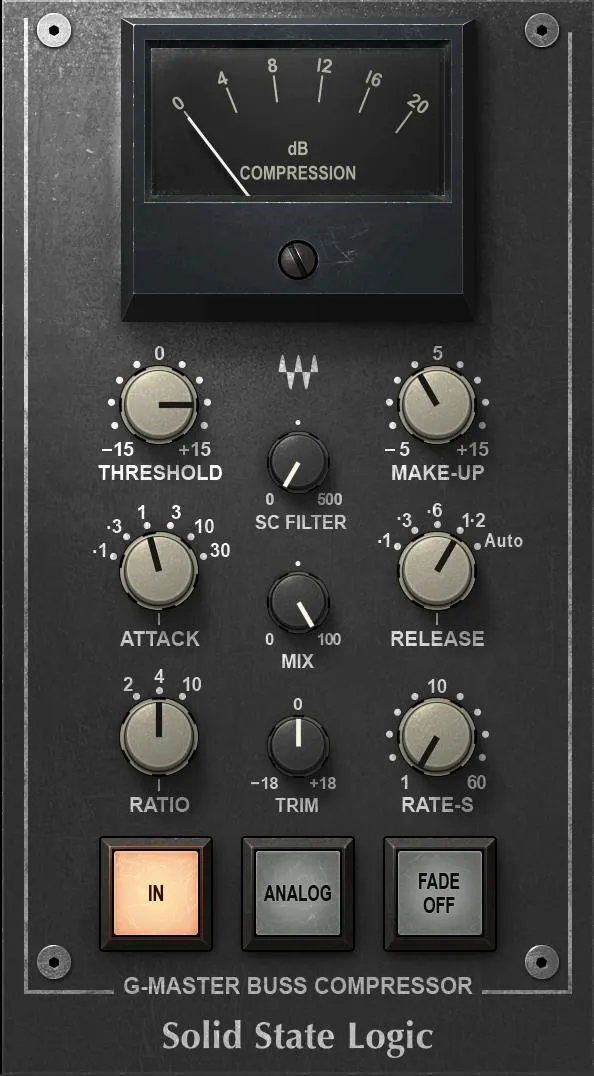
Threshold
Threshold sets the operating level at the compressor knee. Waves documents a continuous range of -15 dB to +15 dB. [1]
Lowering Threshold makes more of the incoming signal cross the operating point and therefore increases the opportunity for gain reduction. Raising it does the opposite.
Threshold does not set the output ceiling. The plugin is a compressor, not a brickwall limiter, and this manual does not document a ceiling control.
Make Up Gain
Make Up compensates for level lost to compression. Its documented range is -5 dB to +15 dB. [1]
Use it to restore level deliberately after choosing the compression behavior. When judging whether a setting is useful, match perceived output level as closely as practical rather than assuming a louder result is better. That is an editorial evaluation recommendation, not a measured result from this article.
SC Filter
SC Filter is a high-pass filter in the compressor sidechain. Waves says its purpose is to reduce the influence of bass-heavy material on the compression detector. The documented settings are Off, then 21 Hz through 500 Hz. [1]
Because this is a detector filter, it should not be described as directly removing bass from the audible output. It changes what drives compression.
The manual also documents an external sidechain source select in host applications that support it. It does not provide a numeric parameter range or a dedicated labeled selector in the legacy panel screenshot shown in the official panel screenshot. External-sidechain routing is host-dependent; the manual does not document a universal on-panel selector or host workflow. [1]
Attack
Attack controls how quickly the compressor responds. There are six documented stepped rates:
- 0.1 ms
- 0.3 ms
- 1 ms
- 3 ms
- 10 ms
- 30 ms [1]
Faster settings make the gain reduction react sooner. Slower settings allow more of the initial transient to pass before the compressor reaches its response.
That is a timing relationship, not a claim that one attack value is universally more punchy or more transparent. Source material and the amount of gain reduction still matter.
Release and Auto
Release controls how quickly the compressor recovers after gain reduction. The stepped choices are 0.1, 0.3, 0.6 and 1.2 seconds, plus Auto. [1]
In Auto, Waves says release depends on the duration of the program peak. The manual does not publish a single fixed Auto release value, so this guide does not invent one.
Watch the gain-reduction meter when setting Release. A recovery that is too fast or too slow for the program can make the gain movement feel disconnected from the musical envelope. No listening test was performed.
Ratio
Ratio sets the compression ratio. The available values are 2:1, 4:1 and 10:1. [1]
2:1 is the gentlest of the three documented ratios; 10:1 is the strongest. The actual amount of gain reduction still depends on Threshold and the signal feeding the detector.
Mix
Mix balances the compressed and uncompressed signals inside the plugin. Waves documents 0–100% in 0.1% increments, with a 100% default. [1]
At 100%, you hear the fully processed path. Reducing Mix blends dry signal back in and enables parallel compression without a separate aux path.
A practical approach is to establish the compressor timing and Threshold at 100% first, then lower Mix if you want less of the compressed envelope. That is an editorial workflow suggestion, not a tested preferred setting.
Trim
Trim sets the plugin output level over -18 dB to +18 dB. [1]
Use Trim for final output matching after compression, Mix and Make Up choices. It is not documented as a limiter or clipping stage.
Analog
Analog toggles Waves' modeled analogue-console behavior. The manual says the SSL 4000 Collection operates with analogue emulation enabled by default and that deselecting Analog disables that emulation. [1]
Waves describes analogue processors as adding noise and harmonic distortion relative to modern digital devices. This article does not assign a measured noise level, harmonic spectrum or subjective preference because no native test was run.
In / bypass
In is the plugin's documented bypass switch. With In selected, the compressor is active; with it deselected, the compressor is bypassed. [1]
Do not confuse this with a level-matched comparison. Bypass changes processing state, but the user still has to account for any level difference created by compression and Make Up.
Rate-S and Fade Off
The Autofade section is separate from compression Release.
Rate-S sets the fade duration from 1 to 60 seconds. Activating Fade Off starts a fade-out over that duration. Toggling it again changes the direction to a fade-in until unity gain is reached; the manual describes a further toggle as skipping the remaining fade status. [1]
This is a utility fade function inherited from the SSL workflow, not a detector release control.
Gain-reduction meter
The large analogue-style meter is the Compression / gain-reduction indicator. Waves says it indicates the amount of compression imposed by the Master Bus Compressor. [1]
The manual also states that the SSL meters are calibrated so 18 dBu = 0 dBFS and describes the console-style scale as being displayed in dBu. The visible meter face itself is labeled dB COMPRESSION, so the safest editorial description is simply gain reduction on the SSL-style meter, preserving Waves' calibration note without treating the meter as an output peak meter. [1]
No click-to-reset behavior is documented for this needle meter.
External sidechain support
Waves lists an external sidechain source select as a feature only in host applications that support it. [1]
The current documentary evidence establishes the feature, not one universal setup sequence. DAWs expose sidechain routing differently, and the inspected manual image does not show a separate dedicated source selector on the main hardware-style panel.
WaveSystem toolbar
The shared WaveSystem toolbar provides preset save/load, settings comparison, undo/redo and plugin resizing. [1]
These are state and interface controls, not compressor parameters. A/B compare is useful for two plugin states but is not automatically a loudness-matched listening test.
A practical setup order
Choose a Ratio first, then choose Attack and Release from the fixed timing values. Lower Threshold while watching gain reduction until the compressor is acting as intended.
If low frequencies are driving too much detector activity, raise SC Filter instead of removing low end from the audible signal path.
Use Make Up and Trim to compare at a sensible level. If the full compressed path is too strong, reduce Mix rather than immediately rebuilding the timing choices.
Finally decide whether Analog belongs in this particular use. Leave Autofade alone unless you actually need an automated fade.
That sequence is editorial guidance derived from the documented control relationships. No listening comparison, hardware comparison, CPU test or host automation test was performed.
Best for / skip if
This plugin is a good candidate when you want stepped SSL-style bus-compressor timing, detector high-pass filtering and built-in parallel Mix in a compact interface. Waves positions it for mix-bus, mastering and instrument/bus use. [1][2]
Skip it when you specifically need a compressor with continuously variable attack/release, frequency-selective multiband dynamics, or a brickwall output ceiling. Those are different processor requirements rather than shortcomings proven by a test here.
Related plugins
The live Renaissance Compressor guide covers a more general compressor workflow with different controls. The live F6 guide is the better reference when the dynamics problem is frequency-selective rather than full-band.
The live L2 guide explains a dedicated limiter, which should not be confused with the G-Master's 10:1 compression ratio. MV2 is another already-live dynamics guide built around low- and high-level compression rather than SSL-style bus compression.
The Waves Audio Post Resources hub collects the site's existing Waves workflow and licensing references.
Bottom line
SSL G-Master Buss Compressor is deliberately constrained: three ratios, six attack choices, four fixed releases plus Auto, then Threshold and gain staging to decide how much those timings matter.
Use SC Filter to change what the detector hears, Mix to decide how much compressed signal you keep, and Trim to level-match the result. Treat Analog and Autofade as separate choices rather than part of the core compression timing.
Sources
Checked September 20, 2026. No listening, hardware, CPU, latency or host-routing test was performed.
- Waves SSL G-Master Buss Compressor User Manual, especially pp. 2–4. The official control-panel image on p. 3 was visually inspected.
- Waves SSL G-Master Buss Compressor product page.
- Waves Graphic Library, current SSL G-Master Buss Compressor entry and attribution/backlink requirement.
Frequently Asked Questions
What does SC Filter do in Waves SSL G-Master Buss Compressor?
SC Filter high-pass filters the detector signal so low frequencies have less influence on compression. It does not directly remove bass from the audible output.
What attack settings does SSL G-Master offer?
The six documented attack choices are 0.1, 0.3, 1, 3, 10 and 30 milliseconds. They are stepped choices rather than a continuous timing control.
Is Auto release a fixed time?
No. Waves says Auto release depends on the duration of the program peak. The manual does not give it a single fixed millisecond value.
Can I use SSL G-Master for parallel compression without an aux track?
Yes. Its Mix control blends the processed and dry signals inside the plugin. Set the compressor behavior first, then use Mix to choose the blend; that setup order is editorial guidance, not a tested preset.
Is the 10:1 ratio a brickwall limiter?
No. The plugin is a bus compressor with a 10:1 ratio option, not a documented output-ceiling or brickwall-limiting stage.
Are Rate-S and Fade Off compressor release controls?
No. They operate the separate Autofade system. Rate-S sets a 1–60 second fade duration, while compressor Release has its own stepped values and Auto option.

About the Author
Joseph Nilo has been working professionally in all aspects of audio and video production for over twenty years. His day-to-day work finds him working as a video editor, 2D and 3D motion graphics designer, voiceover artist and audio engineer, and colorist for corporate projects and feature films.