

StudioVerse Mix Unlock separates a mixed source into two or four stems inside StudioVerse Audio Effects, then gives each stem its own processing rack. It is a way to work on parts of a combined signal, not a reconstruction of the original recording session.
This guide follows the complete current product-linked supplement, its linked base guide and genuine official interface artwork. I have not run or auditioned the feature; separation, latency and operating descriptions are documentary, not measured performance or listening results.
My Short Version
Put Mix Unlock in the Main Chainer, choose two or four stems, then distinguish three tasks: separation focus, stem level and processing-chain design.
Sensitivity is not a volume control. It changes the network's focus on a stem, with a trade-off against other stems. Use the rack's level/imaging controls for balance.
The stem racks return to the Mix Unlock insert point. Its position in the main chain therefore determines which processing occurs before separation and after the stems return.
The active-license prerequisite, cloud preset tools and sharing/profile workflow are separate from operating the controls. Loading a chain does not establish ownership of its hosted plug-ins.
Best for and when to choose something else
Best for: understanding how to rebalance or independently process parts of a finished source when the original tracks are unavailable.
Choose original multitracks when available: separation creates derived stems, not the original individual microphone tracks, edits or processing history.
These are workflow distinctions, not a promise that every mix separates cleanly. No isolation quality, real-time CPU performance or restoration result is demonstrated here.
Two stems, four stems and prerequisites
The supplement offers 2 Stems: Vocals/Playback, or 4 Stems: Vocals/Drums/Bass/Instruments. The source uses both Vocal/Vocals wording in interface examples; the routing idea is the same named stem role, not an additional mode.
Mix Unlock itself is specified for Mono and Stereo. The broader base guide also discusses StudioVerse Audio Effects' Mono-to-Stereo chain behavior; that context does not establish another Mix Unlock component.
The guide calls Mix Unlock a Premium feature requiring an active Mix Unlock license. It says processing is unavailable if a valid license is not found. This is a documented prerequisite, not an account check, purchase instruction or statement about current offers.
Insert position and signal flow
Inside StudioVerse Audio Effects, click an empty slot or its menu arrow, select Mix Unlock, then choose the stem configuration.
The insert belongs only in the Main Chainer, not inside a Parallel or Multiband Split rack. Its generated stem racks can themselves host effects and use Parallel/Multiband processing; those are different routing levels.
The mixed signal at the insert is separated into the stem racks. The processed stems return to that same insert point, then continue through the main rack.
Main-rack signal flow is top to bottom. Moving an insert changes its position in that flow and can change gain structure; the manual does not promise that moving processing leaves the result unchanged.
The source diagram is a routing illustration, not a measured leakage, latency or phase test.
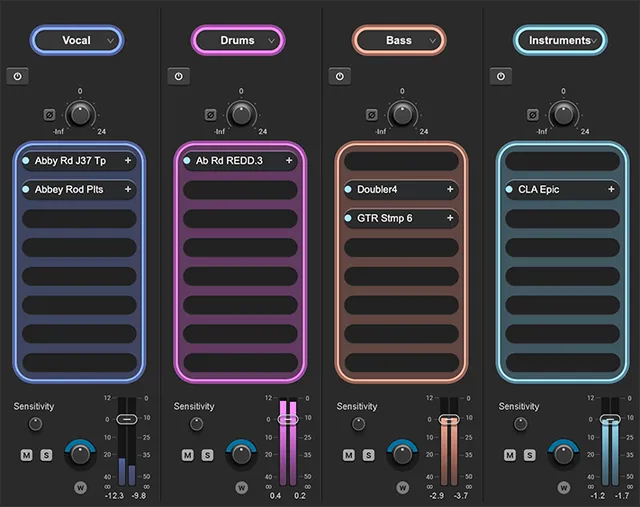
Each stem's rack controls
At the top of each stem rack, a name/menu opens chain-loading choices. The rack contains effect slots with individual controls described later.
The pictured stem input area contains a rack On/Off control, input-gain control and polarity switch. The guide's shared input discussion defines rack bypass/phase functions, but does not separately establish a complete numeric input-gain range/default for every Mix Unlock stem.
Do not transfer the Main Chainer's −24 to +24 dB range to that pictured stem knob merely because the controls look related.
At the bottom are Sensitivity, Mute, Solo, an imaging control, W-width control, output fader and meters. Keep those functions separate rather than treating the whole strip as one “stem volume” adjustment.
No complete list of numeric starting settings is published. Static gains, meters, loaded plug-ins and selections in the Library image are examples, not defaults.
Sensitivity: separation focus, not gain
The linked base guide specifies Sensitivity 0–200, without a unit or default.
It increases the neural network's focus on separating the selected stem. The source warns that increasing focus for one stem may reduce the focus applied to others.
Do not label the range as percent or decibels. Nor does a high setting establish a measured purity, guaranteed isolation or louder output.
Use the stem fader for balance and Sensitivity for the documented separation-focus task.
Stem Mute, Solo, output meters and fader limits
Mute silences a stem and Solo isolates it relative to other stems. The base guide documents Ctrl on Windows / Control on Mac for clearing active Mix Unlock Solo/Mute selections.
That Mix Unlock description differs from the shared Split Rack Solo instruction, which adds a rack to a selection while clicking. The two context-specific descriptions should not be collapsed.
The stem output section has a fader, meters and numeric level readouts. The base guide's Split Rack meter callout gives −∞ to 0 dB; a separate full Mix-stem calibration, exact ballistics and stem peak-reset gestures are not specified.
Stem Volume adjusts level, but its exact range/default is not explicitly established. Base pages 30–31 assign −∞ to +10 dB to the numbered Split Rack fader; the adjacent Mix Unlock artwork shows 12. These different scopes do not establish a Mix Unlock runtime maximum. The separately documented Main Output range is not substituted either.
Pan, stereo rotation and W
The base guide distinguishes pan/balance for a mono signal in a stereo rack from rotation of a stereo image. They are not interchangeable operations.
For stereo, drag the colored area around the panner to rotate the image. Waves describes this as moving the entire image without changing its internal balance; that is a source description, not an independent image-integrity test.
Drag W vertically to change width. The guide says a negative width reverses the sides, with the colored ring turning brown.
No full numerical pan, rotation or width range/default is supplied in this guide. Do not confuse these shared rack-imaging functions with a claim that Mix Unlock itself offers a Mid/Side component.
Main input, output, Gain Lock and Trim
The Main Chainer's controls remain visible in its different views.
Main input gain ranges −24 to +24 dB. Its full-scale meter shows the post-fader input level and has a clip indicator; the guide explicitly documents clicking the meter to reset the clip light.
The phase switch inverts polarity, and the On/Off button bypasses processing for the rack. No complete numeric/default list is supplied.
Gain Lock prevents input/output gains from being changed by loading a preset. The relevant faders are highlighted when locked.
Main output has a mono or stereo fader documented as −∞ to +12 dB, a corresponding meter, peak-hold readouts below, and a gain-reduction indication described as received from the host.
The guide describes Trim for adjusting level with Gain Lock engaged. It is not a limiter or a promise of automatic loudness matching. Main output bounds are not automatically the bounds of every stem fader.
Internal sidechains and their exact taps
Right-click the Mix Unlock insert and choose Enable Side Chain. Then use the SC button of a sidechain-enabled hosted plug-in to choose a source.
The supplement lists:
- External: the host DAW's internal sidechain patch.
- StudioVerse Audio Effects Input: before input gain and main-rack processing.
- 2 Stems / 4 Stems Input: the signal at the Mix Unlock insert.
- Rack # Output: a stem source before rack gain and mute, after its panner.
Only sources earlier in processing order are available. In four-stem mode the guide orders Vocals → Drums → Bass → Instruments.
For example, Drums can use Vocals, but Vocals cannot use the later Bass stem. Muting a source stem does not imply that its pre-mute sidechain tap disappears.
These are source-defined internal routes, not a tested host setup. A plug-in still needs a sidechain-capable interface; enabling the insert does not invent one for every hosted effect.
Effect slots: insert, show, reorder, copy and disable
Click an empty slot/+ to open the plug-in menu, search by name or browse its hierarchy. Left-click a populated name to show/hide its floating panel; right-click, or use its + menu, for management choices.
The guide distinguishes:
- Remove Plugin: deletes it from that rack slot, losing its parameters and assignments.
- Bypass: keeps it in the chain but bypasses processing; the guide says this does not reduce CPU or latency.
- Disable Plugin: removes its processing/latency contribution without deleting its settings and assignments.
- Copy/Paste: duplicates a plug-in and its settings; pasting over a populated slot replaces the prior plug-in/settings.
- Paste Preset: transfers only settings when the source and target are compatible members of the same plug-in family.
Drag a plug-in up/down to reorder it. Option/Alt-drag copies between racks in the documented rack views.
A blue slot dot indicates not bypassed and is mirrored in the floating panel. The context menu's Latency/Rack Latency entries report the selected plug-in and whole instance; they are gray when no delay is declared.
Those management functions are explained here, not executed for this article.
Floating panels and VST3 context
A floating hosted panel has In/Out bypass, Pin, close-this and close-all controls, plus its own WaveSystem toolbar. Pinning keeps a panel in front; an obscured open panel can be recalled from its rack name.
The base guide documents VST3 hosting, including non-Waves plug-ins, while explicitly distinguishing it from unsupported VST format. That documentation is not a compatibility result for a particular installed effect or computer.
The VST3 menu provides Scan Plugins, Scan Single Plugin, Clear Caches and Rescan, Set VST3 Plugins Folder, and Sort by vendor/category. New/changed plug-ins can require rescanning; no scanning or installation was done here.
VST3 controls have a different Macro-assignment limitation, described below. Hosting an effect does not establish a license for it.
Parallel and Multiband processing inside stems
The supplement permits Parallel Split and Multiband Split processing in stem racks. Mix Unlock's own Main-Chainer restriction still applies.
The base guide describes Parallel Split as up to eight processing racks receiving the same input and returning to the insert. Add/remove uses +/−, with removal discarding contents/settings after confirmation.
Each split rack has enable/source/gain/polarity and output/imaging controls. The illustrated input menu includes Stereo, Left, Right, Mid and Sides; that is split-rack context, not new Mix Unlock stem names.
Multiband Split supports up to five bands/four crossovers. Drag a crossover value vertically; adjacent crossovers limit its current range.
The guide gives an overall 20 Hz–20 kHz range and listed default crossover intervals 92–545 Hz, 545–4000 Hz, 4000–11,071 Hz and 11,071–20,000 Hz. These are range intervals, not four documented startup frequencies.
The bottom scroll bar exposes racks outside the window, and the numbers above a split rack navigate opened splits; a gray number indicates bypassed processing.
Do not confuse these split gain/solo/source controls with the distinct Mix Unlock Mute/Solo/Sensitivity controls.
Macros: pages and three assignment methods
StudioVerse supports up to 13 pages of eight Macros: 104 total. Macros can collect multiple parameters across the instance, including hosted stem processing.
Use the page drop-down to add a page, navigate through pages with arrows/drop-down, and double-click a page name to rename it. Double-click a Macro name to rename that control.
The base guide documents three assignment routes:
- Right-click an unused Macro knob, choose a hosted plug-in/control, then name the Macro.
- Right-click a Waves plug-in control, choose the target Macro from its assignment menu.
- Click Assign, choose the flashing Macro, select controls, then click Assign again to finish.
Assigned controls are outlined in red. One Macro may control many parameters, but a parameter is assigned to only one Macro.
Right-click an assigned control to remove or reassign it. For VST3, use the Macro-knob menu or Assign selector; the guide says the Waves-style right-click-on-effect-control method is unavailable.
Macro editing, ranges and capacity dialogs
Open the Macro Edit Window by right-clicking a Macro and choosing Edit Macro, right-clicking an assigned control, or clicking Edit below the Macro panel.
The editor identifies Macro number, plug-in name, control name and slot number. Main-rack controls are labeled Main Rack; split controls use slot/rack identifiers.
Control Range limits the parameter's movement and sets direction. Drag its value boxes vertically; the center arrows reverse direction. The default described relationship spans the assigned control's full range.
Macro Scale/Range determines which part of the Macro's travel moves that parameter. This is distinct from the parameter's own minimum/maximum; the default uses the full Macro travel.
When a stem chain contains Macro assignments that will not fit, one dialog offers OK to load the chain without Macros or Cancel to rearrange/unmap controls.
If usable slots remain on earlier pages, the other dialog offers OK to place assignments there or Cancel to rearrange first. Neither dialog increases the 104-Macro capacity.
The displayed DAW track name follows the host track's name. The guide also gives an automation-lane workaround, with Ctrl+Option+Command-click on Mac / Ctrl+Alt+Windows-click on PC, Pro Tools only. That qualification must not become a generic host shortcut.
Preset search, saving and sharing
The StudioVerse panel can show search results, Liked chains, recently used chains or your own chains. Search by text and tags; remove a tag with its X.
The guide describes Search by Audio and a larger search window. Audio analysis suggests presets; it does not measure separation quality. No analysis/upload was performed for this guide.
Selecting a result loads its structure, settings and assignments. Preset ID/name and next/previous arrows identify and navigate the loaded selection; keyboard up/down moves through results without loading. With no StudioVerse chain selected, the arrows navigate offline factory presets.
The heart adds a chain to Liked. The three-dot menu can share, show its creator/the chain online, or report a problem. Sharing requires a StudioVerse profile.
For a stem, its name drop-down can open StudioVerse with a stem tag, or choose Factory/Local User chains.
The toolbar file icon opens saving: choose cloud/local, name the preset and add tags. Additional fields include image, description, an audio-scan description aid and Publish my chain on StudioVerse public/private toggle.
These are documented user workflows, not account or publishing actions carried out here. A chain's hosted plug-ins and licenses remain separate prerequisites; the base guide describes demo operation with periodic drops for unlicensed hosted plug-ins.
Latency figures and toolbar
The supplement publishes these Mix Unlock figures:
| Sample rate | Samples | Published milliseconds |
|---|---|---|
| 44.1 kHz | 2048 | 46.4 ms |
| 48 kHz | 2048 | 42.7 ms |
| 88.2 kHz | 4096 | 46.4 ms |
| 96 kHz | 4096 | 42.7 ms |
These are vendor figures, not measurements on this system. Hosted effects can add delay; the base guide says the instance totals its chain latency and reports it to the DAW's compensation engine.
The WaveSystem toolbar supports presets/settings, comparison, undo/redo, resizing and Guide access. Appearance can differ in hosted panels; no undocumented global reset or complete universal shortcut list is inferred.
A conceptual workflow
Choose the stem configuration and main-chain insert location first. Then establish a stem balance before adding complex chains.
Treat Sensitivity, gain, imaging and processing as separate decisions. Keep sidechain source order/taps visible, and separate per-effect bypass from disabling a rack's processing.
Before loading another chain, decide whether to preserve main gains with Gain Lock and whether enough Macro slots remain. For an evaluation, compare at a suitable level and inspect the entire returned signal.
These are conservative workflow recommendations, not a tested recipe, isolation guarantee or claim that a particular chain is appropriate for every mix.
Related Waves guides
The Waves F6 guide explains EQ controls that could be relevant in a separate stem-processing chain. The Renaissance Compressor guide covers a dedicated compression workflow. Neither link implies that the reader owns or has activated those plug-ins.
The Waves Audio Post Resources hub collects other live guides. For the separate licensing topic, see Waves subscription versus perpetual licensing.
Sources and documentary bounds
Checked October 19, 2026, America/New_York. The official Mix Unlock product page links the complete 10-page supplement. Its page 3 explicitly links the complete 41-page StudioVerse Audio Effects guide. Both were read in full.
The base guide supplies Sensitivity's unitless 0–200 range and shared imaging/rack/menu/Macro definitions omitted from the supplement. It does not establish every stem input/output numeric default.
The differently scoped output-fader prose/figures are preserved rather than choosing a runtime stem maximum. Published separation and latency statements remain vendor descriptions, not tests.
The Graphic Library provides genuine four-stem artwork. Loaded chains, meter readings and static settings are illustrative, not defaults, verified licenses or a record of an actual session.
FAQ
Is Mix Unlock a separate track-by-track recording session?
No. The manual describes a feature inside StudioVerse Audio Effects that separates one mixed source into two or four stems, with processing inside one instance. It does not restore original multitrack recordings or guarantee artifact-free separation.
Can Mix Unlock be inserted inside a Parallel or Multiband Split?
No. The guide restricts the Mix Unlock insert itself to the Main Chainer. The resulting stem racks can have their own effects and can use Parallel or Multiband processing. Those are different routing levels.
What does Sensitivity control?
It increases the neural network's focus on separating a particular stem. The linked base guide gives a unitless range of 0 to 200, without a default. Increasing one stem's focus can reduce the focus applied to other stems; it is not a simple level or percentage control.
How do stem Mute, Solo and Width differ?
Mute and Solo control which stems are heard. The base guide describes the W control as a vertical-drag stereo-width adjustment, with negative width reversing the sides. Its stereo rotator moves the image through the colored area around the panner. The guide does not give a complete numeric width, rotation or pan range/default list.
Can one stem provide the sidechain for another?
Yes, subject to processing order. In four-stem mode the guide orders Vocals, Drums, Bass and Instruments, and permits only earlier sources. A stem Rack Output source is taken before rack gain and mute but after the panner. External host routing remains a separate source.
What happens when a loaded chain has more Macros than available space?
One dialog offers loading the chain without Macros or cancelling. Another can place new Macros into unused earlier-page slots when appropriate, or cancel so assignments can be rearranged. StudioVerse supports up to 13 pages of eight Macros, 104 total; these dialogs do not increase that capacity.
Which output limits are established for the stem faders?
The supplement does not state stem-fader bounds. The base guide's output section gives -infinity to +10 dB for a rack fader, with its numbered illustration on the Split Rack, while the pictured Mix Unlock scale reaches 12. This guide does not turn those differently scoped statements into a verified Mix Unlock runtime maximum or startup value.
Does loading or sharing a chain grant the required plug-in licenses?
No such entitlement is established. The guide says Mix Unlock needs an active license and is unavailable without one. It separately describes unlicensed hosted plug-ins running in demo mode with periodic drops. Sharing a chain requires a StudioVerse profile; no account, activation, purchase or sharing action was performed for this guide.

About the Author
Joseph Nilo has been working professionally in all aspects of audio and video production for over twenty years. His day-to-day work finds him working as a video editor, 2D and 3D motion graphics designer, voiceover artist and audio engineer, and colorist for corporate projects and feature films.