
Waves SuperTap is a multi-tap delay with up to six feed-forward taps, tempo and modulation controls, per-tap filtering, and a separate feedback section. Its guide documents distinct Tempo and Modulation Sync modes; those controls are not interchangeable. Feedback can also grow rapidly in level, so its operating mode matters.
This is a guide-based explainer, not a listening review. The current product page lists Mono, Stereo and Mono-to-Stereo component flags and Waves versions V9–V17. The linked guide describes two- and six-tap, Mono/Stereo and modulation variants, but does not explain the current Mono-to-Stereo listing or establish current build behavior. I did not audition SuperTap or test a host.
My Short Version
SuperTap places as many as six delayed copies around a source. The guide says the taps are mixed together at the output, while the Feedback section can send tap audio back to the input. Its stated six-second maximum delay is without modulation; the guide does not give a separate modulated maximum.
For the documented default state, the manual says all available taps are on and Feedback is off; Direct is on. It does not give numeric defaults for every control. The named Full SuperTap Reset setup is described as the default setting for all SuperTap components, but other positions shown in the Library image and preset pages are examples, not a verified installed state.
Set tap timing with BPM or milliseconds, then choose a grid and whether Snap quantizes taps. Tempo Sync Auto follows the host and locks BPM/ms; Modulation Sync Tempo instead expresses modulation rate in cycles per beat. Keep the two Sync sections distinct.
Normal feedback returns each tap to the input and disables its dedicated delay slider. Tap Feedback gives the feedback path its own delay, described as a seventh tap. Waves warns that aligned taps and high feedback can become very loud very quickly; start low and adjust slowly while watching monitoring level. This is a manual-based caution, not a safety guarantee.
What SuperTap does
Waves describes SuperTap as a six-tap delay for effects including tape-delay emulation, chorusing and rhythmic patterns. The manual explains that the taps are feed-forward: their delayed signals are combined at the output. Feedback is a separate route back to the input. Those descriptions do not mean the plug-in was compared with tape, another delay or a live instrument here.
The current product listing names Mono, Stereo and a field labeled Mono-to-Stereo in Waves’ product-page UI, with versions V9–V17. The older linked guide describes Mono/Stereo and two- or six-tap components, with or without modulation, but does not provide a separate Mono-to-Stereo operation inventory. Do not treat the product-page flag as proof of exact routing or feature parity across components.
Direct, tap rows and the Pan Graph
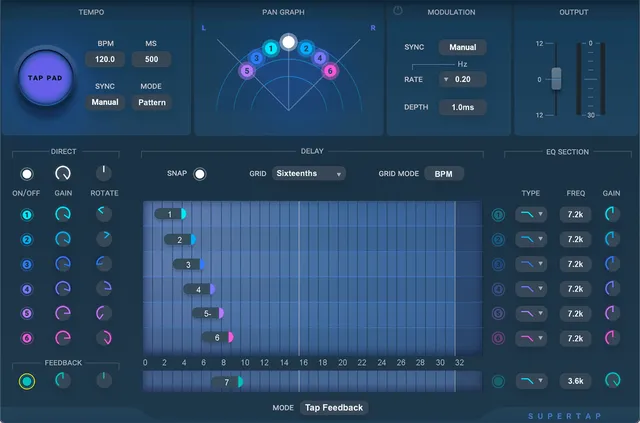
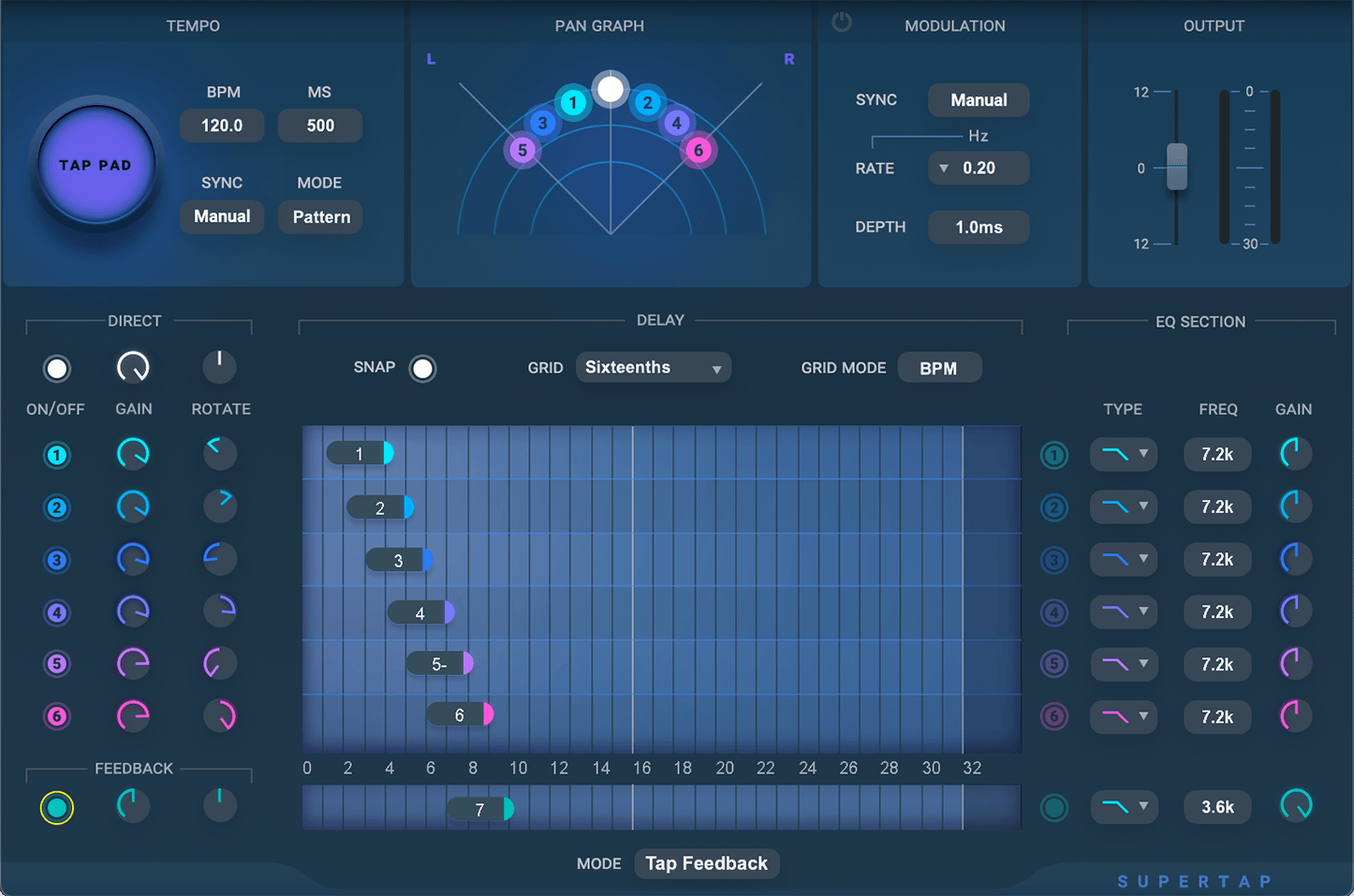
Direct is the dry/direct path. Its On/Off button is on by default, according to the guide. Direct Gain is documented from 0 to −24 dBFS in 0.1 dB steps; Direct Rotate is described in the same terms as tap rotation, from −45° to +45°. The manual does not state defaults for Gain or Rotate.
Each active tap has an On/Off button, Gain, Rotate and its own delay position. The guide says all available taps are on by default. Tap Gain is printed as 0 to −24 dBFS, in 0.1 dB steps. Rotate runs from −45° to +45°. Do not relabel the printed Gain unit or infer a percentage control. The manual does not publish per-tap Gain, Rotate or delay defaults.
The Pan Graph combines two edits: dragging a marker horizontally changes Rotate; dragging vertically changes output Gain. The guide calls the display a stereo-field graph, while explaining that Rotate applies to mono and stereo. It distinguishes mono panning from rotation; it does not document an equivalent pan-law control.
Tempo, Tap Pad and delay grid
The Tempo section displays BPM and milliseconds. The guide says BPM always refers to quarter notes, regardless of the selected grid division, and documents a Tempo range of 40–1200 BPM. The manual does not state a default Tempo.
The Tap Pad has two modes. Tempo mode averages successive mouse taps to estimate tempo; the guide recommends tapping for longer for a steadier average. Pattern mode uses the tapped sequence to enter tap times. These descriptions are from the manual, not a test of timing accuracy in a host.
Tempo Sync Auto takes tempo from the host, locks the BPM and ms values and fixes Tap Pad to Pattern mode. Manual keeps tempo internal. The guide does not describe a default Sync mode.
The Grid Mode displays tap timing in BPM or ms. The grid divisions are Free, Quarters, Quarter Triplets, Eighths, Eighth Triplets and Sixteenths. Snap controls whether taps quantize to the grid; with Snap off, the display can show whether a tap is faster or slower than the closest beat. The guide describes dragging each tap slider or using arrow keys. It does not give a default grid, division, Snap state or per-tap time.
Modulation and its separate Sync
The Modulator On/Off switch affects active taps, not Direct. In Manual mode, Rate is 0–20 Hz and Depth is 0–500 ms; Depth sweeps the delay around each tap’s nominal time. The guide gives a 700 ms tap with 250 ms Depth as an example sweeping from 450 to 950 ms. That example is not a default, and no Rate or Depth default is stated.
Modulation Sync has Manual and Tempo modes. Manual uses Rate in Hz. Tempo changes the Rate display to cycles per beat and ties modulation to the Tempo section, whether Tempo itself is internal or host-synced. The manual’s example is 3 cycles per beat at 120 BPM, which it calculates as 6 cycles per second. It mentions a menu of common subdivisions but does not provide an exhaustive list; none is invented here.
Tap EQ and Feedback EQ
Each tap has an EQ/filter On/Off switch, a Type selector and a Frequency control. The guide’s detailed filter page lists six types: Bell 1 (wider), Bell 2 (narrower), Hi Shelf, LowShelf, HighPass and LowPass. Frequency spans 100 Hz–20 kHz. Gain affects Bell and Shelf types, not the pass filters, even though the field can still be changed. The manual does not state a Gain range or default, nor a numeric Q control.
There is a source discrepancy worth keeping visible: the Quickstart overview says the tap EQ has five filter types, but the detailed EQ page names six, including two Bell widths. This guide uses the detailed six-type inventory and does not silently “correct” the overview.
Feedback has its own more limited EQ/filter list: Low Pass, Low Shelf and Low Decay. The guide describes Low Decay as a gentle high-shelf cut that can dull repeated passes. Its suggested −3 dB setting is an example, not a factory default. The manual does not establish a full gain range for Feedback EQ; this section should not be confused with the six-type tap EQ.
Feedback modes and level cautions
Feedback has On/Off, Mode, Gain, Rotate, a delay slider and the restricted Feedback EQ. The guide says Feedback is off in the documented default state. It does not give a complete Feedback Gain range, step size or numeric default. The printed 50%/−6 dB example and 100% endless-cycle description are vendor examples, not a complete gain law or a guarantee of stable repeats.
In Normal mode, each tap returns to the input, and the dedicated Feedback delay slider is disabled. In Tap Feedback mode, a separate delay is available, like a seventh tap looping the combined rhythm. Feedback rotation is described for mono and stereo; the manual illustrates extremes of −45° and +45°, but does not give a separate Feedback Rotate step/default.
Waves explicitly warns that positive feedback can become very loud and distorted, especially when multiple taps align and Feedback is high. Keep monitor level in view and increase Feedback gradually. Low Decay and the reset setup are not limiters or automatic protection.
Output and meters
Output Gain ranges from −12 to +12 dB. Clip lights above the meters reset on click. A numeric peak display shows the highest peak in each channel since the last reset. Meter calibration, ballistics and any default output gain are not specified by the guide. The meters are readouts, not another gain control.
The shared WaveSystem toolbar provides Save, Load, Compare, Undo, Redo, Resize and the WaveSystem Guide. The manual also names Full SuperTap Reset as a factory setup. These are window/preset utilities rather than extra delay or filtering parameters. Host controls and shortcuts were not tested.
A conservative way to approach the controls
- Choose the documented component and tap count that fit the channel path; confirm current Mono-to-Stereo behavior with Waves rather than extrapolating from the listing flag.
- Decide whether the task needs a straight multi-tap pattern or tap modulation. Use Tempo/Pattern mode for timing entry, then select BPM or ms, a grid division and Snap behavior.
- Set each tap’s timing, gain and rotation. If using tap filters, choose from the detailed six-type list and remember Gain applies only to Bell/Shelf filters.
- If you use Feedback, choose Normal or Tap Feedback intentionally. Begin with low feedback and adjust gradually, watching the output and monitor level; the guide warns that levels can build rapidly.
- Compare changes in your own session. This sequence follows the manual; it is not a tested preset or a promise that any setting is safe for every signal.
Who it may suit—and when to look elsewhere
SuperTap may suit a project that calls for several delayed copies with manually placed or tempo-grid timing, optional tap modulation, per-tap filtering and looping feedback. If you need verified current Mono-to-Stereo routing, every component’s exact menu, a full Feedback Gain law, or an assurance against runaway level, the checked manual does not provide that evidence. Confirm current behavior with Waves and keep feedback conservative.
Related Waves tools
For another documented delay product, see Waves’ H-Delay Hybrid Delay product page; SuperTap’s multi-tap grid and H-Delay’s separately documented controls are different approaches, not a tested comparison. The live Waves F6 guide covers an EQ workflow for a different task, while the Waves Audio Post Resources hub is the broader site guide index. These links are for navigation, not a recommendation based on listening.
Sources
Primary sources checked October 19, 2026. Waves SuperTap product page, which lists product metadata and links the guide; SuperTap User Guide, 20 pages; and the Waves Graphic Library. No plug-in installation, compatibility check, audio processing, listening test or measurement was performed. The guide’s page 4 overview says five tap-filter types while page 13 lists six; both source statements are retained above.
FAQ
What does Waves SuperTap do?
Waves describes SuperTap as a multi-tap delay. Its guide says as many as six delayed taps are mixed at the output, with a separate Feedback path able to return tap audio to the input. The stated six-second maximum is without modulation.
What is on by default in SuperTap?
The guide says all available taps are on, Feedback is off, and Direct is on. It also names Full SuperTap Reset as the default setting for all SuperTap components. The guide does not publish a numeric default for every parameter, and artwork or preset examples are not proof of an installed state.
How do Tempo Sync and Modulation Sync differ?
Tempo Sync Auto follows the host, locks the BPM and ms controls, and fixes Tap Pad to Pattern mode; Manual keeps tempo internal. Modulation Sync Tempo expresses Rate in cycles per beat and follows the Tempo section, while Manual uses Hz. They are separate Sync controls.
What does the Pan Graph change?
Dragging a tap marker horizontally changes Rotate, documented from −45° to +45°. Dragging vertically changes that tap’s Gain, printed from 0 to −24 dBFS in 0.1 dB steps. The manual describes Rotate for mono and stereo; it does not specify an additional pan-law control.
Which filters are available for each tap?
The detailed EQ page lists Bell 1, Bell 2, Hi Shelf, LowShelf, HighPass and LowPass, with frequency from 100 Hz to 20 kHz. The Quickstart overview says five types, so the guide contains a count discrepancy; this article preserves it and uses the six detailed names. Gain affects Bell/Shelf filters, not pass filters.
Is Feedback EQ the same as tap EQ?
No. The manual lists only Low Pass, Low Shelf and Low Decay in the Feedback EQ section. Low Decay is described as a gentle high-shelf cut on repeated passes. The tap EQ’s six types do not all appear in the Feedback section.
What is the difference between Normal and Tap Feedback?
Normal sends each tap back to the input and disables the dedicated Feedback delay. Tap Feedback adds a separate delay, described as a seventh tap that loops the combined rhythm. Waves warns that aligned taps and high Feedback can grow very loud; the guide recommends starting low and changing it slowly.
How do I reset SuperTap’s meters?
The guide says the clip lights above the output meters reset when clicked, and the numeric peak displays track the highest peak since the last reset. It does not specify other meter calibration or ballistics. The WaveSystem toolbar also includes preset and window utilities, but those are not meter controls.

About the Author
Joseph Nilo has been working professionally in all aspects of audio and video production for over twenty years. His day-to-day work finds him working as a video editor, 2D and 3D motion graphics designer, voiceover artist and audio engineer, and colorist for corporate projects and feature films.