
Waves The King’s Microphones is an EQ-style processor that offers three modeled microphone choices, each with Close, Ambient and Natural positions, plus input Gain and Trim controls. Its guide describes these as modeled responses associated with three historical microphones, not as a room-reverb effect or a continuous distance control.
This is a guide-based explainer, not an auditioned comparison. Waves’ current listing names Mono and Stereo components; the linked manual also describes those two formats. It does not establish current host behavior, a factory-selected microphone/position, or how accurately the plug-in matches a physical microphone. No audio or hardware comparison was performed.
My Short Version
Choose one of three model rows—King George V, King George VI or Queen Elizabeth—then select 1 (Close), 2 (Ambient) or 3 (Natural). The manual describes Close as a source 5 cm from the microphone capsule, Ambient as 40 cm, and Natural as the basic response without proximity effect or artifacts. All modeled positions are described as on-axis. These are three named response choices, not a variable-distance slider and not room reverb.
Gain controls input level. The guide prints its range as −48 dBFS to +12 dBFS; this is the manual’s stated unit, not a relabeled output-gain range. Trim displays an amount from 0 to 12, with no unit stated. Clicking Trim applies the displayed correction to Gain and resets Trim to report the remaining correction for the new Gain setting. Manually changing Gain also resets Trim’s displayed information. The guide does not specify a complete signed correction law or promise a limiter or always-safe normalization.
The peak meters are labeled in dBFS from −48 to 0. A CLIP light holds after a peak exceeds full scale until you click it or anywhere in the meter area. That reset clears the indication; the meter is not a limiter.
What the plug-in models
Waves describes the plug-in as a special EQ filter based on three historical microphones: King George V’s carbon microphone and the moving-coil microphones associated with King George VI and Queen Elizabeth. Its manual says each model has Close, Ambient and Natural positions, giving nine model/position selections. Those descriptions are vendor documentation; this guide did not compare the plug-in with archival hardware, physical microphones or recordings.
The manual says Close represents a source 5 cm from the capsule and Ambient 40 cm away. Natural is described as the basic microphone response without proximity effect or artifacts. The guide says these modeled positions were created on-axis. They are not a room-size control, a reverb setting or a continuously adjustable distance measurement.
The current Waves product page lists Mono and Stereo components and versions V9–V17; the guide documents Mono and Stereo components as well. This is documentary scope, not proof that a current installation or host presents the same menu.
Model and proximity controls
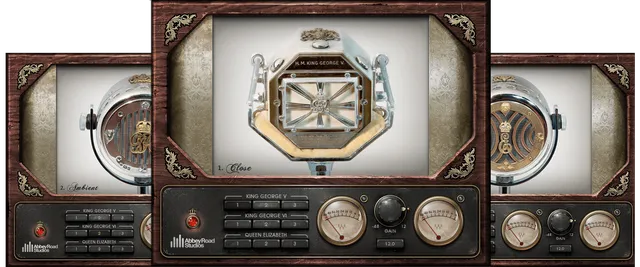
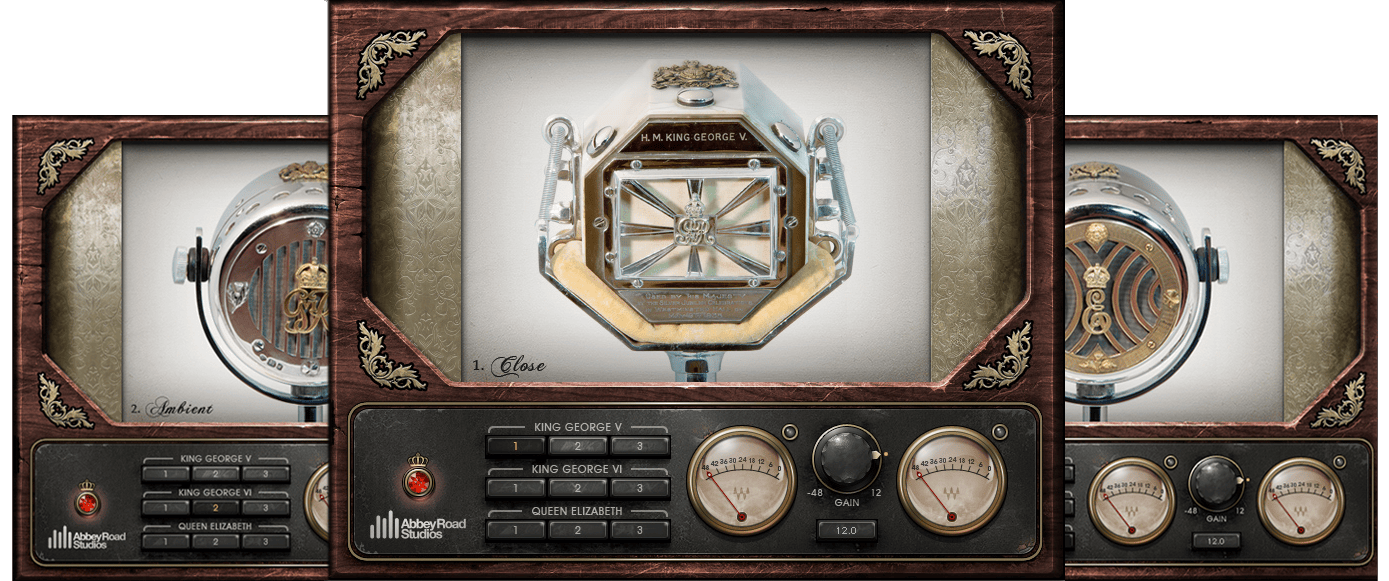
The three model rows each have numbered choices 1, 2, 3: 1 = Close, 2 = Ambient, 3 = Natural. Select a model and one of its positions. The manual does not specify a universal factory-selected model or position. The highlighted button in the official image is artwork, not evidence of an installed default.
| Control | Documented behavior | Range, options and limits |
|---|---|---|
| King George V | Selects the modeled carbon-microphone response. | 1 Close, 2 Ambient, 3 Natural; no default stated. |
| King George VI | Selects the modeled moving-coil microphone response. | 1 Close, 2 Ambient, 3 Natural; no default stated. |
| Queen Elizabeth | Selects the modeled moving-coil microphone response. | 1 Close, 2 Ambient, 3 Natural; no default stated. |
| Proximity position | Close, Ambient or Natural response for the selected model. | Close is described at 5 cm; Ambient at 40 cm; Natural as the basic response without proximity effect/artifacts. On-axis. No continuous distance control. |
The three positions are model selections, not independent EQ bands or a room simulation. The guide does not state how model responses are measured or provide a numerical frequency-response comparison for the three microphones.
Input Gain and Trim
Gain adjusts input level. Waves’ guide prints the specification as −48 dBFS up to +12 dBFS and does not state a factory default. The unusual dBFS unit is quoted as printed and is not presented as output gain or a guarantee about incoming signal level.
Trim is described as a way to adjust input Gain to eliminate clipping or boost a weak signal. Its displayed range is 0–12; the guide gives no unit and does not specify a complete signed mathematical law. The Trim button displays the amount of gain adjustment the guide says is needed for the highest possible level without clipping. Clicking it applies the displayed value to Gain, then resets the display to show Trim information for the new Gain setting. Moving Gain manually also resets the Trim display. This is the documented interaction—not evidence of a separate output stage, fixed ceiling, limiter or automatic safe-gain system.
Use the control descriptions as a map, then check the actual input/output levels in your own session. The documentation does not provide a complete Trim algorithm or promise that every input will be brought to a particular target.
Peak meter and Clip indicator
The manual says PEAK METER displays peak level in dBFS from −48 to 0 dBFS. The CLIP indicator lights when the signal peak exceeds full digital scale. It remains lit until you click the Clip light or anywhere in the meter area. The manual documents this clear gesture for The King’s Microphones; it should not be generalized to other Waves plug-ins.
The meters are readouts, not peak control, limiting or clipping prevention. The guide does not establish meter ballistics, calibration beyond the printed scale, a numerical Trim unit, or what a peak reading will be for a particular source. The composite artwork’s two meter windows illustrate the stereo layout; they are not a measurement.
Mono, Stereo and WaveSystem toolbar
The current product page and guide both list Mono and Stereo components. That agreement identifies documented formats but is not an installation or host-compatibility test.
The shared WaveSystem toolbar provides Save, Load, Compare, Undo, Redo, Resize and access to the WaveSystem Guide. These are shared plug-in-window utilities, not additional microphone models, EQ controls or a meter reset.
A conservative way to approach the controls
- Choose the Mono or Stereo component that fits your signal path.
- Select one microphone model and one position. Treat Close and Ambient as the guide’s 5 cm and 40 cm modeled examples, not room-reverb distances; Natural is the documented basic response without proximity effect/artifacts.
- Set input Gain while observing the meter. If using Trim, read its displayed correction and click it only when you intend to apply that amount to Gain; the Trim display then updates for the new Gain value.
- Watch the Clip indicator and clear it using the documented click gesture. A cleared light is not a limiter or proof that the preceding signal was unclipped.
- Evaluate the result in your own session. This sequence follows Waves’ quick-start directions and is not a test or a recommendation for any particular voice or instrument.
Who it may suit—and when to look elsewhere
The layout may suit someone looking for a small set of microphone-response models with three named proximity options and straightforward input-level indication. If you need a documented Trim unit or full transfer law, a published factory selection, a continuous distance control, or a measured match to a physical microphone, the current linked guide does not answer those questions. Confirm further details with Waves rather than inferring them from the composite interface art.
Related Waves tools
For a different equalizer workflow, see the live Waves F6 guide, which covers a dynamic EQ rather than microphone-response selections. The official SSL G-Equalizer product page describes a separate four-band console-style EQ. The live Waves Audio Post Resources hub is the broader site starting point. These links distinguish documented tools; they are not comparative listening recommendations.
Sources
Primary sources checked October 19, 2026. Waves The King’s Microphones product page, which lists current Mono/Stereo metadata and links the guide; The King’s Microphones User Guide, 10 pages, the historical guide currently linked by Waves; and the Waves Graphic Library. No plug-in installation, physical-microphone comparison, audio processing, listening test or measurement was performed.
FAQ
What does The King’s Microphones plug-in do?
Waves describes it as an EQ-style processor modeled on three historical microphone responses. Each model has Close, Ambient and Natural positions. This guide follows the linked manual; it is not a comparison with physical microphones or an auditioned review.
Which microphone models are included?
The guide lists King George V, King George VI and Queen Elizabeth. It describes King George V as a carbon microphone and the other two as moving-coil microphones. Those are Waves’ historical descriptions, not independently tested hardware findings.
What do Close, Ambient and Natural mean?
The manual describes Close as a source 5 cm from the capsule, Ambient as 40 cm away, and Natural as the basic microphone response without proximity effect or artifacts. It says the positions were created on-axis. They are named model positions, not a continuous distance control or room-reverb setting.
What are the Gain range and unit?
The linked guide prints Gain as an input-level control with a range of −48 dBFS to +12 dBFS. That unusual unit is reproduced as printed, not silently relabeled as dB. The manual does not state a Gain default or guarantee a particular input level.
What does Trim do, and what does its 0–12 range mean?
Trim displays a 0–12 adjustment with no unit stated in the manual. Clicking the Trim button applies the displayed correction to Gain and refreshes the Trim information for the new Gain setting. Manually changing Gain also resets the Trim display. The guide does not give a complete signed law or describe a limiter.
What does the peak meter show?
The manual says the peak meter displays −48 to 0 dBFS. It is a readout, not a limiter or gain control. The composite illustration’s two meters should not be read as an audio measurement.
How do I clear the Clip indicator?
The guide says Clip lights when a signal peak exceeds full scale and remains lit until you click the indicator or anywhere in the meter area. This is the documented reset gesture; it does not prevent clipping.
Does the guide say which model or position is selected by default?
No universal microphone model or proximity position is stated. The selected button in the official composite image is illustrative artwork, not a verified factory or installed setting.

About the Author
Joseph Nilo has been working professionally in all aspects of audio and video production for over twenty years. His day-to-day work finds him working as a video editor, 2D and 3D motion graphics designer, voiceover artist and audio engineer, and colorist for corporate projects and feature films.