
Waves Torque is a drum-tone retuning plugin that shifts the resonant character of a drum without working like a conventional full-spectrum pitch shifter. Waves describes its Organic ReSynthesis process as separating elements such as pitch, formant and amplitude, changing the selected tonal element, then re-synthesizing the result while preserving the rest of the sound. [1][2]
That makes Torque most useful when the performance and transient are fine but the drum itself feels too high, too low, or simply wrong for the track. It can be used on individual drums, percussion, samples, loops and breaks. [1][2]
My Short Version
Find the drum's useful resonant peak with Focus and use the Monitor button to hear the Focus band by itself. Set Threshold so the hits you want are processed while lower-level material stays original. Then turn Torque up or down in cents until the drum's tone sits where you want it. [1]
If the shift sounds too obvious, adjust Speed. If downward shifts become too boomy, reduce Torque Trim. Use Output only for final level compensation. [1]
I did not run Torque on audio for this article. The workflow and control behavior below come from Waves' current documentation and the inspected manual interface, not a new listening test.
What Torque actually changes
Torque targets the resonant/formant part of a drum sound rather than treating the entire signal as a conventional pitch-shift job. Waves says this is intended to preserve the transient, duration and natural character of the source while changing its tonal center. [1]
The practical implication is that Focus matters as much as the amount of tuning. If the plugin is centered on the wrong resonance, turning the Torque knob farther is not necessarily the answer; the manual specifically tells you to revisit Focus when the shift is not behaving as expected. [1]
Components and latency behavior
The manual documents four components: [1]
- Torque Mono
- Torque Stereo
- Torque Live Mono
- Torque Live Stereo
The standard Mono/Stereo components are documented as phase coherent, with sample-rate-dependent latency. The guide lists 32 samples at 44.1/48 kHz and 64 samples at 88.2/96 kHz; for its final pair it prints 176.2/192 kHz: 128 samples. The current product-page table lists 128 samples for its native176 and native192 rows, but does not resolve the guide’s exact decimal label. [1][2]
The Live components are documented as zero-sample latency and not phase coherent. All four components use the same controls and processing functions. Those are vendor-documented characteristics; latency and phase behavior were not measured for this article. [1]
Input meter
The Input meter shows the level before Torque processing. [1]
- Range: -48 dBFS to 0 dBFS [1]
The guide does not publish meter ballistics or a separate peak-reset action for the input meter, so none is inferred from the display.
Threshold
Threshold sets the level above which Torque processing takes place. Signal below the threshold returns to the original, unshifted sound. [1]
- Range: -70 dBFS to 0 dBFS
- Default: -48 dBFS
- Reset: -48 dBFS [1]
That makes Threshold useful when one recorded track contains a loud drum you want to retune plus quieter material you do not. Waves uses the example of isolating a snare from hi-hat spill on an overhead track. [1]
The manual's quick start suggests beginning roughly between -40 and -70 dBFS, then adjusting by ear and watching detection. That is a starting recommendation, not a universal target. [1]
Threshold LED
The Threshold LED tells you how strongly the signal is hitting Torque's processor: [1]
- Green: too low for sufficient detection resolution
- Yellow: nominal
- Red: too hot and may produce unwanted artifacts [1]
The manual separately lists an On/Off range beneath Threshold LED: On dims other frequencies; Off defeats dimming; default Off. It also documents the Monitor button as a band-pass audition control with its own On/Off dimming states. The static Threshold diagram shows a light beside the fader, but does not establish whether the light itself is user-toggleable or how the two dimming descriptions relate. This guide records the ambiguity rather than assigning an undocumented interaction. [1]
Focus display and Focus area
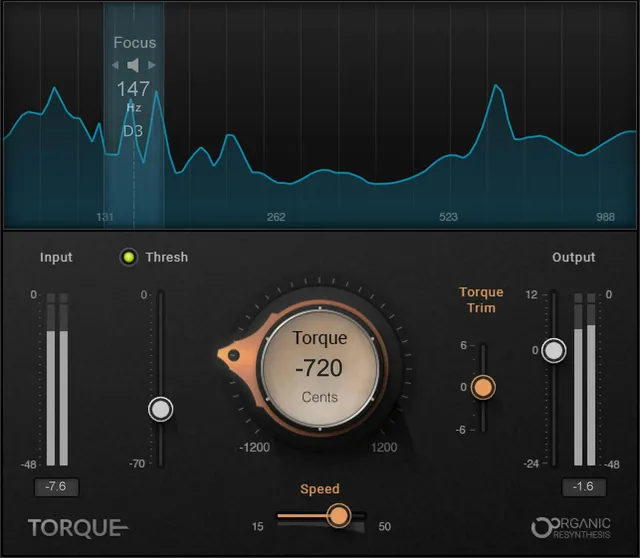
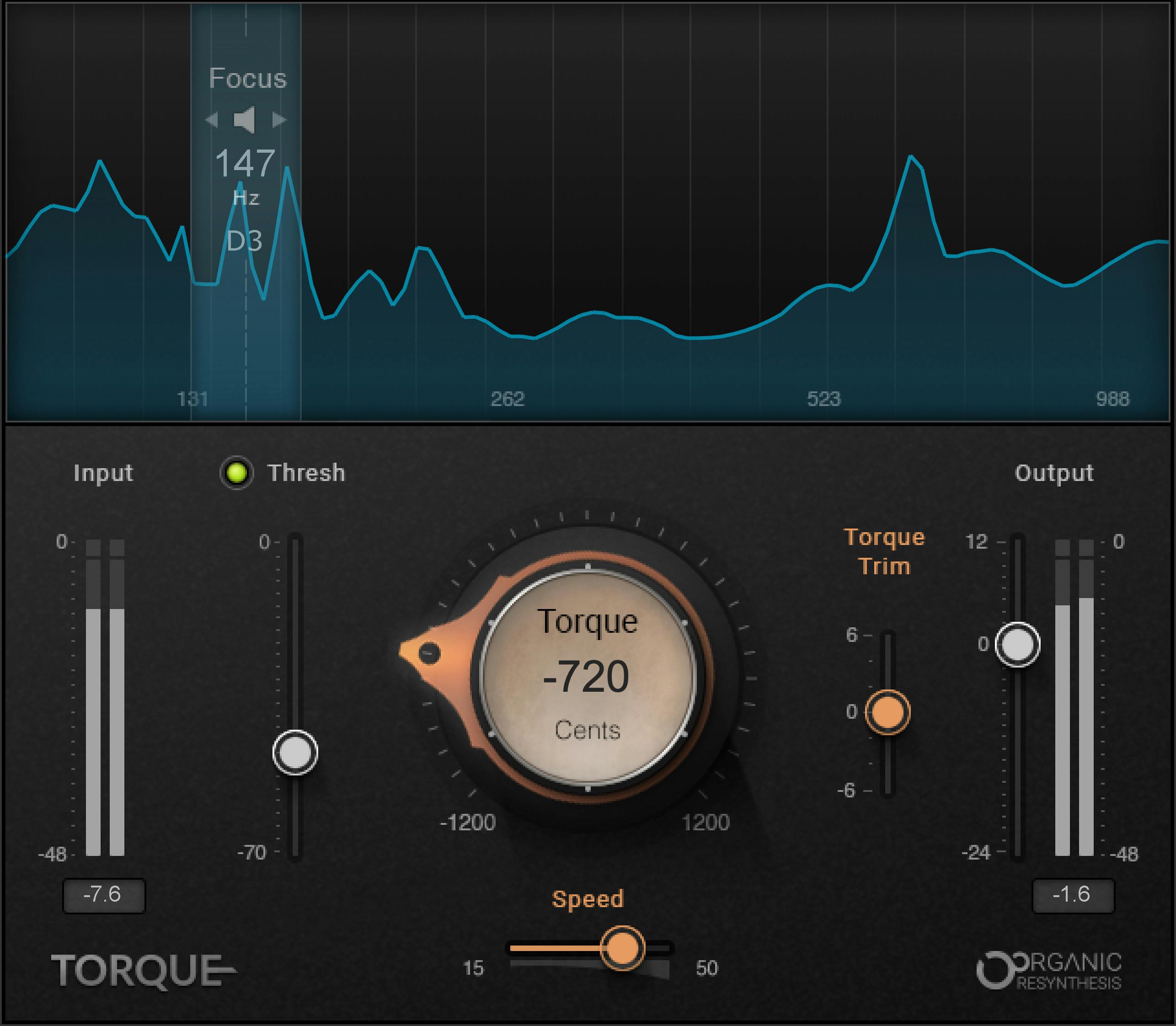
The Focus Display is a formant analyzer. The highlighted Focus Area tells Torque which part of the spectrum to use as the center of the tone shift. [1]
The manual recommends sweeping the Focus region until you locate a clear resonance—often the drum's fundamental, but not always. It explicitly notes that the best Focus can be a harmonic instead; its example says a drum whose strong tone is around 196 Hz may respond better when Focus is placed near 392 Hz. [1]
The guide prints:
- Focus default: 229 Hz
- Focus reset: 166 Hz
- Focus-value display range: 98 Hz to 988 Hz, with note-name display G2 to B5 [1]
The current UI shows frequency and musical-note information in the Focus readout. [1]
Monitor button
The Monitor loudspeaker button sends the monitor path through a band-pass filter around the Focus area, making it easier to identify the resonance you are targeting. [1]
- States: On / Off
- Default: Off [1]
The guide describes the colors as blue when the surrounding frequencies are dimmed and yellow when that dimming is defeated. Use Monitor as a setup/audition tool; it is not the final full-band output you are trying to mix. [1]
Torque knob
The large Torque knob sets the amount of formant shift. The offset is displayed in cents. [1]
- Range: ±1200 cents
- Reset: 0 cents [1]
A positive setting raises the tonal center; a negative setting lowers it. Because the shift is centered around Focus, a correct Focus point is part of achieving a natural result. [1]
Torque Speed
Speed changes the time-constant qualities of the process. [1]
- Range: 15 ms to 50 ms
- Reset: 20 ms [1]
Waves describes longer values as generally producing smoother attacks/releases and shorter values as producing a quicker formant shift. The quick-start section recommends changing Speed when too much of the tuning process becomes audible. [1]
This is a timing control for Torque's retuning behavior, not a compressor attack/release pair.
Torque Trim
Torque Trim changes the level of the shifted/processed part relative to the unprocessed part. [1]
- Range: -6 dB to +6 dB
- Reset: 0 dB [1]
Waves says increasing Trim makes the shifted contribution thicker, while lowering Trim makes it thinner. It is particularly useful when a downward shift creates excessive low-frequency/resonant energy. [1]
Output fader and meter
Output compensates for level changes caused by the retuning process. [1]
- Output fader range: -24 dB to +12 dB
- Reset: 0 dB
- Output meter range: -48 dBFS to 0 dBFS [1]
The output meter includes a Peak/Clip indicator beneath it. The manual says to click the meter to clear it. [1]
Use Output for level matching after the tuning decision rather than using it to change how much of the drum is detected or shifted.
WaveSystem toolbar
The shared WaveSystem toolbar handles preset load/save, comparison, undo/redo and interface resizing. [1]
Those are state/workflow controls, not part of Torque's Organic ReSynthesis algorithm.
A practical Torque workflow
First, play the drum track and use the Focus analyzer to identify a strong resonant peak. Engage Monitor temporarily so you can hear the selected frequency area and move Focus until the tone is clear. [1]
Next, set Threshold. You want the intended drum hits to cross it without needlessly processing lower-level spill or unrelated material. Watch for the nominal yellow state rather than forcing the input into the red zone. [1]
Turn Torque in cents until the drum sits better against the track. If the process sounds abrupt or too obvious, adjust Speed. If a downward shift gets thick or boomy, reduce Torque Trim. Finally, match the processed level with Output. [1]
That sequence is documentation-led. There is no claim here that one Focus, Threshold or cents value is appropriate for every kick, snare, tom or loop.
When Torque makes more sense than sample replacement
Torque is useful when the original performance, timing, transient and room character are already valuable and the main problem is drum tone. In that situation, retuning the existing hit can preserve more of the source than replacing it with a different sample. [1][2]
Sample replacement remains a different tool: it can deliberately change the source identity, consistency and envelope. Likewise, a conventional pitch shifter may be the better choice when you actually want the whole sound shifted rather than Torque's resonance-focused behavior.
Best for / skip if
Torque is best for kick, snare, tom and percussion tracks whose resonant tone is wrong but whose performance is worth keeping. It also makes sense on drum loops and breaks where you need the tonal center to fit a different song or key area. [1][2]
Skip it when the drum is already correctly tuned, when the problem is mainly dynamics or EQ, or when you deliberately want sample replacement or full-spectrum pitch-shift artifacts as part of the sound.
Limitations and evidence boundary
This is a documentation-led article. I did not process drum audio, compare Torque against a pitch shifter, measure the latency values, verify phase coherence, or test the claim that transient character is preserved.
The current official manual was inspected as rendered PDF pages, including the Mono interface, Threshold section and Torque/Speed/Trim control page. The current official product page was checked for product identity and intended use. No undocumented range, default, host compatibility result or sonic conclusion was inferred.
Related guides
Useful ordinary official comparisons in the main article are Waves' Smack Attack for transient shaping and InTrigger for drum replacement. These address related drum-processing workflows.
Bottom line
Torque is a resonance-focused drum tuner: Focus decides where the tonal change is centered, Threshold decides what gets processed, Torque sets the shift in cents, Speed shapes how quickly the shift develops, and Trim/Output control the processed and final levels. [1]
The control set is small, but Focus and Threshold are what keep it from behaving like a generic pitch knob.
Sources
Sources checked October 18, 2026. No listening, native-host, phase, latency or measurement test was performed.
- Waves Torque User Guide, current product-linked guide; full interface and material control pages visually inspected.
- Waves Torque product page, current product identity and documented use case.
- Waves Graphic Library, current listing and reuse rule for images on that page with a backlink to the relevant Waves product page.
FAQ
What does Waves Torque change?
Waves describes Torque as changing drum tone through formant-focused processing around a selected Focus frequency, rather than as a conventional full-spectrum pitch-shift process. That is the vendor's description, not a performance test here.
What does the Focus control do?
Focus selects the frequency area around which tone shifting occurs. The guide recommends locating a resonant peak, which may be the fundamental or a harmonic.
What does the Monitor button do?
It routes the monitor chain through a band-pass filter to isolate the selected frequency range while finding a formant. The guide lists On/Off states and Off as the default.
How does Threshold affect which sounds are retuned?
The guide says sounds above the Threshold are processed, while sounds below it return to their original tone. Its documented range is -70 to 0 dBFS, with -48 dBFS as default and reset.
What do the Threshold LED colors mean?
Green indicates a level too low for sufficient detection resolution, yellow is nominal, and red is too hot and might produce unwanted artifacts. The guide also prints an On/Off dimming line under this heading; its operation is not clear from the static diagram.
What is the Torque control range?
The guide documents a formant-shift range of ±1200 cents and a reset value of 0 cents. It says the action mostly affects frequencies around Focus.
What do Torque Speed and Torque Trim change?
Speed changes the process time constant; the documented range is 15–50 ms with a 20 ms reset. Trim changes the shifted portion's level relative to the unprocessed signal; it ranges from -6 to +6 dB and resets to 0 dB.
How do I clear Torque's Peak/Clip indicator?
Click the Output meter. The guide explicitly documents this action beneath its Output Meter range.

About the Author
Joseph Nilo has been working professionally in all aspects of audio and video production for over twenty years. His day-to-day work finds him working as a video editor, 2D and 3D motion graphics designer, voiceover artist and audio engineer, and colorist for corporate projects and feature films.