
Waves Tune is Waves' scan-and-edit pitch-correction plugin for vocals and other monophonic material. Instead of operating only as a real-time “strength” control, it scans pitch against the host timeline, builds detected and correction curves, segments material into notes, and lets you edit those notes and curves directly. [1][2]
The important distinction from Waves Tune Real-Time is workflow: Waves Tune is built around scanning, a pitch graph, per-note targets and post-scan editing. It can still audition correction changes in real time after the scan, but its core interface is an editor tied to the recorded timeline. [1]
My Short Version
Set Reference Pitch, detection Range, Root/Scale, and the segmentation rules before scanning. Let Tune analyze the section, then use Speed, Note Transition, and Ratio for broad correction. If the automatic segmentation or target is wrong, use the Note, Slice, Merge, Pencil, Curve and Line tools on the graph rather than trying to force every problem through one global correction setting. [1]
Tune also gives you per-note scale status, microtonal note tuning, Natural and Synthetic Vibrato controls, MIDI targeting/export, timeline-loop tools and a Preferences menu. The manual documents a 10-minute scan-analysis limit per acquired session-start window, so long material needs to be handled in sections. [1]
Check the version before following a timeline tutorial
The manual’s transport examples are not a promise of current ReWire support. Waves’ version-specific support note says ReWire is unsupported from V16. Tune remains usable in supported hosts, but cannot control the host’s timeline from its own interface without that connection. [4]
The product overview still mentions ReWire. For this question, follow the explicit version limitation rather than the broad feature bullet. That distinction does not establish that every editing, display or MIDI function has disappeared; do not infer a wider loss of features. [5][6]
Keep playback and loop control in the host for a current-version workflow. Check your exact version and host before relying on a tutorial’s transport steps. No host, OS, plugin scan or MIDI test was performed for this update.
Global Correction section
Reference Pitch
Reference Pitch calibrates the tuning reference for the entire scale. Default: A = 440 Hz. Range: 220–880 Hz. Waves says to set this before scanning; changing it afterward requires clearing the graph and rescanning. [1]
Global Pitch Shift
Global Pitch Shift applies a constant equal-tempered transpose to scanned material. Default: 0. Range: -12 to +12 semitones. [1]
Formant Correction
Formant Correction switches between Formant corrected and Non Formant corrected processing. Waves recommends formant correction for vocals to reduce unnatural formant movement when pitch is shifted. Unlike Reference Pitch, the manual says this setting can be changed after scanning. [1]
Detection Range
Range narrows pitch detection to the useful vocal/instrument register. The interface offers named regions such as bass, baritone, tenor and soprano, and the Piano Roll boundaries can be dragged to resize the active range. The retrieved manual does not give a fixed note-number range for this control, so none is invented. [1]
Segmentation: Root, Scale and target-note rules
Tune's Segmentation section controls how detected pitch is divided into target notes.
Root
Root chooses the root note of the current non-chromatic scale. With the default Chromatic scale the Root field is disabled/greyed because every semitone is legal. [1]
Scale
Scale selects the pitch grid used for correction. Default: Chromatic. The manual says Scale presets can contain different numbers of notes per octave and can support microtonal/non-Western tuning. [1]
Edit Scale
Edit Scale switches the Piano Roll into a single-octave editing view where per-note temperament and status are easier to edit. [1]
Receive Key
Receive Key lets Waves Tune receive a key/scale from Waves Key Detector. Enabling it replaces the current Key and Scale settings; disabling it stops that incoming key assignment. [1]
Tolerance and note segmentation
Tolerance sits between pitch detection and assignment of a new target note. Waves describes two rules: a target can be held unless the pitch change persists longer than a Tolerance time or becomes steeper than a defined slope. This prevents brief detours from being split into unwanted notes. [1]
The retrieved manual explains the behavior but does not publish numerical ranges/defaults for the Tolerance time or slope controls. Those values are therefore not specified here.
Vibrato Segmentation
The Vibrato Segmentation button enables Natural Vibrato detection. Default: Off. When detected, a vibrato region is highlighted and segmented around the average pitch instead of being split repeatedly into separate target notes. Waves cautions that false detection can occur and that applying vibrato segmentation where no natural vibrato exists can create artifacts/clicks. [1]
This control is distinct from the Natural Vibrato manipulation controls later in the interface: segmentation must detect natural vibrato before Natural Vibrato Amount can operate on that region. [1]
Correction Parameters
Speed
Speed sets the time Tune takes to pull pitch toward its target. Range: 0.1–800 ms, in 0.1 ms steps. Lower values produce faster, tighter correction and flatten more of the original contour; higher values preserve more of the original movement before reaching target. [1]
Note Transition
Note Transition controls correction speed specifically when pitch moves from one target note to another. Range: 0.1–800 ms, in 0.1 ms steps. Low values make transitions jump quickly; high values preserve more glide. [1]
Ratio
Ratio determines how much of the designed correction curve is applied to the detected audio. Range: 0–100% in 0.1% steps. At 0% no correction is applied; at 100% the full designed correction is applied. [1]
Initial scan values
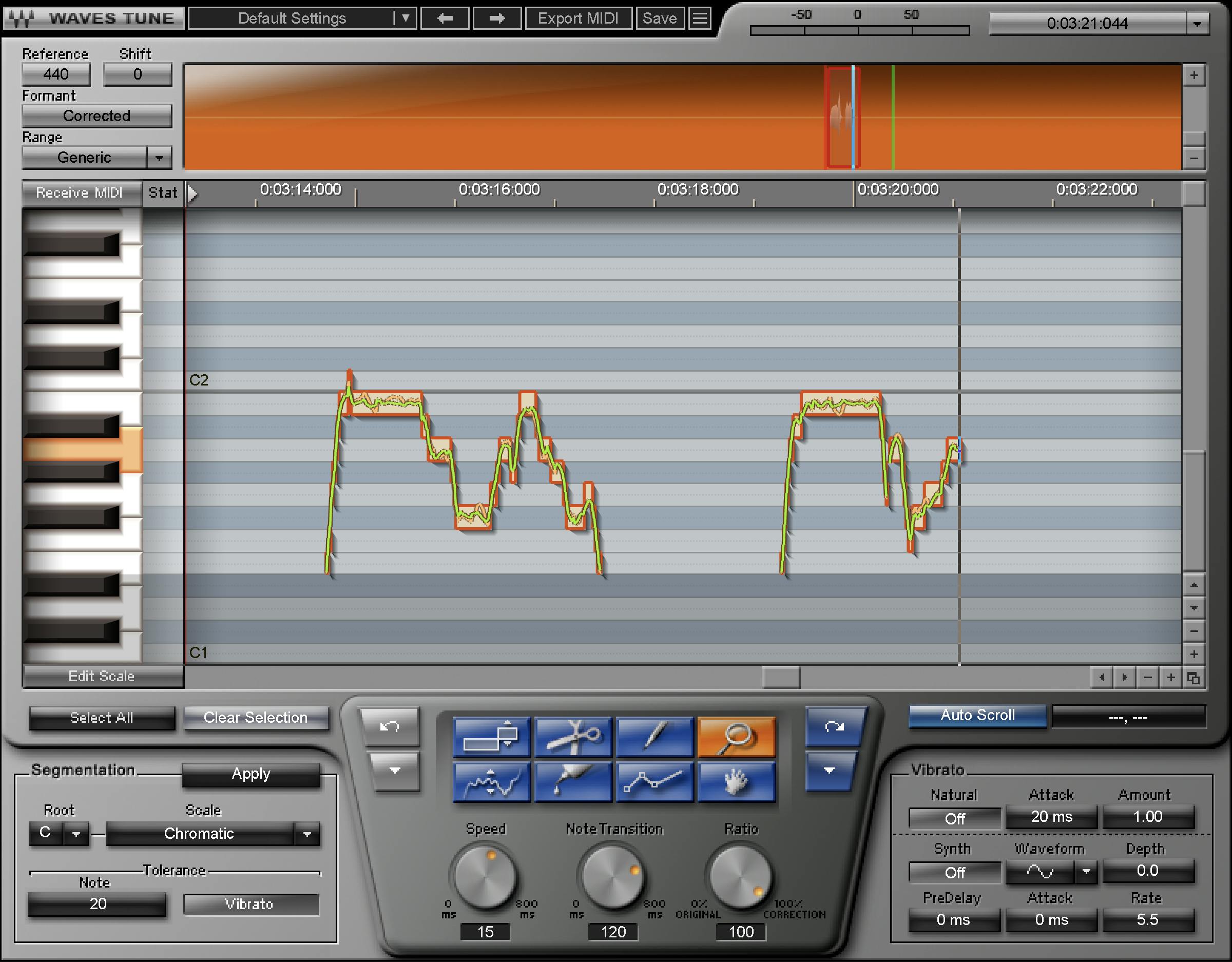
The manual says the initial correction graph is constructed with hard-coded scan values of Speed 15 ms, Note Transition 120 ms and Ratio 100%. These can be edited after scanning. [1]
Graphic Editing Tools
Note Tool
The default Note Tool selects one note or a drag-selected region of notes. Selected notes can be moved to different targets. Dragging a note boundary trims/extends the note where there is no unvoiced gap between neighboring notes. [1]
Zoom Tool
Zoom click-drags an area to magnify it. Command/Control invokes Zoom as a modifier; Option/Alt is used to zoom back out. [1]
Slice Tool
Slice divides a note into separate note segments so each section can be targeted independently. [1]
Merge Tool
Merge joins a clicked note with the following note. On a selection, it can bring the selected note segments together at the chosen target. The manual later refers to the same operation as the “Glue” tool; this guide treats Merge/Glue as the same documented joining function rather than inventing two different processors. [1]
Pencil Tool
Pencil draws a custom pitch-correction curve and overrides existing smoothing while drawing. [1]
Curve Tool
Curve moves an existing selected correction curve while preserving its internal detail. Dragging near an edge allows a diagonal move useful for slides between notes; the resulting graph can still be smoothed by correction parameters. [1]
Line Tool
Line draws straight correction-line segments by placing points and ending with a double-click. Like Pencil, it overrides smoothing parameters while the line is drawn. [1]
Hand / Navigation Tool
Hand pans the Edit Window in any direction. The documented modifier shortcut is Command+Option on Mac or Control+Alt on Windows. [1]
Pitch Edit Graph
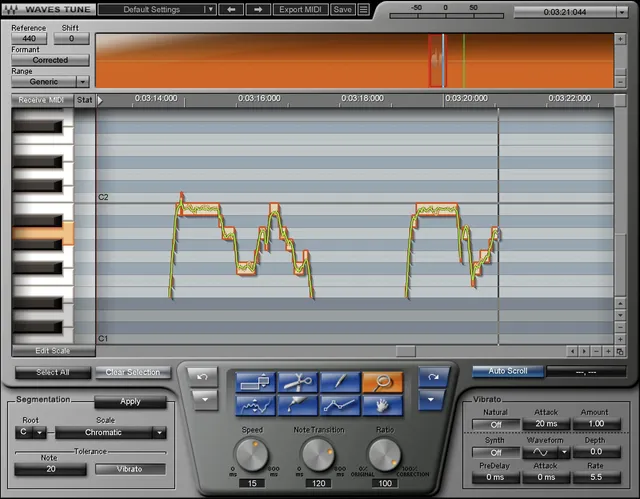
The graph has four main areas: Waveform Overview, Timeline Ruler, Piano Roll, and Pitch Editor. [1]
Waveform Overview modes
The Waveform Overview can show Track/Global Overview or Field-of-View/Edit Window Overview. Track Overview shows the overall scanned waveform and current visible area; Field of View follows the horizontally zoomed edit region. The mode is available from Preferences or by right-clicking the overview. Clicking/repositioning there navigates the editor. [1]
Timeline Ruler and loop
The manual lists Bars/Beats, Minutes/Seconds and Samples display modes. Its ruler-based playback-loop instructions belong to the documented ReWire workflow; they are not a current promise of host-transport control. For V16 and later, use the host’s playback and loop controls rather than relying on Tune to operate them. [1, pp.3,9–10][4]
Waves says Tune does not support tempo changes in the Bars/Beats timeline and that unexpected results can occur if the host timeline contains tempo changes. [1]
10-minute scan limit
The manual repeatedly states a 10-minute pitch-analysis window. After the limit Tune displays “Outside Session Limits” and stops pitch detection. For material later in a long session, Acquire Session Start Time from Timeline moves the start of Tune's 10-minute analysis window. [1]
This is a documented workflow limitation, not a new host test.
Piano Roll and note-grid controls
Note Tune
With Edit Scale enabled, each scale note exposes its temperament offset in cents, including sub-decimal entry. The manual does not give a numeric min/max range for this per-note temperament field. [1]
Note Status
Each note in the grid can be assigned one of five statuses:
- Legal Note — correct to this note.
- Illegal / nearest — do not target this note; correct to the nearest legal note.
- Illegal / above — correct toward the nearest legal note above.
- Illegal / below — correct toward the nearest legal note below.
- Bypass Note — a legal target that leaves detected input near that note uncorrected, while still remaining available as a target for neighboring illegal notes. [1]
This is more powerful than simply picking a scale: it lets you exclude individual scale steps, force direction for illegal notes, or leave specific legal notes untouched.
Detection, Correction and Note displays
The editor shows a Detection Graph for original detected pitch, a Correction Graph for the processed pitch target, and Note Segments representing the segmentation. The graphs are readouts, not independent audio controls. [1]
The Position Window reports the note and cents at the current cursor location. [1]
Undo/Redo
Dedicated Undo/Redo menus provide up to 32 history levels according to the manual. [1]
Natural Vibrato
Natural Vibrato On/Off
This switch enables manipulation of Natural Vibrato that has already been detected by Vibrato Segmentation. It does not itself perform the initial detection unless segmentation has been enabled. [1]
Amount
Amount ranges 0–200%, default 100%. At 0% detected natural vibrato is flattened; at 200% its amount is doubled. [1]
Attack
Attack sets how long Natural Vibrato manipulation takes to build to its assigned Amount. The retrieved manual describes the function but publishes no numerical range/default, so it is not specified. [1]
Synthetic Vibrato
On/Off
The Synthetic Vibrato switch enables/disables generated vibrato on the selected material. [1]
Waveform
Waveform choices: Sine, Triangle, Square, Saw Up, Saw Down. Default: Sine. [1]
Pre-delay
Pre-delay postpones vibrato onset after a new note. Range: 0–2000 ms. Default: 0 ms. [1]
Rate
Rate: 1–20 Hz. Default: 5.0 Hz. [1]
Depth
Depth controls pitch deviation with a documented maximum of 400 cents around the original note. Default: 0. The manual describes this as up to a whole-step deviation above and below at full setting. [1]
Attack
Attack: 0–1000 ms. Default: 0 ms. [1]
MIDI controls
Check MIDI support in the host
For Waves plugins, the current V17 host notes list Premiere, Audition, Pyramix and OBS as hosts without MIDI support. Do not assume Tune’s Receive MIDI workflow is available in one of those hosts simply because the plugin loads. [6]
That host-support note does not, by itself, establish that Tune’s Export MIDI file command is unavailable. The manual describes file export separately. Keep incoming MIDI targeting and saving a MIDI file as distinct questions; no host or MIDI test was performed for this guide. [1, p.20][6]
Receive MIDI — Tune to MIDI Notes
Receive MIDI is an on/off control. While incoming MIDI notes are present, they override the normal Notes Grid target and directly designate correction targets. Normal grid behavior resumes when MIDI input stops. The manual says MIDI targeting overrides Speed and Note Transition during that targeting, with those values editable later. [1]
Export MIDI
Export MIDI writes the completed correction as MIDI notes plus pitch-bend data. The manual says exported pitch-bend is calibrated to ±2 semitones, with 127 = +200 cents and 0 = -200 cents, and the receiving synth must use a matching pitch-bend range. [1]
General buttons and Preferences
Clear Selection
Clear Selection deletes Detection and Correction curves for the selected region. On the next playback pass that region is treated as unscanned and analyzed again. [1]
Select All
Select All selects all detected notes so global Segmentation/Correction edits can be applied across the scanned take. [1]
Follow Timeline
Preferences Follow Timeline keeps the editor view following playback. Default: checked/on. With it disabled, the visible editor region stays in place as playback moves elsewhere. [1]
Time Display
Time Display selects time, bars, or samples for the Timeline Ruler. [1]
Acquire Session Start Time from Timeline
The manual describes this command as moving the analysis window’s start. Before clearing an edited window, preserve its completed result; the guide puts recording the corrected section before clearing and reacquiring. Its transport instructions must be read with the current ReWire limitation, not treated as proof of the command’s behavior in every installed version. [1, pp.14–15][4]
Snap Timeline and Loop to Grid
The manual documents Snap Timeline and Loop to grid as part of its host-grid/transport workflow. Current ReWire support is more restricted, so this reference is not a guarantee of host-grid control from Tune in V16 or later. [1, pp.3,14][4]
Field of View / Track Overview
This Preferences choice switches the Waveform Overview between the local edit field and the full track overview. [1]
Additional zoom-menu labels
The manual’s Preferences illustration includes Full Zoom In and Reset Zoom, but the accompanying explanation does not define their precise operations or shortcuts. The labels alone are not enough to assign either an unverified behavior. [1, p.14]
Shared preset and help toolbar
The guide’s shared toolbar provides preset handling, settings comparison and a route to the WaveSystem help. Keep those functions distinct from pitch-graph editing and the dedicated edit-history controls. No additional reset gesture or undocumented setting behavior is assumed here. [1, p.20]
Scanning and rescanning behavior
Tune does not apply its correction while it is first scanning a previously unscanned region. It analyzes the passage and builds the Detection/Correction data first. After that scan, correction changes are auditioned in real time. [1]
Changing the underlying audio does not automatically update an existing graph. If a take is edited/re-recorded, clear the affected graph region so Tune rescans it. [1]
A practical starting workflow
Before the scan, set Reference Pitch, Range, Root/Scale and any non-default note statuses that matter. Enable Vibrato Segmentation only where natural vibrato actually needs to be recognized as a single target region.
Scan the complete logical section, then start broad with Speed, Note Transition and Ratio. If the target is wrong, move the note. If two events were incorrectly joined, Slice them; if one event was incorrectly split, Merge it. Use Pencil/Line only when you need to override the automatically generated contour. This is editorial workflow guidance derived from the documented tool model, not a tested preferred setting.
A pickup review that protects the performance
This is a hypothetical editing example, not a processed recording or a recommended preset.
Imagine that a singer replaces the final word of a short sung ident. The timing fits the picture, but the pickup feels different from the first take. Before changing pitch, write down what you hear: a different note, a changed vowel, an abrupt entrance, or simply a different performance.
Those are not interchangeable problems. A cleaner-looking pitch line will not, by itself, settle which take works better in the edit.
Keep the earlier version available. Compare the pickup with the preceding phrase and with the music that follows it. Identify the intended note from the musical context rather than choosing whichever grid line is closest. Make the smallest change that answers the question you actually wrote down.
Then step back from the isolated word. Does the whole line still sound like one performance? Is the transition into the next sound convincing? Does the corrected moment draw more attention than the original? A change worth keeping should serve the finished piece, not merely improve a screenshot of the editor.
For an ordinary spoken tutorial or interview, do not assume the same musical-note goal applies. Natural speech inflection may be intentional. Obtain the speaker’s intended reading before making a creative correction that changes the delivery.
These are review questions, not a claim that Tune fixed a pickup, saved editing time or passed a listening comparison.
Best for / skip if
Waves Tune makes sense when you need visual post-scan control over recorded monophonic pitch, per-note targets, custom scale behavior, detailed curve edits or vibrato manipulation. [1][2]
Skip it when the priority is low-latency correction while tracking/live performance; the live Waves Tune Real-Time guide covers Waves' real-time workflow instead. Also consider another editor when a project depends on tempo-map changes or continuous analysis longer than the documented 10-minute Tune window.
Related guides
The Waves Tune Real-Time guide covers the performance-oriented sibling. Use it to compare workflow, not to assume the two interfaces or timing controls are interchangeable.
The Vocal Bender guide is relevant when creative pitch/formant transformation is the aim rather than detailed corrective graph editing.
For broader dialogue, voiceover and tool-selection context, use the Waves audio-post resource hub.
For a vocal-resynthesis alternative, see the official OVox product page. Keep that creative goal separate from correcting a recorded melody.
Bottom line
Waves Tune is best understood as a pitch editor with a detection/segmentation model, not simply a three-knob correction plugin. Its broad correction controls are Speed, Note Transition and Ratio, but the Piano Roll status system, graph tools, vibrato controls, MIDI targeting and scan-window controls are what make it a detailed editor.
Where the current manual does not state a numeric range—Tolerance time/slope, Natural Vibrato Attack, per-note temperament limits—this guide says so rather than reading values out of an old screenshot or inventing them.
Sources
Version, MIDI and shared-toolbar references were checked on October 6, 2026. The original catalog citation is retained from the September 20 manuscript. These are documentation sources, not listening or host-test results.
- Waves Tune User Guide. The current retrieval contains legacy ReWire transport directions; read it with source 4. The earlier manuscript’s CDN URL remains in the source history; byte identity between the two locations has not been established here.
- Waves Plugins catalog. Historical catalog reference retained from the original manuscript; not a new catalog census.
- Waves Graphic Library. Listed-image reuse and the required relevant product backlink; not proof that an image was acquired or imported.
- ReWire Link Cannot Be Established in Waves Tune. Explicit version-specific restriction.
- Waves Tune product page. Product purpose and Supported Hosts notes; its general ReWire feature wording does not supersede source 4.
- Waves Supported Hosts. V17 notes and exceptions, including host MIDI limitations; not qualification of Joseph’s particular configuration.
Frequently Asked Questions
Should I choose Waves Tune or Waves Tune Real-Time?
Choose by the job, not the similar names. Tune is the scan-and-edit option; Real-Time is the sibling aimed at correction during performance. The separate Real-Time guide explains that workflow. Neither name tells you which result you will prefer on a particular recording.
Can Waves Tune retune one singer inside a finished stereo mix?
Do not treat it as a source-separation tool. Its documented target is a vocal or other monophonic line. A stereo component is not evidence that it can isolate one voice from a finished mix.
Why does the first playback still sound uncorrected?
The manual describes the first pass through an unscanned region as analysis, with correction heard afterward. Check whether that region has actually been scanned before concluding that the correction settings do nothing.
Will a replacement take automatically update the pitch graph?
No. The guide says changing the underlying audio does not automatically refresh an existing graph. Preserve the current work before clearing and rescanning the affected region; the old correction should not be assumed to fit the replacement.
What should I consider in a session longer than ten minutes?
The manual describes a ten-minute analysis window, not an unlimited song-length scan. Preserve a recoverable edited result before clearing a completed window. Confirm the window-start workflow for your actual version rather than treating a legacy transport example as a universal instruction.
Does the old ReWire advice still apply to current Waves Tune?
Not as a general current-version instruction. Waves says ReWire is unsupported from V16. Tune can still work in supported hosts, but host-timeline control from inside Tune is unavailable without ReWire. Check the version-specific support note instead of following an older setup example automatically.
Should every note become a straight line?
No. Decide whether a movement is a mistake or part of the intended performance. Compare the whole phrase, including its entrance and release, rather than judging only the graph. This is an evaluation recommendation, not a listening result or a universal correction setting.
Is pitch correction the right fix for noisy dialogue?
First identify the problem. A pitch editor addresses tuning; that is not the same task as reducing hiss, room sound or handling noise. Do not add pitch correction merely because a spoken recording sounds rough. Choose the process that addresses the actual defect.

About the Author
Joseph Nilo has been working professionally in all aspects of audio and video production for over twenty years. His day-to-day work finds him working as a video editor, 2D and 3D motion graphics designer, voiceover artist and audio engineer, and colorist for corporate projects and feature films.