
Waves Tune LT is a scan-first pitch-correction plug-in for pre-recorded vocals and other monophonic sources. Its core controls are Speed, Note Transition and Ratio, with Note and Zoom editing tools.
It is not the full Waves Tune editor. The LT product page links a manual titled Waves Tune, but its current comparison table explicitly excludes several features described in that shared book.
This guide combines that complete linked manual with the LT-specific product table and authentic LT image. I have not installed, run, auditioned or tested the plug-in's host synchronization; the operating descriptions are documentary.
My Short Version
Scan first, correct afterward. The guide says the scan analyzes incoming audio while leaving the sound uncorrected; subsequent playback applies the correction graph.
Use Speed for pitch movement inside a note, Note Transition for movement between notes and Ratio for correction amount.
Choose LT for a limited correction workflow, not on the assumption that every greyed-out control in its panel is available. The current product table lists Zoom and Note only, with no MIDI, vibrato editing, Tolerance, Range, Global Shift or full Scale Editing.
Best for and when to choose something else
Best for: correcting a pre-recorded single-note melody when note selection, target changes and the three main correction controls are sufficient.
Choose a more extensive editor when: the task depends on drawing pitch curves, slicing/merging notes, MIDI targeting, vibrato creation or detailed microtonal scale editing. Those full-Tune features are not established as LT features.
For a performance-time workflow, Waves Tune Real-Time is a different product. The current LT table calls LT's operation offline, rather than a no-scan performance processor.
That distinction does not mean every adjustment to a completed graph requires a new exported file. The shared guide describes adjustments affecting subsequent playback of the corrected material.
LT features versus the shared Tune manual
The current LT table says No to:
- Receive MIDI and Export MIDI.
- Tolerance, Range and Global Shift controls.
- Natural-vibrato detection/correction and synthetic-vibrato creation.
- Scale Editing.
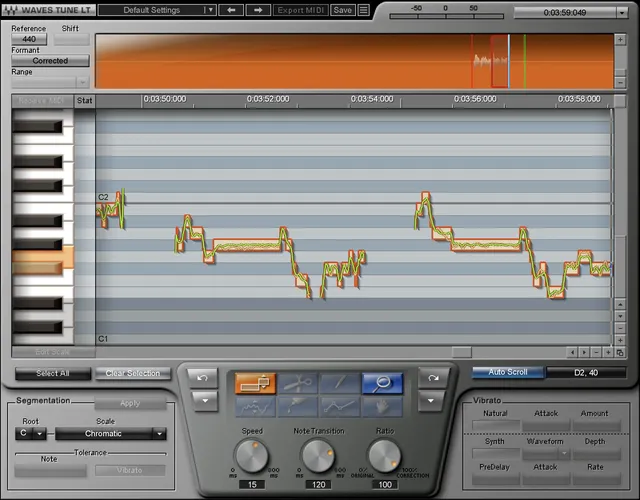
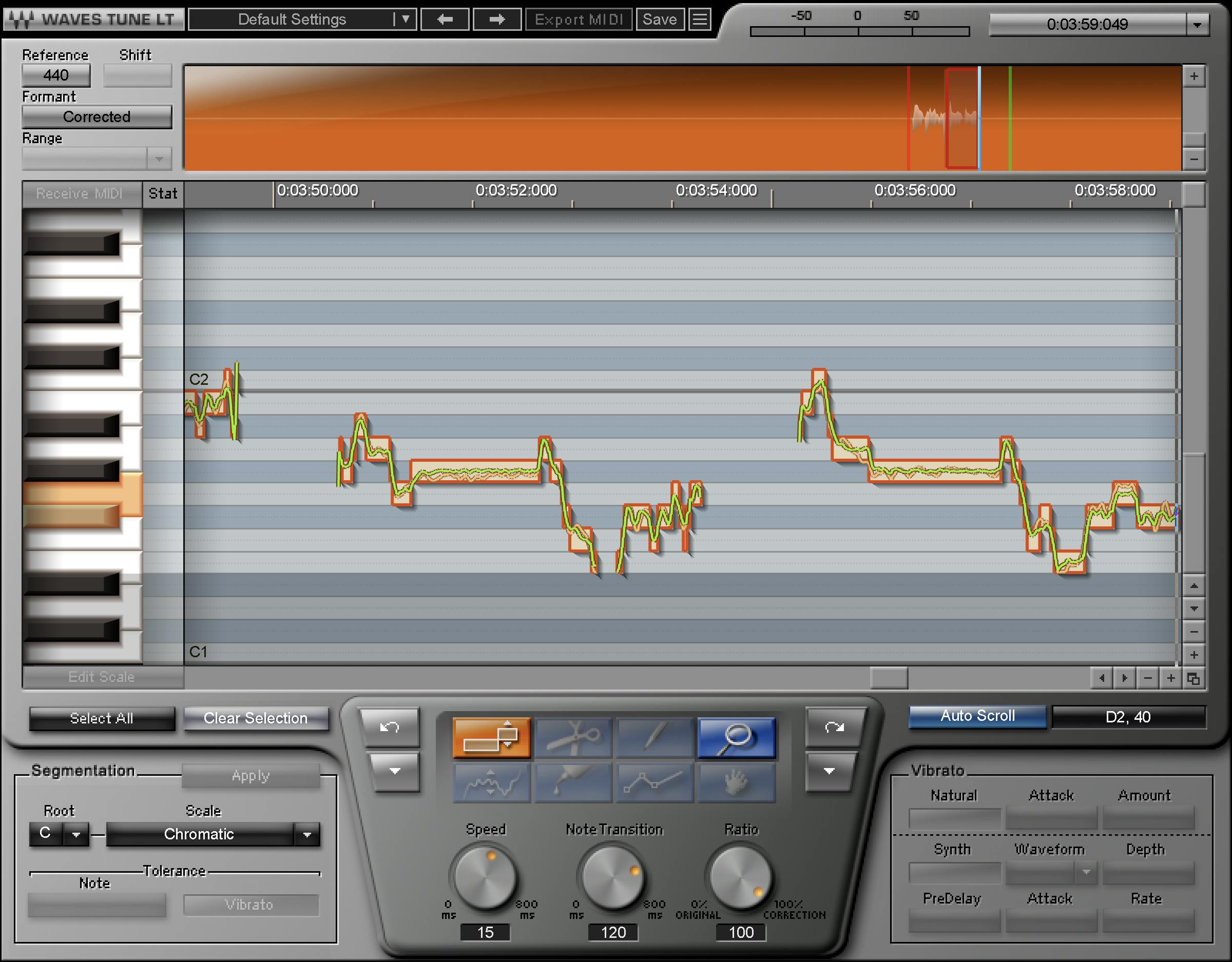
It lists Zoom and Note as LT's editing tools, compared with the full set for Waves Tune. The LT image visibly greys out those additional sections and tool icons.
The product page also warns that its tutorial videos use full Waves Tune, not Tune LT. A full-version demonstration therefore does not prove an LT capability.
The guide's Receive Key paragraph likewise does not independently establish that feature in LT. It is not offered here as an LT command.
Components, source material and scan limits
The captured product metadata lists Mono and Stereo components. That is not a claim of polyphonic pitch editing or a Mid/Side component: the product and guide describe vocals and other monophonic material.
The shared guide recommends inserting tuning before effects that could complicate pitch detection. That is source workflow advice, not a tested result for every chain.
During a scan, the waveform overview highlights orange and displays a scanning message. The graph builds detected pitch, a proposed correction curve and note segments, but the guide says the audio remains uncorrected during that scan.
After scanning, subsequent playback applies the correction. If the underlying recording is edited or replaced, the old graph does not automatically become a fresh analysis of the changed audio.
The current LT table and guide agree on a ten-minute scan timeline. Beyond that limit, the guide describes an Outside Session Limits message and a separate session-start workflow.
Reference Pitch and Formant Correction
Reference Pitch calibrates the tuning target. The linked guide explicitly prints 220–880 Hz, with A = 440 Hz as the default.
It says to set reference pitch before scanning; changing it afterward requires clearing the graph and rescanning.
The same range line calls this “±2 octaves,” which does not match those endpoints relative to 440 Hz. That source wording is retained as a limitation: no alternative endpoints or corrected octave span are substituted here.
Formant Correction selects corrected or non-formant-corrected pitch shifting. The guide recommends correction for voice-like resonances and says this setting may be changed later.
A recommendation for vocals is not an explicit default state. Formant Correction is also not the excluded Global Shift control.
Root, Scale and the limits of customization
The product page advertises 43 traditional and ethnic scales, along with legal/illegal-note customization. Root and Scale define the available correction targets.
The shared guide describes Chromatic as its default scale. Its root-availability and scale-editing descriptions belong to the shared interface reference, not an independently tested current LT startup state.
The same current LT comparison table says No Scale Editing. This guide therefore distinguishes ordinary root/scale selection and the product's limited legal/illegal-note claim from the full Tune per-note cents/temperament editor.
It does not promise every one of the shared manual's five note-status modes or their exact fine-edit gestures in LT.
The official LT picture includes an Apply button in Segmentation, but the shared text does not separately define its LT-specific operation or enable condition. No extra Apply procedure is invented from its label.
Speed, Note Transition and Ratio
Speed sets correction within a note over 0.1–800 ms, in 0.1 ms steps. Lower values move more quickly toward the target and flatten more of the detected contour; higher values allow more of that movement to remain.
Note Transition uses the same 0.1–800 ms range and 0.1 ms steps, but addresses the change from one note to the next. A faster transition and faster within-note correction are different decisions.
Ratio ranges 0–100%, in 0.1% steps. It sets how much of the correction curve is applied: 0% applies no correction; 100% applies maximum correction in the guide's terms.
Ratio zero is not proof of bit-transparent plugin bypass, zero latency or identical output in every circumstance.
The guide explicitly uses Speed 15 ms, Note Transition 120 ms and Ratio 100% when constructing the initial correction graph. Those are documented graph-creation values, not a promise that every preset or current reset state has those settings.
Corrections operate on the selected material. A local change need not describe the rest of the scanned passage.
Note tool: selection, target and boundaries
The Note tool selects a note with a click or multiple notes with a click-drag selection. The selected material can then be adjusted with the supported correction controls.
The shared reference describes moving a selected note to a different target. At a note boundary, its trim behavior can extend or shorten a note only when there is no unvoiced section between the neighboring notes.
That condition matters: an unvoiced gap is not permission to stretch a note through arbitrary audio.
The product's LT tool list does not include Slice or Merge, so those full-editor repair examples are not presented as LT instructions.
Zoom, navigation and the pitch display
The Zoom tool enlarges a dragged region of the editor. The guide documents Command/Control selection for Zoom and Option/Alt for zooming out.
The full-Tune reference also describes Hand/Navigation shortcuts, but Hand is not in LT's current two-tool list. No separate LT Hand-tool workflow is assumed.
The waveform overview can show the full track or the current field of view. The guide describes clicking to center the editor and dragging in the overview to set its visible region.
The timeline ruler follows editor zoom. Selecting along the ruler defines loop locators, unlike a selection inside the pitch editor, which chooses material to edit.
Its documented display formats are Bars/Beats, Minutes/Seconds and Samples. The guide warns that tempo changes may produce unexpected results; these descriptions are not a current-host synchronization test.
In the pitch editor, the manual identifies detected pitch in light orange, correction in green and outlined note segments. The piano roll provides note references, and the position display shows the note/cents at the cursor.
The image also includes zoom/scroll widgets and a segmented top display marked −50/0/50. The shared text does not define that display's scale or function, so it is not treated as a calibrated dB or cents meter.
Selection, clearing and history
Select All selects detected notes for broader correction adjustments. Clear Selection removes the selected analysis/correction data so the region is scanned again on later playback.
That distinction is useful after a recording changes: changing a correction setting is not the same as rebuilding the source analysis.
The manual describes Undo/Redo history up to 32 levels. Making a new change after undoing breaks the redo path. It is not a guarantee that arbitrary host edits or source replacements can be recovered through plug-in history.
The Position window reports note and cents at the current cursor location. It is a display, not a separate pitch-shift parameter.
Preferences, timeline following and toolbar
The shared guide describes Follow Timeline, checked by default in that reference: playback updates the view as the cursor leaves the window. Unchecked leaves the current window in place.
The genuine LT image labels a control Auto Scroll. Its exact current menu/layout correspondence with the guide's Follow Timeline label has not been tested, so the picture is not used to establish an additional default.
Other documented preferences cover Time/Bars/Samples, Snap Timeline and Loop to Grid, and Field of View/Track Overview.
Acquire Session Start Time from Timeline creates a new start point for a later ten-minute section. The guide's longer-recording example involves finishing and clearing an earlier section before scanning the continuation; no recording or destructive source operation was performed here.
The WaveSystem toolbar handles preset save/load, comparison, undo/redo, resizing and guide access. Previous/next and Save/menu controls are visible in the authentic original.
A disabled Export MIDI label remains an excluded LT feature, not a processing command merely because it appears in the shared panel layout.
A practical correction sequence
A conservative order is reference and musical targets → scan → select → correction timing/amount → local note work.
For example, adjust the overall correction on selected material before deciding whether a specific note needs a different target or transition. That isolates two different problems instead of using maximum correction to solve everything.
If the source audio changes, address the analysis rather than assuming the old graph automatically follows the edit. Work in bounded passages and keep the ten-minute limit in mind.
This is a conceptual workflow, not a tested preset, artistic judgment or promise of natural-sounding correction.
Related Waves guides
Waves Tune and Waves Tune Real-Time are ordinary official product references for different editing/performance workflows. Their controls are not added to LT by association.
For a separate vocal-processing task, the Renaissance Compressor guide explains dynamics rather than pitch correction. The WLM Plus guide covers separate loudness/level metering.
See the Waves Audio Post Resources hub for other live guides, and subscription versus perpetual licensing for licensing context.
Sources and documentation limits
Checked October 19, 2026, America/New_York. The official Tune LT product page links the complete 20-page Tune guide, read in full.
The current product comparison table restricts that shared guide's applicability to LT. Controls reference pages 5–14; scanning/correction workflows are on 15–20. Full-Tune-only tool, MIDI, vibrato, Range, Tolerance, Global Shift and Scale Editing sections are not LT capabilities.
The product reports 3072 samples at 44.1/48 kHz and 6144 at 88.2/96 kHz. These are published latency figures, not measurements of the plug-in or a complete session.
The guide's Pro Tools/ReWire instructions and Apple Silicon caveat are document statements, not verified current compatibility advice. Its reference-pitch octave wording and the limited definition of some visible LT widgets remain explicit.
The authentic Graphic Library image says Waves Tune LT. An unversioned image or a version list does not establish an installed build or every current menu state.
FAQ
Is Waves Tune LT a real-time pitch-correction plug-in?
The current LT product comparison table calls its operation offline: it scans pre-recorded material before applying correction. The guide says audio remains uncorrected during the scan. This differs from the separate Waves Tune Real-Time product and does not mean that adjusting a completed correction graph requires an offline file render for every change.
Which editing tools are actually included in Tune LT?
The current product table lists Zoom and Note for LT, not the full Tune tool set. The shared manual also defines Slice, Merge, Pencil, Curve, Line and Hand, but those definitions do not make them LT tools. The LT official image shows the excluded tool icons greyed out.
How do Speed, Note Transition and Ratio differ?
Speed controls correction within a note, while Note Transition controls the movement between notes. Their documented range is 0.1 to 800 ms in 0.1 ms steps. Ratio sets correction amount from 0 to 100% in 0.1% steps. Ratio zero means no pitch correction is applied; it does not establish a universal bit-transparent bypass.
What are the 15, 120 and 100 settings in the official image?
The shared guide explicitly identifies Speed 15 ms, Note Transition 120 ms and Ratio 100% as the values used to create the initial correction graph. That explains the illustrated values without making them a universal current reset or every-preset default. Selected notes can subsequently have different correction settings.
Can Tune LT receive MIDI or edit vibrato?
The current LT product table says no to Receive MIDI, Export MIDI, natural-vibrato detection and correction, and synthetic-vibrato creation. It also excludes Tolerance, Range and Global Shift. Those full-Tune sections in the linked manual are not transferred into LT's control inventory.
Can I choose a scale without the full Scale Editing feature?
The LT product page advertises root/scale-based correction, 43 traditional and ethnic scales, and legal/illegal-note customization, while its comparison table says no to Scale Editing. Those limited product claims do not establish the full Tune per-note cents editor, all five status modes or every fine-edit gesture described in the shared manual.
What reference-pitch range does the guide document?
It prints 220 to 880 Hz with A=440 Hz as the default and says reference pitch should be set before scanning. The same line calls that span plus or minus two octaves, which does not match those endpoints relative to 440 Hz. The wording inconsistency is retained; no replacement endpoints or corrected octave range are invented.
What happens if the source audio changes or exceeds ten minutes?
The guide says changed audio does not automatically rebuild an existing correction graph; the affected selection must be cleared and rescanned. It limits a scan timeline to ten minutes and describes Acquire Session Start Time for a later section. That is a documented editing workflow, not proof of successful host synchronization or an instruction that destructive recording was performed.

About the Author
Joseph Nilo has been working professionally in all aspects of audio and video production for over twenty years. His day-to-day work finds him working as a video editor, 2D and 3D motion graphics designer, voiceover artist and audio engineer, and colorist for corporate projects and feature films.