
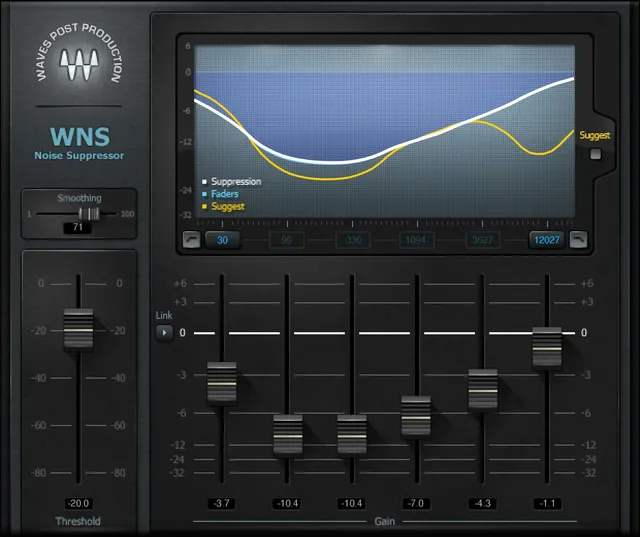
Waves WNS Noise Suppressor is a broadband processor designed to reduce steady or changing background noise in dialogue recordings. Its six Gain faders shape suppression across frequency, while Threshold controls when suppression is activated. Low and High Frequency set the range where the gain faders work; separate HP and LP switches filter below or above the selected borders.
The useful distinction is that the frequency borders define where suppression is applied, while HP and LP are filters that can remove signal outside those borders. WNS also offers a Suggest control that moves the six Gain faders toward a curve based on its noise-profile detector. The linked manual describes these controls and their defaults, but it is historical documentation rather than proof of a current installed version.
This is a document-based guide: I have not auditioned or measured WNS, or checked it in an installed audio application.
My Short Version
For dialogue cleanup, start with the noise profile display and listening in context to identify the frequency areas that need suppression. Set Threshold near the level where suppression should begin, then lower the relevant Gain faders to reduce more of those bands. Threshold ranges from −80 to 0 dB and defaults to −20 dB; each Gain fader ranges from −32 to +6 dB and defaults to 0 dB. The manual gives these units as dB; it does not specify dBFS.
The six faders are aligned with frequency positions across the selected Low/High Frequency range. Their documented default center frequencies are 30, 99, 330, 1,094, 3,627 and 12,027 Hz, from left to right, when the frequency borders are at their defaults. Changing the borders redistributes the four center positions; the manual requires at least a two-octave gap between Low and High Frequency.
Use Smoothing to adjust the suppressor’s release behavior, and treat Suggest as a starting curve rather than a finished setting. The manual describes HP and LP as optional filters below and above the selected border frequencies. It does not document separate numeric cutoff controls for them. WNS is described for general dialogue noise, not surgical removal of short, isolated sounds.
What WNS is designed to do
The Waves WNS product page identifies the product as WNS Noise Suppressor. Its linked manual describes broadband suppression for dialogue, including indoor and location recordings with stationary or modulating environmental noise. The same guide says WNS is not intended for surgical removal of specific short-term interference.
The manual describes a six-band dynamic-EQ engine with three standard EQ filters per band. It presents the controls as a global Threshold, six Gain faders, Smoothing, Suggest, Link, Low and High Frequency selectors, and HP/LP filter switches. It does not identify those three EQ filters as selectable per-band controls, so this guide does not add filter menus or EQ parameters that the interface documentation does not name.
Waves’ manual says WNS does not require noise-print learning and does not introduce latency. Those are vendor statements in an old manual, not independently measured or verified against a current build.
Components and shared toolbar
The guide lists two components: WNS Mono and WNS Stereo. It does not document different ranges, defaults or processing behavior between them. Choose the component that matches the track’s channel configuration in the host; the manual does not provide a current host-compatibility matrix.
The shared WaveSystem toolbar can save and load presets, compare settings, undo and redo steps, resize the plugin window, and open the WaveSystem Guide from its help icon. These are window utilities, not additional WNS processing controls. The WNS manual does not specify numeric ranges or defaults for the toolbar actions.
Threshold
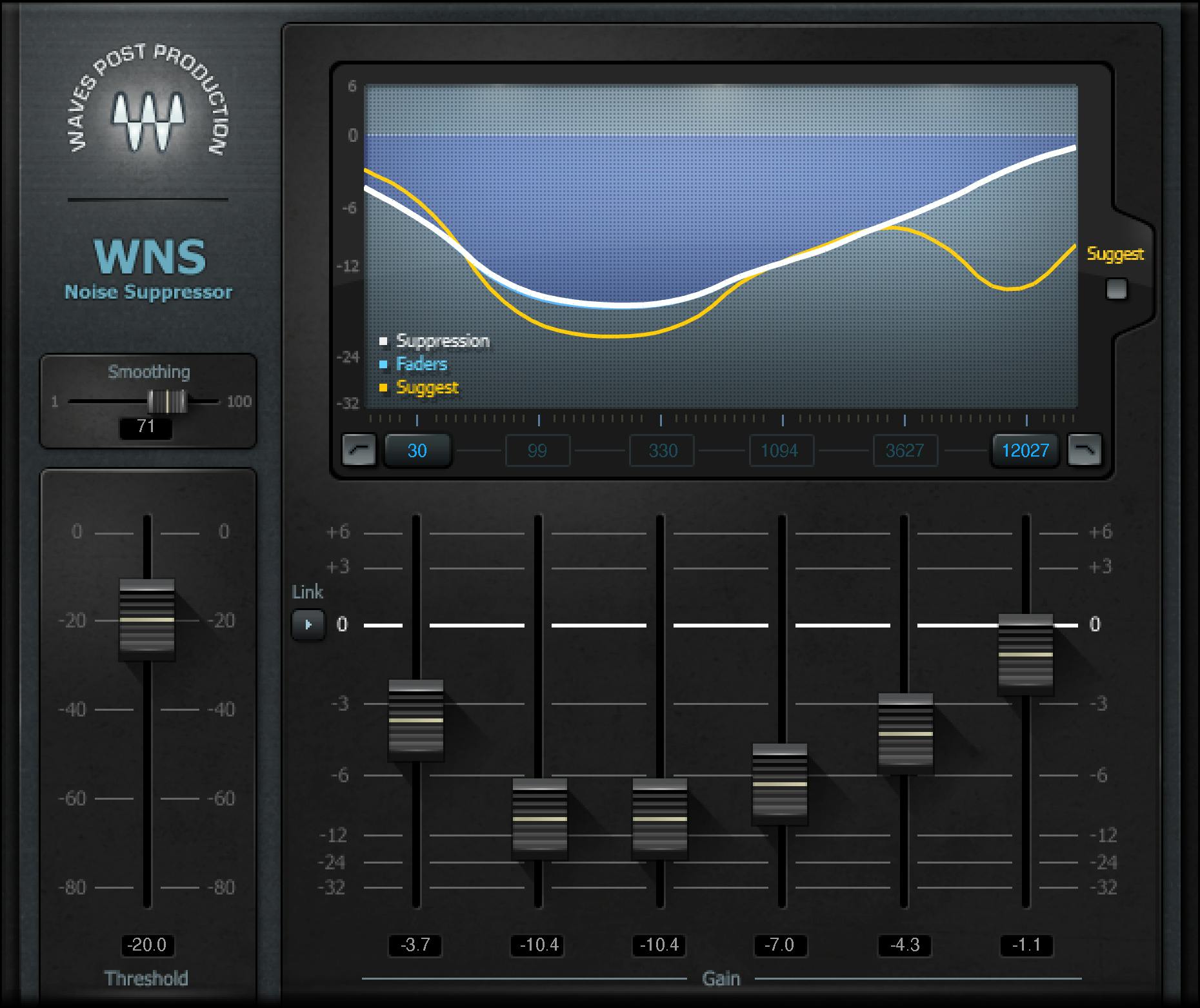
Threshold sets the level at which noise suppression is activated. The documented range is −80 to 0 dB, with a default of −20 dB. The guide says to set the global Threshold just below the dialogue level, then shape the amount of reduction with the frequency Gain faders. It does not label this range dBFS, so do not add that unit.
Threshold and Gain have related but different jobs: Threshold determines when suppression is active; the six Gain faders determine how much suppression is applied across their frequency areas. If the amount of suppression is not appropriate, the manual suggests adjusting Threshold and/or the faders. It does not provide a numerical threshold-to-suppression mapping.
Six frequency Gain faders
Each Gain fader controls the amount of noise suppression for one frequency area. Its range is −32 to +6 dB, with a default of 0 dB. The interface shows six faders, left to right. The manual’s default frequency areas are 30, 99, 330, 1,094, 3,627 and 12,027 Hz; these are center-frequency positions, not six fixed-width processing bands.
The Low and High Frequency borders set the range across which the faders are distributed. As those borders move, the four center fader positions update. The manual gives an example: setting the borders to 50 and 800 Hz distributes the faders across that interval. It also gives a 555 Hz example: set Low Frequency to 70 Hz and High Frequency to 12,410 Hz, and the third fader from the left is positioned at 555 Hz. These examples explain the documented mapping; they are not recommended settings or factory values.
The graph depicts suppression, detected noise profile and the current fader curve. The manual says the displayed bold white line represents suppression, the thin orange line represents the detected noise profile, and the light-blue line represents fader locations. The Graphic Library image shows a yellow curve labeled Suggest. That color difference does not establish a different control or current-version behavior; use the manual’s line descriptions as its stated legend and treat the library image as illustrative product artwork.
Low and High Frequency borders
Low Frequency determines the lowest frequency of the suppression range. Its documented range is 20–4,000 Hz and its default is 30 Hz. High Frequency determines the highest frequency of the suppression range. Its range is 400–20,000 Hz and its default is 12,027 Hz.
The minimum interval between the two borders is two octaves. The guide does not explain how the interface handles an attempted setting that would place them closer together, so avoid claiming a particular snapping, clamping or error behavior. Frequencies outside the selected suppression range are not affected by the Gain faders, according to the manual.
HP and LP filters
HP is a high-pass filter that filters signal below the selected frequency. LP is a low-pass filter that filters signal above the selected frequency. Each is a two-state control—On or Off—and each defaults to Off. The manual’s interface labels these as HP and LP.
The guide describes these filters as a way to cut frequencies below or above the Low/High “border values.” It does not show separate numeric cutoff knobs, specify filter slopes, or give another cutoff range. Keep their role distinct from the frequency borders: the borders define where the suppression faders apply, while HP/LP can remove signal beyond the selected border. Do not invent independent cutoff settings or filter shapes.
Smoothing
Smoothing controls the release behavior of suppression. Its documented range is 1–100, with a default of 50. The quick-start section calls it content-dependent. The manual does not express this scale in milliseconds or describe a linear mapping between its numbers and release time, so treat it as a relative plugin control rather than a timed release value.
Adjust it while considering the dialogue and the noise between phrases. The guide supports using it to shape release behavior; it does not supply a universal setting for a particular voice, room or recording.
Suggest and Link
Suggest moves all six Gain faders to a suggested suppression curve based on WNS’s noise-profile detector. The guide says to use that suggestion as a starting point and then adjust Threshold and/or the faders. The manual does not call it AI, specify a confidence score, or promise that the detected curve is correct for every recording.
Link moves all Gain faders together simultaneously. The manual does not specify an additional range or describe how relative offsets behave while linked. It is a joint adjustment control, not another gain band.
A cautious dialogue workflow
- Insert WNS on the dialogue track. The manual suggests placing it before other dynamic processors that may increase noise.
- Listen to the dialogue and inspect the displayed noise-profile curve to identify the frequency areas that need attention.
- Lower the Gain faders for those areas. Use Low and High Frequency to constrain the range when useful, keeping at least two octaves between the borders.
- Adjust Threshold if suppression activates too much or too little for the dialogue level. The manual describes setting it just below the dialogue level as a starting point, not a fixed calibration rule.
- Use Suggest only as an initial curve, then refine the faders and Threshold for the material. Adjust Smoothing for release behavior.
- If needed, enable HP or LP to filter below or above the selected borders. Remember that the manual does not specify separate cutoff controls or filter slopes.
Make changes conservatively and judge them against the original dialogue in context. The guide does not provide a test result, a recommended amount of attenuation, or a promise that every noise profile can be removed without affecting wanted sound.
Best for and when to skip it
WNS is a reasonable documentary fit to consider for broadband noise in dialogue, including recordings affected by stationary or modulating environmental noise. Its six frequency areas and range borders let the operator shape suppression without requiring a learned noise print, according to the manual.
Consider another approach when the problem is a specific short transient, when a separately controlled filter shape or numeric cutoff is required, or when the project depends on current verified compatibility or measured latency. The manual explicitly excludes surgical short-term interference work, and the linked guide is old. Do not infer that WNS is a deep-learning denoiser, a spectral repair tool, or a verified zero-latency processor from its product name or historical documentation.
For broader post-production context, see the Waves Audio Post Resources hub. For a different dynamics task after noise cleanup, the site’s Waves Renaissance Compressor guide explains a compressor rather than dialogue noise suppression. The Waves F6 guide covers a separate dynamic equalizer with user-directed EQ bands; WNS’s manual describes six suppression areas but does not document selectable per-band EQ filters.
Sources and source limits
Primary sources checked October 18, 2026.
- Waves WNS Noise Suppressor product page, for official product identity and the manual link.
- Waves WNS Noise Suppressor User Manual, 10 pages. PDF metadata identifies the title as “WNS Noise Suppressor User Manual,” author Waves Audio Ltd., created November 10, 2009 and modified May 10, 2021. The product page currently links this document. It covers product description and concepts (pp. 3–4), Mono/Stereo components and toolbar (p. 5), quick start (p. 6), interface locator (p. 7), display and Threshold (p. 8), Gain, Smoothing, Suggest and Link (p. 9), and frequency borders plus HP/LP (p. 10).
- Waves Graphic Library WNS image, official interface reference. It is a 1,860 × 1,563 progressive JPEG/JFIF served with a
.pngsuffix. The Graphic Library terms require an image backlink to the relevant Waves product page.

The manual’s no-latency and no-noise-print-learning statements are vendor claims from the linked historical document; they were not measured here. The Graphic Library image shows example values and curves, not a current plugin build, default-state proof or test result. Separate HP/LP numeric cutoffs, filter slopes, current compatibility, and any current version identifier remain unspecified by these sources.
FAQ
What does Waves WNS Noise Suppressor do?
The manual describes it as a broadband dialogue noise suppressor for stationary or modulating environmental noise. It says WNS is not intended for surgical removal of specific short-term interference.
What is the default Threshold for WNS?
The manual gives a Threshold range of −80 to 0 dB and a default of −20 dB. It does not label the range dBFS. Waves suggests setting Threshold just below dialogue level as a starting point.
What do the six WNS Gain faders control?
Each fader controls the amount of suppression in one frequency area. Each ranges from −32 to +6 dB and defaults to 0 dB. Their frequency positions change when the Low and High Frequency borders change.
What are WNS’s default frequency positions?
The manual lists 30, 99, 330, 1,094, 3,627 and 12,027 Hz from left to right. These are default Gain-fader center frequencies; the four center positions redistribute when the frequency borders move.
What do Low Frequency and High Frequency do?
They set the lowest and highest borders of the suppression range. Low Frequency ranges from 20 to 4,000 Hz and defaults to 30 Hz; High Frequency ranges from 400 to 20,000 Hz and defaults to 12,027 Hz. The manual requires at least two octaves between them.
What do the HP and LP switches do?
HP filters signal below the selected frequency and LP filters signal above it. Both are On/Off controls that default to Off. The manual does not document separate numeric cutoff controls or filter slopes.
What do Suggest and Link do?
Suggest moves all six Gain faders to a curve based on WNS’s noise-profile detector; the manual recommends treating it as a starting point. Link moves all six faders together. The guide does not describe how Link handles relative fader offsets.
Does WNS require a noise print or add latency?
The linked manual says WNS requires no noise-print learning and introduces no latency. Those statements come from a document created in 2009 and modified in 2021; they were not measured or verified against a current installed version here.

About the Author
Joseph Nilo has been working professionally in all aspects of audio and video production for over twenty years. His day-to-day work finds him working as a video editor, 2D and 3D motion graphics designer, voiceover artist and audio engineer, and colorist for corporate projects and feature films.