
Waves X-Click is a restoration processor for strong, short clicks and other impulsive noise. Its two processing controls are Threshold, which determines the amplitude of targeted clicks, and Shape, which sets their width or time window. A separate Output Monitor lets you hear either the processed Audio or the material removed as Difference.
The main risk is over-removal. X-Click can classify wanted transients—such as drum hits or other sharp attacks—as clicks. Waves recommends using the lowest Threshold that removes the unwanted noise and checking Difference for musical content. It also documents a processing latency of 2624 samples; whether a host compensates for that delay must be checked in the actual session.
My Short Version
Start with the least processing that addresses the click. Threshold controls the amplitude of clicks detected for removal; increasing it targets more. Shape controls the click's width: lower values suit shorter events such as digital clicks, while wider vinyl scratches often need a higher value.
Use Difference as a diagnostic. It should contain the material X-Click removed. If you hear notes, drum attacks or other wanted audio there, reduce Threshold and/or Shape. Then return to Audio to evaluate the processed output. A strong-looking Scope or attenuation reading is not proof that the repair is transparent.
For an entire recording, one insert setting may work, but a passage with different clicks or valuable transients may call for manual click removal. The manual's manual-removal method records the Difference signal as a Click Log and processes only selected sections. Account for X-Click's stated 2624-sample latency when aligning that log, and verify what your host compensates automatically.
This guide describes the current supplied Waves documentation. I have not processed audio or judged the sound of X-Click on a recording.
What X-Click is for
The official X-Click product page and user guide describe restoration of impulsive noise, including clicks from damaged vinyl or shellac, digital errors, switching noise and digital crosstalk. The manual distinguishes rapid waveform transitions from physical groove damage, which can corrupt more samples.
Waves places X-Click before X-Crackle in its suggested restoration chain: first address larger clicks, then use X-Crackle for finer surface noise. That is the vendor's suggested order, not a finding from a comparison performed here. The manual also allows X-Click to be used by itself.
The controls are deliberately few, but their effects interact with the source. A higher Threshold detects more events; a higher Shape reaches wider events. Both can increase artifacts, so the right setting depends on what is noise and what is wanted performance.
Threshold: how much click amplitude to target
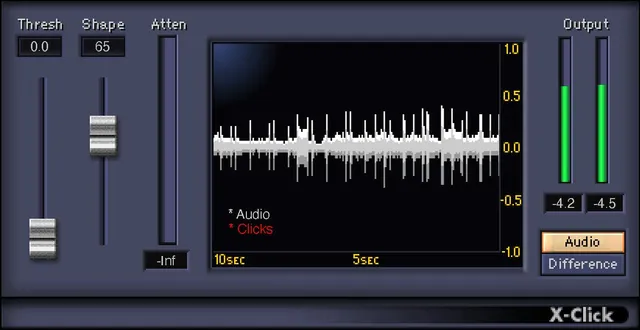
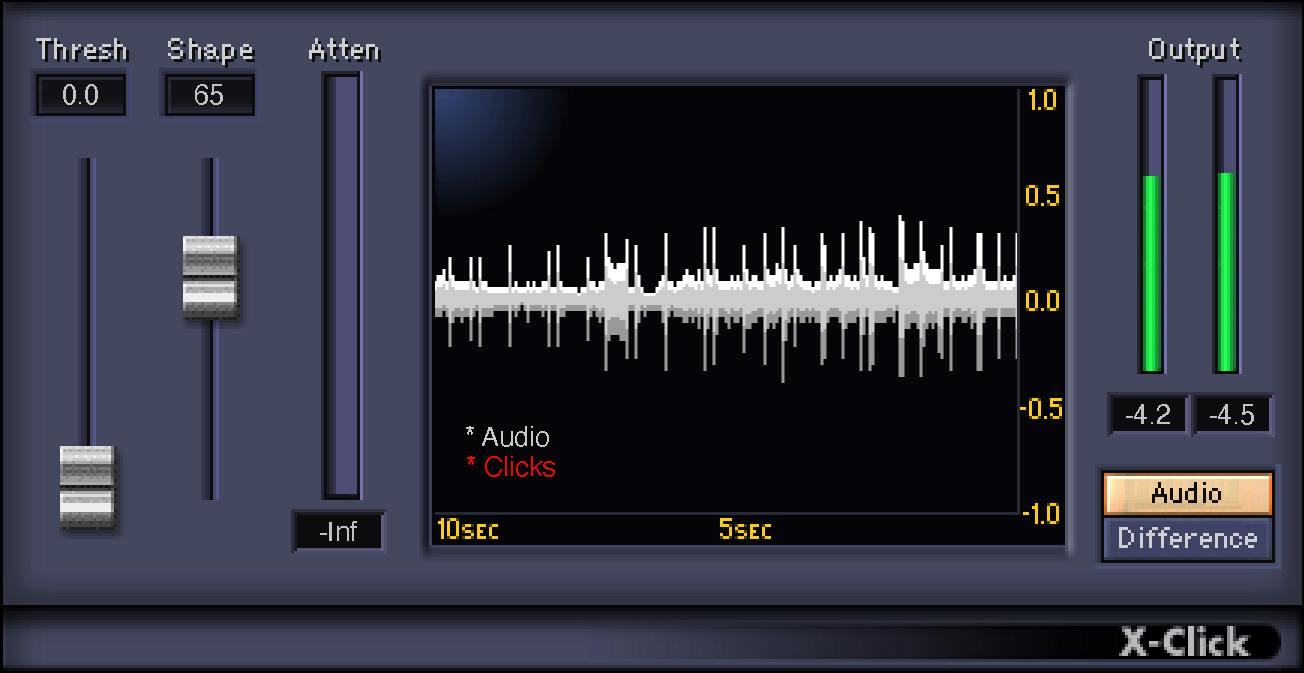
Threshold sets the amplitude of clicks to remove. The manual lists a range of 0–100 and a default of 0. At zero, it says all clicks are left; higher values remove larger clicks and display more detected red events in the Scope.
For a typically polluted digitized vinyl recording, Waves recommends starting within 30–50. That is a vendor starting range for that example, not a required setting or a test result for every source. Higher settings can also remove wanted transients.
The practical check is the Difference output: if it contains desirable audio as well as clicks, lower Threshold and reassess. For safety of musical detail, the guide advises using the lowest threshold settings possible to remove the clicks.
Shape: the width of the event
Shape determines the duration or width of clicks that X-Click targets. Its documented range is 0–100, with a default of 50. Lower settings target shorter clicks; the manual says these are more suitable for digital clicks. Wider scratched-vinyl events generally call for higher Shape values.
For typical vinyl restoration, the manual recommends 70 as a starting value. It is not the factory default. Like Threshold, higher Shape can increase artifacts. If the Difference monitor includes wanted material, try lowering Shape as well as Threshold and check whether the click remains addressed.
The two controls do not represent interchangeable versions of “more repair”: one adjusts the target amplitude and the other its width. The guide provides no formula that turns the pair into a single severity setting.
Audio and Difference monitoring
The Output Monitor switches between two signals:
- Audio is the audio processed by X-Click and is the documented default. Use it to evaluate the processed output.
- Difference is the signal X-Click removes with the current settings. Waves recommends it to check whether the processor has removed wanted transients.
Waves says the Difference signal should contain only clicks, not desirable parts of the audio. If it contains other musical content, lower Threshold and/or Shape. The Difference listen is a diagnostic, not a guarantee: the manual says to monitor with headphones while experimenting and listen for processing details.
When you compare settings, keep track of which monitor mode is selected. The output meters follow the selected mode, so a peak reading in Difference is not the same as a peak in processed Audio.
Scope, attenuation and output meters
| Display | What the manual documents | How to read it |
|---|---|---|
| X-Click Scope | Visual history for the last 10 seconds of processing. Red marks detected clicks; color intensity corresponds to the degree of damage in the sample. Unaffected samples are gray. | More red appears at higher Threshold values. It visualizes detection; it does not tell you whether every detected event is unwanted. |
| Click Attenuation meter | Displays the amount of click removal and correlates with the level heard in Difference. | Treat it as a removal indication, not a quality score. Check what is actually present in Difference. |
| Output meters | Logarithmic dBFS peak meters for the selected Output Monitor mode. | The numeric peak value holds until reset by clicking anywhere in the meter area. Compare like monitor modes. |
The meter reset is a readout action; it does not reset Threshold or Shape. The manual does not specify that the Scope can be manually cleared, so do not confuse its ten-second history with the output peak hold.
Automatic removal and transient caution
Waves describes X-Click as designed primarily for real-time automatic processing. The guide says it can often be set for an entire recording as an insert, either by itself or before X-Crackle. But whole-track settings can be a poor fit when the recording includes intentional sharp attacks.
The manual specifically cautions that drums, percussion and other transient effects may be misclassified as clicks. If one setting cannot remove the unwanted clicks while preserving those sounds, the guide suggests Manual Click Removal. The useful decision is not “how many red marks can I get?” but “does the removed signal contain only the material I meant to repair?”
Manual Click Removal: make a Click Log
Manual Click Removal (MCR) is a section-by-section method described for multitrack audio editors, with the exact editing steps varying by host:
- Insert X-Click on the track and begin with the manual's fairly aggressive detection example: Threshold 50, Shape 70.
- Switch Output Monitor to Difference and record the full track to a neighboring track or file. This is the Click Log.
- Use the Scope and listen to the original and Click Log to decide which areas need processing.
- For each affected section, adjust settings for the clicks and transients there, process that section, then move to the next click or similar section.
The example values are the manual's setup for finding events in this workflow. They are not safe defaults for processing an entire recording. The guide says MCR can be used for precise, surgical removal and does not necessarily require destructive processing; undo and redo may be used as you work.
The Click Log must align accurately with the original. That is where latency matters: X-Click's natural latency is documented as 2624 samples. Some hosts compensate automatically; some do not. If your host does not, the manual says the Click Log may be offset by that amount and must be moved back into alignment. Verify the host's actual behavior instead of assuming compensation.
Latency and synchronization
The guide says X-Click looks ahead and delays the source by 2624 samples, which Waves estimates at about 60 ms at CD-quality audio. The sample count is the documented figure; the time equivalent depends on sample rate. It should not be repeated as a universal millisecond delay at every rate or an across-host behavior.
For multitrack sync, the manual says other tracks must be delayed by the same 2624 samples if they are to remain aligned. Some hosts compensate automatically. In file editors without delay compensation, the manual suggests adding at least 2624 samples of silence at the end before processing, then trimming the start afterward.
Because the manual says the latency cannot be solved in live recording situations, X-Click is not recommended for real-time live applications. Check the plugin delay and host compensation in your actual offline workflow, especially before committing a Click Log or comparing aligned tracks.
WaveSystem Toolbar
The manual documents the top WaveSystem Toolbar for saving and loading presets, comparing settings, undoing and redoing steps, and resizing the plugin. Its upper-right ? opens online help; the toolbar guide icon opens the WaveSystem Guide. These are host/plugin interface utilities, not additional click-removal parameters.
The manual does not state whether X-Click is supplied in mono, stereo or multiple component variants. Check the component presented by the installed plugin and host rather than assuming a format from this article.
Conservative restoration workflow
- Work on a copy or preserve the original before committing edits.
- Start from a low Threshold and a Shape appropriate to event width. The manual's 30–50 Threshold and Shape 70 suggestions are examples for typical vinyl, not universal settings.
- Toggle Difference and listen for wanted notes, drums, percussion or attacks in the removed signal. Reduce one or both controls if useful transients are being detected.
- Return to Audio and compare the processed result with the source. Watch the meters for the selected mode and reset peak hold by clicking the meter area when needed.
- If a single setting compromises transient preservation, use section-based MCR and keep the Click Log aligned to the original.
- Account for the documented 2624-sample latency and check the host's delay compensation before judging alignment or rendering.
This is a cautious interpretation of Waves' documented controls and tips. No sample was processed for this guide; it does not claim a setting will remove clicks transparently from any particular recording.
Limits and evidence boundary
The current supplied manual documents two processing parameters, display behavior, a manual-removal procedure and a 2624-sample natural latency. It does not document separate mono/stereo component behavior, a universal host-compensation result or a measured restoration outcome for specific audio. No listening test, latency measurement or processor comparison was performed.
Waves makes positive sound-quality claims in the manual. They are vendor claims, not independently established findings here. This guide instead emphasizes the manual's own warnings: artifacts can increase with both controls, and wanted transients may be classified as clicks.
Related Waves references
The manual's suggested companion is Waves X-Crackle, described for finer scratches after larger clicks. That is the manual's recommended restoration order, not a comparison tested for this guide.
Sources
Primary sources rechecked October 18, 2026.
- Waves X-Click Users Guide, official seven-page manual, printed pp. 1–7; official manual.
- Waves X-Click product page, official product identity and interface-image source.
- Waves X-Crackle product page, cited only for the manual's documented companion-workflow context.
FAQ
What do Threshold and Shape do in X-Click?
Threshold sets the amplitude of clicks targeted for removal; its documented range is 0–100 and default is 0. Shape sets their width or duration; its range is 0–100 and default is 50. Higher values can increase artifacts.
What are the manual's suggested vinyl starting values?
For typical digitized vinyl, the manual suggests starting Threshold around 30–50 and Shape at 70. Those are source-specific starting suggestions, not factory defaults or guaranteed settings for every recording.
What should I hear in Difference mode?
Difference plays the signal removed by X-Click. Waves says it should contain clicks rather than desirable audio. If notes or transients appear, lower Threshold and/or Shape and check again.
What does the X-Click Scope show?
The Scope shows the last 10 seconds of processing history. Red indicates detected clicks, with intensity tied to the degree of sample damage; unaffected samples are gray. More red at a higher Threshold does not prove that every detected event is unwanted.
Can X-Click remove drum hits or other wanted transients?
It can. The manual warns that high-amplitude drumbeats and other transient effects may be misclassified as clicks. Use Difference to inspect what is removed, reduce the settings or use section-based Manual Click Removal when one setting cannot preserve the performance.
How much latency does X-Click add?
The manual documents 2624 samples of natural latency, estimated at about 60 ms at CD-quality audio. Some hosts compensate automatically and some do not, so verify the actual host behavior; the millisecond figure is not universal across sample rates.
Is X-Click suitable for live processing?
Waves does not recommend it for real-time live applications because its look-ahead delay cannot be solved in that situation. The manual describes it for restoration workflows where latency can be accounted for.
Does the manual specify mono and stereo versions?
No. The supplied guide does not state which channel-format components are available. Check the component offered by your installed plugin and host rather than inferring it from this guide.

About the Author
Joseph Nilo has been working professionally in all aspects of audio and video production for over twenty years. His day-to-day work finds him working as a video editor, 2D and 3D motion graphics designer, voiceover artist and audio engineer, and colorist for corporate projects and feature films.