

Waves X-Noise is a broadband, single-ended noise-reduction plugin that learns the spectral character of steady background noise and then reduces material that falls under that learned profile. Its main controls are Threshold and Reduction, supported by Attack, Release, Resolution, a high-frequency profile modifier, noise-profile learning, Difference monitoring, a noise-reduction meter and a three-trace analyzer. [1][2]
Waves describes X-Noise as useful for tape hiss, air-conditioning/ventilation and computer noise; the manual also describes broadband reduction that can target high-frequency hiss and low-frequency rumble. The manual says loud, short-impulse defects should be treated first with X-Click or X-Crackle. [1][2]
My Short Version
The most important X-Noise workflow is: find a short section that contains only the unwanted background noise, click Learn, play that section so X-Noise builds a profile, stop learning, then return to the full recording and adjust Threshold and Reduction. [1]
Use Difference monitoring constantly. If you hear wanted speech, music or transients clearly in the Difference signal, the settings are removing more than noise. Back off Reduction, adjust Threshold, or change Attack/Release/Resolution until the removed signal is mostly the unwanted noise. [1]
I did not audition X-Noise for this article. The descriptions below are based on Waves’ current documentation.
What X-Noise is designed to remove
X-Noise is built for relatively continuous broadband background noise. Waves names tape hiss and ventilation/air-conditioning noise as typical examples and explains that the algorithm analyzes the signal in the frequency domain against a learned noise profile. [1]
The processing is single-ended, meaning it does not depend on a matching encode/decode process from the original recording. That distinguishes it from systems that require a signal to have been encoded during recording. [1]
Noise Profile and Learn
The Noise Profile is the foundation of X-Noise. It represents the frequency content of the unwanted background noise the processor should recognize. [1]
Waves recommends selecting a representative noise-only section of at least 100 ms where possible. Click Learn to start analysis; the button turns red and changes to Learning. Play the representative noise, then click Learn again to stop and create the profile. [1]
A crucial detail: no noise reduction occurs while X-Noise is learning the profile. [1]
The resulting profile appears as the white trace in the analyzer. The manual recommends saving the X-Noise setup with its profile and says the WaveSystem Load menu can load a preset, a noise profile, or both; a profile can also be loaded alone from a saved setup. If no clean noise-only segment exists, use a factory profile/preset instead of treating contaminated audio as a valid noise-only sample. [1]
Threshold
Threshold represents the level of the noise profile. The manual says signal below that profile is removed, while signal above it is not processed. [1]
- Range: -20 to +50 dB.
- Default: 0 dB. [1]
The manual’s workflow example notes that a Threshold around 10 dB typically means the noise region sits below the profile and is therefore subject to removal, but this is contextual guidance rather than a universal target. [1]
If wanted audio appears in Difference monitoring, Threshold is one of the first controls to revisit.
Reduction
Reduction sets how much attenuation X-Noise applies to material identified below the threshold/profile. [1]
- Range: 0–100%.
- Default: 0%. [1]
The manual describes 0% as a smooth/light setting that still reduces a small amount of noise rather than a hard bypass of the entire algorithm. [1]
More Reduction can remove more background noise but can also expose time-aliasing artifacts when pushed too far. Waves describes singing or robot-like artifacts as signs to adjust Reduction and Threshold, with Attack, Release, Resolution and High Shelf also available to minimize artifacts. [1]
Attack
Attack sets how long X-Noise takes to ramp from initial detection to the peak amount of noise reduction. [1]
- Range: 0 to 1.000 second.
- Default: 0.030 second. [1]
Waves explains that the gradual ramp helps avoid pops/clicks from abrupt processing. Faster attack can suit more impulsive material; slower attack can better fit signals that evolve gradually. [1]
Because this is a noise-reduction envelope rather than a conventional compressor attack, do not assume a one-to-one mapping to compressor behavior.
Release
Release sets how long the reduction takes to return smoothly toward zero after the reduction event. [1]
- Range: 0 to 5.00 seconds.
- Default: 0.400 second. [1]
The manual says longer release times preserve more ambience, while shorter times can be useful when reducing noise in speech/forensic applications. [1]
A release that is too short for the source can make the noise floor move audibly; one that is too long may leave reduction engaged across wanted changes in the signal. That last sentence is practical interpretation of the documented timing behavior, not a listening result from this article.
High Shelf: what it actually changes
The X-Noise High Shelf is not an EQ inserted into the audio signal path. Waves explicitly describes it as a modifier of the Noise Profile. [1]
That distinction is important: raising the high-frequency part of the profile asks the algorithm to remove more noise in that region; lowering it asks for less high-frequency reduction. It is shaping the detector/profile relationship rather than simply shelving the processed output. [1]
High Shelf Frequency
Freq sets the frequency above which the noise profile is modified. [1]
- Range: 400 Hz to 20 kHz.
- Default: 4006 Hz. [1]
High Shelf Gain
Gain sets the amount of high-frequency profile modification. [1]
- Range: -30 to +30 dB.
- Default: 0 dB. [1]
Positive values raise the high-frequency profile threshold and call for more removal in that spectrum; negative values lower it and reduce high-frequency noise reduction. [1]
Resolution
Resolution changes the fineness of X-Noise’s analysis and the associated CPU demand. [1]
- Settings: Low, Med, High.
- Default: Med. [1]
Waves states that higher Resolution is finer in the frequency domain, but not in the time domain. If fast events smear, the manual recommends lowering Resolution. [1]
It also recommends learning the noise profile and processing the source at the same Resolution when possible, even though changing Resolution later is allowed. [1]
Do not reduce this to “High is always best.” The manual explicitly describes a tradeoff between frequency resolution, time behavior and CPU use.
Output Monitor: Audio vs Difference
Output Monitor selects what you hear while adjusting X-Noise. [1]
- Audio — the normal processed X-Noise output; this is the documented default.
- Difference — the signal X-Noise is currently removing. [1]
Difference is one of the most useful quality-control tools in the plugin. Waves recommends switching between Audio and Difference repeatedly while tuning the reduction. If recognizable wanted speech/music appears strongly in Difference, you are likely taking too much of the source with the noise. [1]
Difference is a monitoring mode, not a separate destructive render mode.
Noise Reduction meter
The NR (Noise Reduction) Meter shows the amplitude of the noise being removed. Waves states that its level correlates to what you hear in Difference monitoring. [1]
The manual does not define this meter as LUFS, true peak or a delivery-standard loudness meter. Treat it only as the plugin’s reduction-amount display.
X-Noise Analyzer
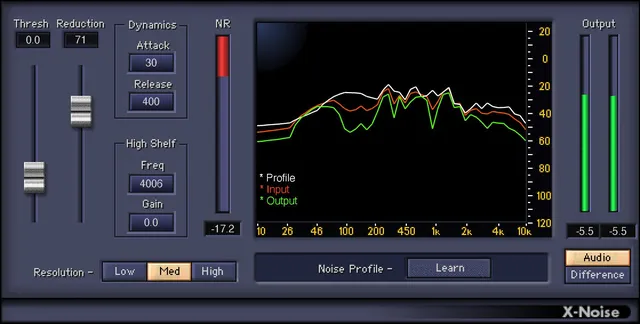
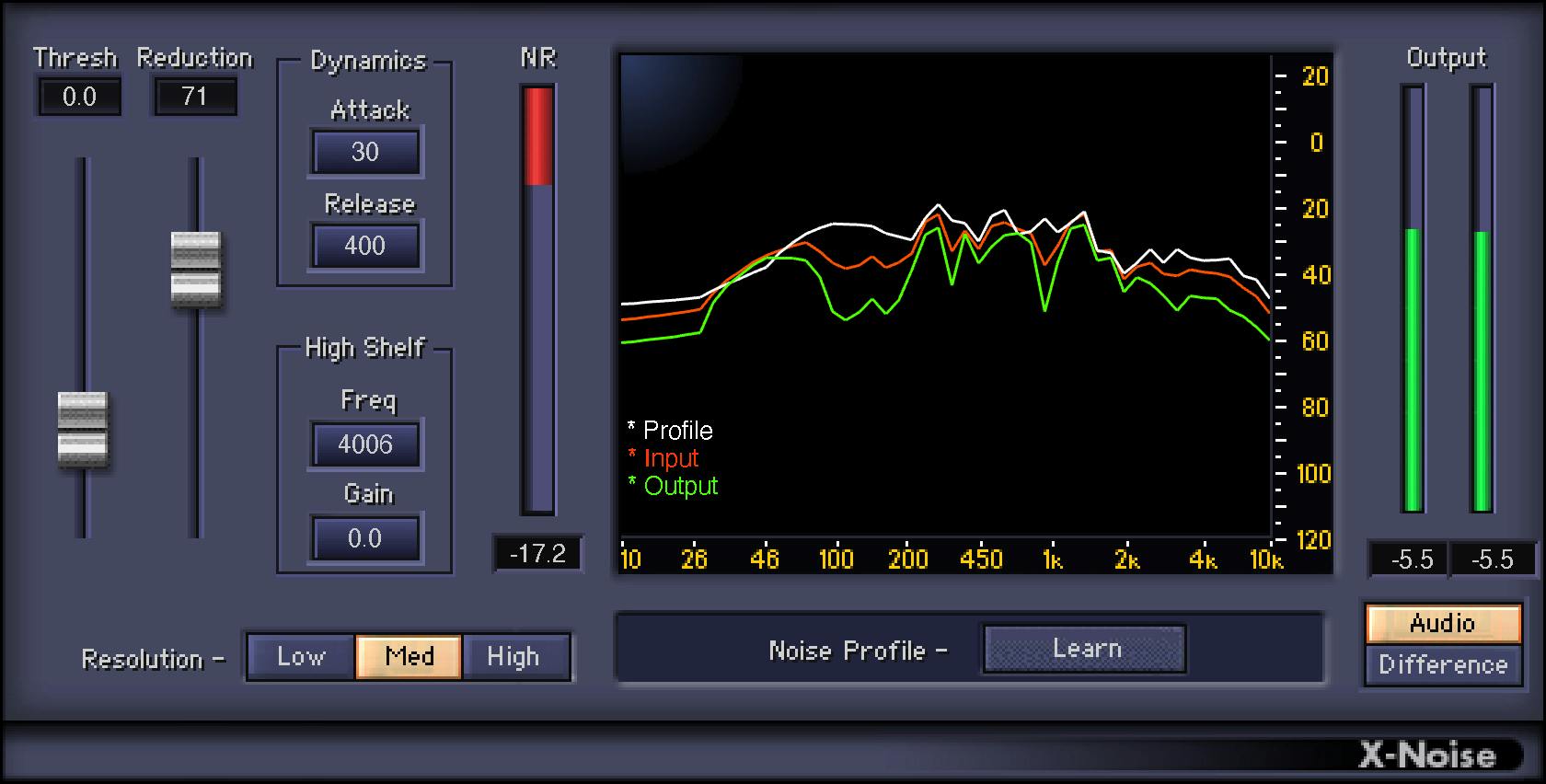
The main analyzer displays three spectral envelopes. [1]
- Red — input signal before X-Noise processing.
- White — learned noise profile.
- Green — output signal after X-Noise processing. [1]
Waves notes that a healthy reduction process often shows the green output below the red input in areas being reduced, while peaks above the profile can overlap. The analyzer is a visual aid; Difference listening remains important because a clean-looking graph does not prove that wanted audio has been preserved. [1]
Saving and reusing a profile
The manual says some hosts may not store Noise Profile data with plugin settings, so save the setup within WaveSystem to ensure the profile is kept. Its Load menu can restore a preset, a profile, or both; the manual's A/B feature compares two presets. The current product page separately advertises saving two noise profiles for comparison, but the manual does not describe A/B as comparing two profiles. [1][2]
That is appropriate when the noise characteristic is stable across material. If the noise changes substantially, a stale profile should not be assumed to remain representative.
WaveSystem toolbar
The shared WaveSystem Toolbar provides preset load/save, compare, undo/redo and interface resizing. [1]
Those are shared plugin-management functions rather than X-Noise reduction parameters.
A practical X-Noise workflow
First, decide whether the defect is actually the kind of noise X-Noise is meant to address. Continuous hiss, HVAC or broad background noise fits the documented use case; clicks and crackle should be handled first by dedicated restoration tools. [1]
Find at least 100 ms of representative noise-only audio if available, start Learn, play the noise, then stop Learn. Keep the same Resolution for learning and processing unless there is a reason to change it. [1]
Return to the full source and raise/lower Threshold and Reduction until the background drops without obvious damage. Switch to Difference often. If wanted content appears there, reduce the aggressiveness of the settings. [1]
Use Attack and Release to make the reduction follow the source more naturally. If fast transients smear, consider lowering Resolution. If the high-frequency noise needs a different treatment from the rest of the profile, use the High Shelf profile controls—not an output EQ—to change the algorithm’s high-frequency emphasis. [1]
This workflow is documentation-led. I did not perform a listening test or restoration comparison.
Best for / skip if
X-Noise is best for steady broadband noise with a reasonably identifiable noise fingerprint, especially archive/tape hiss, HVAC and similar continuous backgrounds. [1][2]
Skip it as your first tool for isolated clicks, crackles or other short impulses; Waves explicitly points to X-Click/X-Crackle for those. Also do not treat it as a modern source-separation dialogue extractor—the algorithm is profile-based broadband noise reduction, not semantic speech isolation. [1]
Limitations and evidence boundary
This article is documentation-led. I did not audition X-Noise, compare artifact levels, measure CPU use, test latency, benchmark it against other restoration tools, or verify host automation. The official artwork also shows Output meters/readouts whose functions and ranges the guide does not explain; no operation, range or calibration is inferred here.
The manual documents X-Noise latency of 5120 samples (about 116 ms for CD-quality material). It says to delay other tracks by the same amount to maintain sync, does not recommend X-Noise for live-event monitoring, and advises that an editor compensate for the delay; if it cannot, add at least 5120 samples of silence at the file end and trim the start after processing. These are Waves' documented limits and instructions, not measurements from this guide. [1]
Related guides
Waves’ X-Click and X-Crackle address impulsive restoration tasks; NS1 Noise Suppressor offers a simpler automatic suppression workflow.
Bottom line
X-Noise is fundamentally a learned-profile noise reducer. Threshold determines how the incoming signal relates to the profile, Reduction controls how much identified noise is attenuated, Attack/Release shape the reduction envelope, Resolution sets the analysis tradeoff, and Difference monitoring tells you what is being removed. [1]
The safest way to use it is not to chase the quietest possible output. Build the cleanest noise profile you can, make moderate reductions, and repeatedly check Difference so the wanted signal does not disappear with the noise. [1]
Sources
Source review: October 16, 2026. No listening or native-host test was performed.
- Waves X-Noise User Guide, current product-linked manual; complete controls/displays/profile sections parsed and key control UI page visually inspected.
- Waves X-Noise product page, current product identity and positioning.
- Waves Graphic Library, current X-Noise listing and image-reuse rule requiring a relevant Waves product backlink.
FAQ
What kind of noise is X-Noise designed to reduce?
Waves describes it as a single-ended, broadband, real-time noise reducer for background noise such as tape hiss and air-conditioning or ventilation noise; the manual says high-frequency hiss and low-frequency rumble can be targeted.
How do I create a noise profile?
Use a representative noise-only section of at least 100 ms when possible, click Learn, play the section, then click Learn again to stop. The learned profile appears as a white trace in the analyzer.
Does X-Noise reduce audio while it is learning?
No. The manual explicitly says no noise reduction occurs while the profile is being learned.
How do Threshold and Reduction differ?
Threshold sets the noise-profile level used to distinguish material for reduction; Reduction sets how much attenuation is applied below that level. The manual lists Threshold at −20 to +50 dB, default 0 dB, and Reduction at 0–100%, default 0%; 0% still reduces a small amount.
What does Difference mode let me hear?
It monitors the noise currently removed by X-Noise. If wanted audio is audible in Difference, the manual recommends changing settings to balance reduction against signal loss.
Is the High Shelf an output EQ?
No. The manual says it modifies the Noise Profile, not an EQ filter in the signal path; increasing its gain calls for more high-frequency noise reduction.
Does High Resolution always work best?
Not necessarily. High uses more CPU and is finer in the frequency domain, not the time domain; Waves says to lower Resolution if fast events smear and recommends using the same Resolution for profile learning and processing.
How much latency does X-Noise add?
The manual says it delays the source by 5120 samples, about 116 ms for CD-quality material. It advises delaying other tracks equally to maintain sync and does not recommend it for live-event monitoring.

About the Author
Joseph Nilo has been working professionally in all aspects of audio and video production for over twenty years. His day-to-day work finds him working as a video editor, 2D and 3D motion graphics designer, voiceover artist and audio engineer, and colorist for corporate projects and feature films.