
Waves CLA-3A is an optical-style compressor and limiter. Use Peak Reduction to set how much compression you want and Gain to set makeup level. HiFreq changes how high-frequency content drives compression, while Mix blends the processed signal with the original.
This guide is based on Waves’ documentation. I did not audition the plug-in. The cover is an AI-generated editorial illustration.
My Short Version
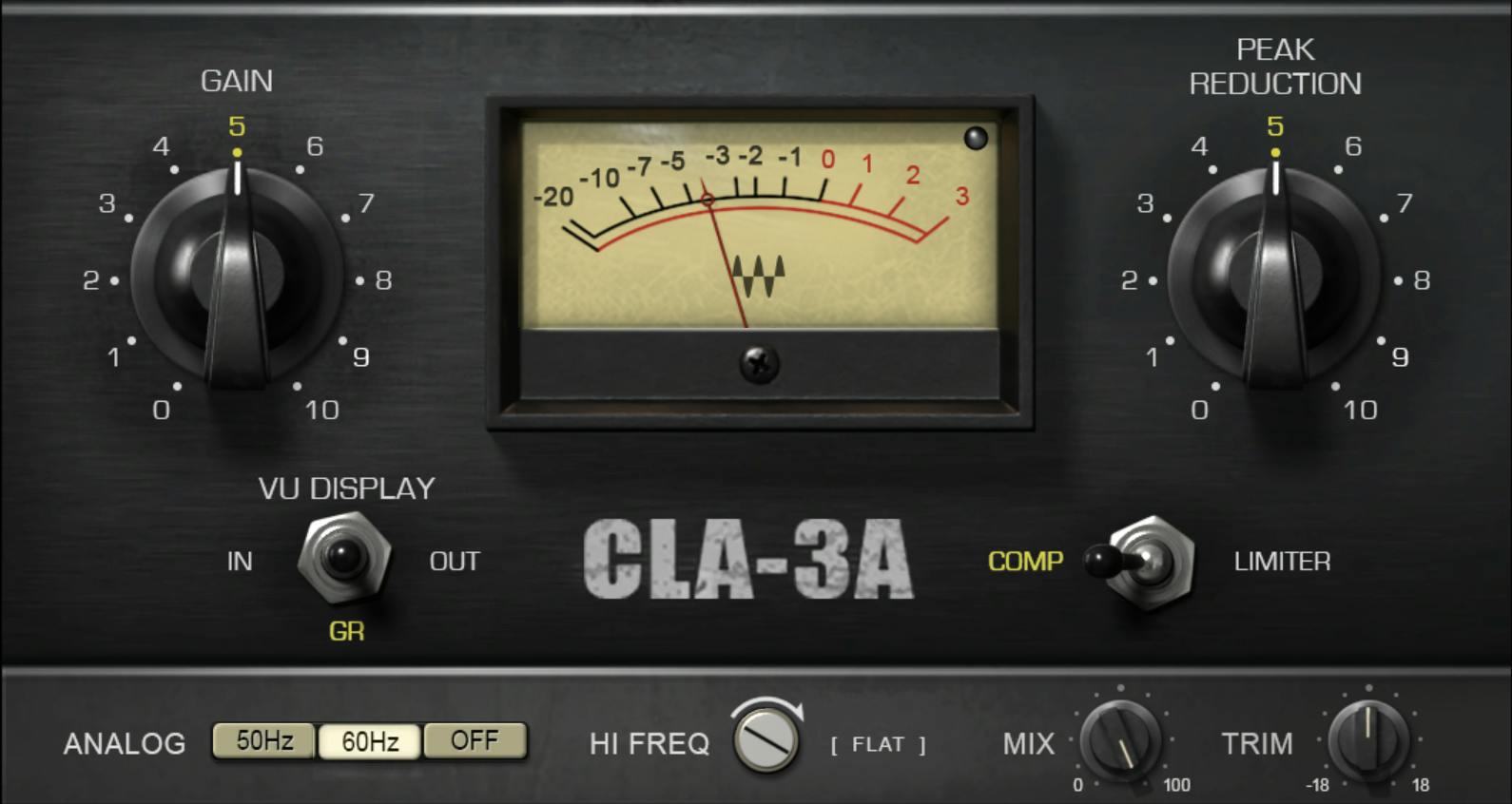

Start in Compress with the meter set to GR. Raise Peak Reduction while listening for the amount of level control the source needs. Then adjust Gain to compare at a similar output level. Limiter gives a much higher ratio.
Components
Waves documents two processors:
- CLA-3A Mono — one-channel compressor.
- CLA-3A Stereo — two-channel compressor with one detector controlling both channel paths.
That shared detector means the Stereo component is not described as two independent multi-mono compressors.
Compressor vs Limiter
The Comp/Limiter toggle selects the main ratio behavior.
- Compress: approximately 3:1.
- Limiter: approximately 100:1.
- Initial/reset: Compress.
The limiter setting is therefore much more restrictive. It does not add a separate ceiling control; it changes the modeled compression ratio behavior.
Gain
Gain is the output/makeup-gain control associated with the main compression stage.
- Range: 0–10.
- Step size: 0.01.
- Initial value: 5.50.
- Reset value: 4.08, identified by Waves as unity gain.
When Auto Makeup is disabled, Gain is the normal place to compensate for level lost through compression.
Peak Reduction
Peak Reduction controls how much compression the plug-in applies. Turn it up to increase gain reduction and watch the meter in GR mode. Waves documents a 0–10 range and a reset value of 0. The scale responds nonlinearly.
Auto Makeup
In the V16 guide, Auto Makeup links Peak Reduction to Gain. Adjusting Peak Reduction can move Gain to keep output relatively stable when compression engages. Moving Gain does not change Peak Reduction. To set a different offset, turn Auto Makeup off, adjust the two controls and turn it back on.
HiFreq
HiFreq changes the gain of the voltage amplifier in the peak-reduction circuit for frequencies above 1 kHz, leaving lower frequencies unaffected.
- Range: 0–100 in 0.1 steps.
- Initial value: 50.
- Reset value: 100 (Flat).
At Flat, Waves says reduction is equal across frequencies. Moving away from Flat makes the compressor less sensitive to lower frequencies, so high-frequency content drives proportionally more reduction. Waves explicitly notes this can be used in a de-essing-like way.
This is a detector/sidechain emphasis control, not a normal audio-path treble EQ.
Analog
Analog enables modeled noise/hum characteristics associated with the original units’ power supplies.
- Options: Off, 50 Hz, 60 Hz.
- Initial value: 60 Hz.
- Reset value: Off.
If you do not want the added modeled noise/hum component, use Off.
Mix
Mix blends compressed and unprocessed signal for parallel compression.
- Range: 0–100% in 0.1% steps.
- Initial/reset value: 100%.
At 100% you hear the fully processed path. Lower settings blend more dry signal back in.
Trim
Trim sets final plugin output after Mix.
- Range: -18 to +18 dB in 0.1 dB steps.
- Initial/reset value: 0 dB.
Use Trim for final output adjustment rather than forcing the main Gain knob to serve two different jobs once you have a compression tone you like.
VU meter and selector
CLA-3A has one VU display that can monitor three functions. The selector options are:
- In — input level;
- GR — gain reduction;
- Out — output level.
The initial/reset position is GR. The current interface page visually confirms the IN/GR/OUT selector around the meter.
The VU display should not be treated as a LUFS or true-peak delivery meter.
A practical CLA-3A workflow
Set the meter to GR and listen while you raise Peak Reduction. Use Gain for makeup or enable Auto Makeup while you establish the amount of gain reduction. Try HiFreq if the detector reacts too strongly to low-frequency energy. Use Mix for parallel compression and Trim for final output matching.
Related Waves guides
The CLA-2A guide covers a different optical design. The CLA-76 guide covers a FET compressor with adjustable timing. The Renaissance Compressor guide covers a more configurable dynamics tool.
Sources
Waves documentation reviewed November 25, 2026. See the Waves user guide, the official product page and the Waves Graphic Library.
Frequently Asked Questions
What does Peak Reduction do on CLA-3A?
Peak Reduction sets how much compression CLA-3A applies. Use the meter’s GR mode to watch gain reduction as you adjust it.
What is the difference between Compress and Limiter mode?
Waves documents approximate ratios of 3:1 in Compress and 100:1 in Limiter.
What does HiFreq do?
It changes the detector’s response to higher frequencies. At Flat, Waves says the plug-in applies equal reduction across frequencies.
How does Auto Makeup work?
The V16 guide says changes to Peak Reduction can move Gain in one direction of control. Moving Gain leaves Peak Reduction unchanged.
Can CLA-3A do parallel compression?
Yes. Mix blends the compressed and unprocessed signal. Trim adjusts the final level after that blend.

About the Author
Joseph Nilo has been working professionally in all aspects of audio and video production for over twenty years. His day-to-day work finds him working as a video editor, 2D and 3D motion graphics designer, voiceover artist and audio engineer, and colorist for corporate projects and feature films.