
Waves CLA Epic is a multi-effect plugin built around four delays—Tape, Throw, Slap and Crowd—and four reverbs—Plate, Room, Hall and Space—with a routing matrix that can run them in parallel or feed delays into reverbs. Each strip has its own level, mute/solo, filtering and effect-specific controls, while a separate routing/sends section determines where each delay goes. [1][2]
The important part is the routing. CLA Epic is not simply “four delays plus four reverbs” stacked in a fixed order. A delay can go straight to the output, to one or more reverbs, or both; multiple destinations can be used at once. That makes the plugin useful for building layered ambience from one interface, but it also means the send/routing state matters as much as the knob positions. [1]
My Short Version
Start with the Input level, choose one delay or reverb, and get its timing/decay right before opening more strips. Use Tape for two independently timed taps, Throw when you want a delay that can be manually gated with its Trigger control, Slap when you want a single delay with selectable modeled tape-speed EQ curves, and Crowd for the manual's compact Tight-to-Wide crowd-style delay treatment. [1]
For reverb, Plate, Room and Hall share Pre-Delay and Reverb Time controls but use different internal EQ curves. Space adds its own Decay control and can move toward a gated-reverb behavior at its maximum setting when Reverb Time is above one second. [1]
Use the routing buttons beneath each delay to choose destination reverbs and/or the direct output, then set the per-destination send levels. Finish with global Wet/Dry, Output, and the output meter. [1]
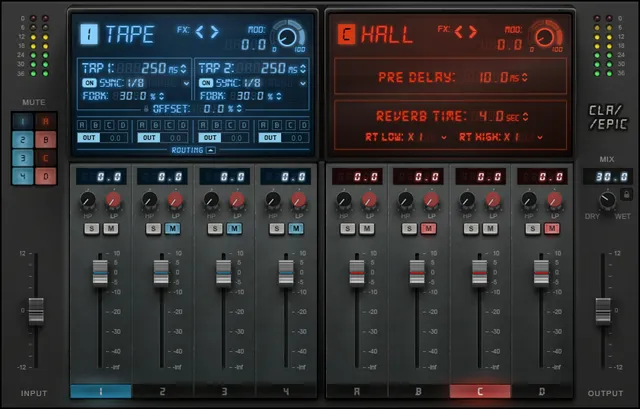
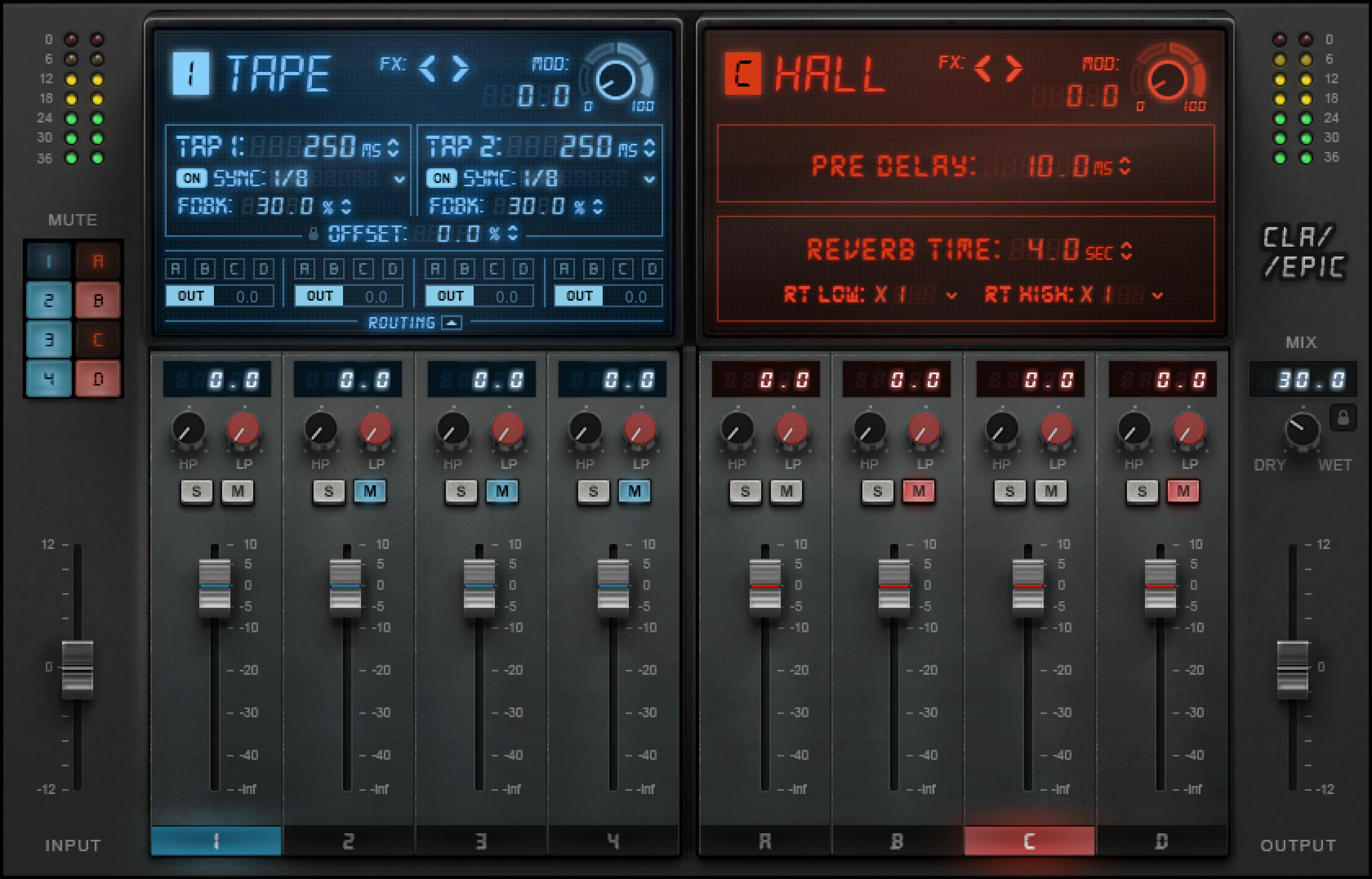
Components and input
CLA Epic is available in Stereo and Mono-to-Stereo components. Waves says their controls are otherwise the same; the visible input-meter behavior differs because the mono-to-stereo version starts from a mono input. [1]
Input meter
The Input meter shows the level after the Input fader. It is a readout, not a gain control. [1]
Input
Input adjusts incoming level from -12 dB to +12 dB. [1]
Mute panel
The Mute panel shows the mute status of each effect; you can mute any effect with its strip's Mute button or from this panel. [1]
Common effect-strip controls
Every delay/reverb strip has a common output/control layer in addition to its effect-specific parameters.
Effect output fader
Each effect strip's fader adjusts output gain from -infinity to +10 dB. Touch a fader to select that processor; its Effect ID highlights the processor being controlled. The displayed fader-position value shows its setting. A fader at zero does not bypass the effect. Hover over HP or LP to display its current value. [1]
Solo and Mute
Each strip has Solo and Mute. A flashing Mute indicates that another processor is soloed; a steady Mute indicates that this effect is muted. The routing display also signals when a routed delay source is muted. [1]
HP and LP output filters
Every strip includes high-pass and low-pass output filters so the effect return can be narrowed before it reaches the next destination/output. The current manual documents their function but does not publish numerical frequency ranges/defaults, so this guide does not infer values from the control graphics. [1]
The shared delay/reverb modulator
CLA Epic uses a combined Rate/Depth modulation control whose knob position changes both modulation rate and depth according to four broad regions. [1]
The manual describes the outer scale as four depth zones:
- 1–25: low depth
- 26–50: low-to-medium depth
- 51–75: medium-to-high depth
- 76–100: high depth
Within each zone, the rate progresses through its own 1–100 cycle. The audible modulation behavior depends on the effect using it, so the same numeric region does not imply identical modulation across Tape, Throw, Slap, Crowd or the reverbs. [1]
This is not a conventional pair of independent Rate and Depth knobs. One control intentionally moves through a mapped relationship between the two.
Tape Delay
Tape is a dual-tap delay.
Tap 1 and Tap 2 Delay
Tap 1 and Tap 2 each run from 1 ms to 5000 ms. The two taps can be set independently. [1]
Tap channel position
Tap 1 is sent left; Tap 2 is sent right. [1]
Sync
Sync can tie delay time to musical note values from the host tempo. When Sync is Off, the delay uses its manually entered millisecond value. The manual shows musical-subdivision choices but does not define a single universal default subdivision for all presets. [1]
Offset
Offset inversely links the two tap times by up to 20%. For example, the manual changes 100/200 ms to 120/160 ms. [1]
Feedback
Each Tape tap has its own Feedback control, determining how much of that tap is returned to create repeats. The current manual explains the function but does not publish a numerical range/default; no value is guessed. [1]
Tape modulation
The shared Rate/Depth modulator controls Tape's modulation according to the mapped zones described above. [1]
Throw Delay
Throw shares the dual-tap structure of Tape and adds manual input gating.
Tap 1 / Tap 2, channel, Sync, Offset and Feedback
Throw provides two 1–5000 ms taps: Tap 1 is sent left and Tap 2 right. Sync selects host-tempo subdivisions; with Sync Off, timing is entered manually. Offset inversely links the two taps by up to 20%, and each tap has Feedback. [1]
Trigger mode
Trigger changes how signal enters the Throw delay. With Trigger Off, input is continuous. With Trigger On, the adjacent trigger button acts as a manual gate: audio feeds the Throw delay while that button is held/activated. [1]
This control is why Throw is useful for deliberate “throw” moments without automating the main Input or effect output fader. That use is an editorial application of the documented gate behavior, not a new listening test.
Throw modulation
Throw uses the shared mapped Rate/Depth modulation control. [1]
Slap Delay
Slap is a single-delay design with modeled tape-speed tonal curves.
Delay
Delay ranges from 1 ms to 5000 ms. [1]
VSO / tape speed
VSO choices are 7.5 IPS, 15 IPS, 30 IPS, or Manual. The three named tape speeds load corresponding EQ/tonal curves. Manual allows direct timing control without selecting one of those three curves. [1]
Sync interaction with VSO
When Sync is enabled, the delay time follows the selected musical subdivision. The manual notes that the currently selected VSO/tape-speed EQ curve remains in place until VSO is changed; enabling Sync does not silently erase that tonal curve. [1]
Feedback
Feedback controls the amount of delayed signal fed back into Slap for repeats. The manual does not state a numerical range/default. [1]
Slap modulation
Slap uses the shared mapped Rate/Depth control. [1]
Crowd Delay
Tight / Wide
Crowd has one Tight/Wide control. As it approaches Wide, tap delay time increases; Waves does not publish a numerical range or default. [1]
Crowd modulation
Crowd also uses the shared Rate/Depth modulator. [1]
Plate, Room and Hall reverbs
Plate, Room and Hall share Pre-Delay and Reverb Time controls, but Waves says they use different internal EQ curves. [1]
Pre-Delay
Pre-Delay ranges from 0 to 1000 ms. It separates the dry/direct sound from the onset of the reverb. [1]
Reverb Time
Reverb Time ranges from 0.1 to 20 seconds. [1]
Reverb modulation
Plate, Room and Hall each use the shared mapped Rate/Depth modulation control. [1]
Space Reverb
Space includes Pre-Delay and Reverb Time controls, plus a separate Decay parameter.
Pre-Delay
Pre-Delay: 0–1000 ms. [1]
Decay
Decay is a nonlinear control with a Waves-specified range of 0.04–3.5 ms. At its maximum, Space behaves like a gated reverb when Reverb Time exceeds one second. [1][2]
Reverb Time
Reverb Time: 0.1–20 seconds. [1]
Space modulation
Space uses the shared Rate/Depth modulation control. [1]
Delay-to-reverb routing
The routing matrix is central to CLA Epic. Each delay can be routed to any combination of the four reverbs A–D and to Out for a direct delay return. [1]
A delay routed to a reverb creates a serial path for that branch. The same delay can simultaneously feed more than one reverb, while other effects can remain parallel. Waves describes the result as allowing serial, parallel and dual/mixed arrangements rather than one fixed chain. [1]
If no routing choice is selected in the documented default state, the manual says input is sent to all four delays and all four reverbs. [1]
Reverb destination buttons
The A, B, C and D routing buttons under each delay correspond to the four reverb strips. Out sends that delay directly to the CLA Epic output; its adjacent value box adjusts the direct-output level. [1]
Mute feedback in routing
When a source delay is muted, its routed destination reverbs can flash/gray in the routing display to show that the expected feed is not currently arriving. This is a visual status behavior, not an adjustable parameter. [1]
Delay-to-reverb send levels
The Send Levels view exposes an independent fader for each delay-to-reverb connection, so one delay can feed several reverbs at different amounts. Hover over a send fader to reveal its path and gain value. [1]
The current manual visually documents these faders and their routing role but does not publish a numerical range/default. Those values are therefore not inferred from screenshot positions. [1]
The delay strip's own effect fader is separate: it controls the delay contribution/wet level, while the send-level faders determine how much is fed into each routed reverb destination. [1]
Global Wet / Dry
Wet/Dry ranges from 0% to 100%. It controls the overall balance between unprocessed input and CLA Epic's processed effect return. [1]
Wet/Dry Lock
The adjacent Lock keeps the Wet/Dry value fixed while browsing/loading presets. [1]
This is useful when you need to audition presets at a consistent global blend rather than accepting each preset's saved Wet/Dry value. That is workflow advice derived from the documented lock behavior.
Output fader
Output adjusts final plugin level from -12 dB to +12 dB. Touch the fader to show its value. [1]
Output meters and clip hold
The stereo Output meters use a -36 dB to 0 dB scale and include continuous clip-hold indication. The manual states that clicking the meter resets the clip indicator. [1]
These are readouts/reset behavior, not additional gain parameters.
WaveSystem toolbar
The shared WaveSystem toolbar provides Waves-standard preset load/save, A/B-style settings comparison, undo/redo and interface-size/workflow functions. These controls manage plugin state; they are not one of the eight CLA Epic effects. [1]
A practical setup order
Set Input first, then start with one delay or one reverb. For a delay, establish timing and feedback before modulation. For a reverb, establish Pre-Delay and Reverb Time.
Next decide whether the delay should go directly to Out, feed a reverb, or do both. If a delay feeds several reverbs, use the Send Levels panel to keep those destinations intentional instead of simply opening every return. Add additional effect strips only after the first route is clear.
Finish by checking global Wet/Dry, Output and the output meters. This sequence is editorial workflow guidance inferred from the documented signal-flow controls, not a tested preset or listening recommendation.
Best for / skip if
CLA Epic is a fit when you want several delays and reverbs in one routable multi-effect, especially when delays need to feed reverbs in different combinations without building a large external send/return network. [1][2]
Skip it when you need individually replaceable third-party delay/reverb algorithms, fully published numerical ranges for every filter/send control, or a simple single-effect processor. The routing matrix is a major part of the product's value and complexity.
Related guides
The live H-Delay guide covers a dedicated delay with more focus on one delay engine rather than an eight-effect routing matrix. The live Abbey Road Chambers guide covers a specialized reverb model; Waves' Abbey Road Reverb Plates product page describes a separate reverb model.
The live Space Rider guide combines effects with a different movement/rider concept. The Waves Audio Post Resources hub remains the site's general live Waves resource page.
Bottom line
CLA Epic is best understood as a routing environment for eight named time-based effects rather than a single “big reverb” plugin. Tape, Throw, Slap and Crowd differ in timing/trigger/tape-speed behavior; Plate, Room, Hall and Space differ in their reverb character and Space's extra Decay control. The routing matrix and send levels determine how those pieces interact. [1]
Waves publishes ranges for several main controls, while some filter, feedback, Crowd and send settings have no full numeric range stated in the guide.
Sources
Checked October 16, 2026. This guide explains Waves' documentation; it is not a listening review or a measurement of the plugin.
- Waves CLA Epic V2 User Guide, especially pp. 5–20. Full interface, Tape, Plate/Room/Hall, routing, send-level and output pages were visually inspected.
- Waves CLA Epic product page, current official product page checked October 16, 2026.
- Waves Graphic Library, current CLA Epic entry and attribution/backlink requirement.
FAQ
What effects are included in CLA Epic?
Tape, Throw, Slap and Crowd delays, plus Plate, Room, Hall and Space reverbs.
Can one delay feed multiple destinations?
Yes. Each delay can feed any combination of reverb inputs A–D and direct Out.
Which way do Tape and Throw's two taps go?
Tap 1 is sent left; Tap 2 is sent right.
What does Offset do?
It inversely links the two tap times by up to 20%; the manual's example changes 100/200 ms to 120/160 ms.
How does Throw Trigger work?
With Trigger Off, input is continuous. With Trigger On, the adjacent button opens input to the taps; releasing it closes the input.
Does Slap Sync change the selected VSO EQ curve?
No. Selecting a VSO speed loads its EQ curve, which stays in place until a different VSO speed is selected.
What is Space Decay's range, and when does it behave like a gate?
Waves specifies a nonlinear 0.04–3.5 ms control range. At maximum Decay, Reverb Time must exceed one second for the documented gated behavior.
What changes as the Crowd control moves toward Wide?
Tap delay time increases; Waves does not publish a numeric range for Tight/Wide.
About the Author
Joseph Nilo has been working professionally in all aspects of audio and video production for over twenty years. His day-to-day work finds him working as a video editor, 2D and 3D motion graphics designer, voiceover artist and audio engineer, and colorist for corporate projects and feature films.