
Waves eMo F2 Filter is a high-pass and low-pass filter plugin for trimming the low and high ends of a signal. Both filters use a fixed 18 dB-per-octave slope. Choose its mono or stereo component; in stereo, the left and right filters can be adjusted independently or linked. [1, pp.2–3][2]
It is useful when the decision is where the usable frequency range should begin and end. It does not identify which sound is the voice, which is the room, or which part of a shared frequency belongs to unwanted noise.
About this guide: the controls and specifications were checked against official Waves sources on October 2, 2026. The practical suggestions below are editorial guidance, not results from plugin, listening or host tests.
My Short Version
Use the least filtering that solves the actual problem. Judge low-end changes during the deepest useful notes or words—not only in a pause where rumble is easy to hear. Judge top-end changes during consonants, transients and ambience you need to keep.
For a stereo recording, decide whether both sides need the same treatment before making separate adjustments. A cleaner solo track is not automatically a better fit in the finished mix.
What high-pass and low-pass filtering change
A high-pass filter reduces the low-frequency side of the signal while retaining the higher side. A low-pass filter does the opposite: it reduces the high-frequency side while retaining the lower side.
Think of their frequency settings as the boundaries of a gradual rolloff, not brick walls. A fixed slope means you can move the boundary without choosing a different steepness. eMo F2 does not document a slope selector or a separate resonance/Q adjustment. [1][2]
This makes filtering a possible first step for unwanted low-frequency energy or excess top end. It is not a promise that wind, handling noise or hiss can be removed without affecting the wanted recording. Those sounds may overlap the frequencies you need.
Mono, stereo and independent channels
The manual lists eMo F2 Mono and eMo F2 Stereo. Mono has one set of filter controls and no Link switch. Stereo provides left/right sets plus L+R LINK. Independent stereo-channel operation is not a third separately listed component. [1, pp.3–8]
Choose the component that fits the track. On stereo ambience, different filtering on each side can alter the tonal balance between them. Independent control is useful when the sides genuinely need different treatment, not a reason to change them by default.
Every filter control
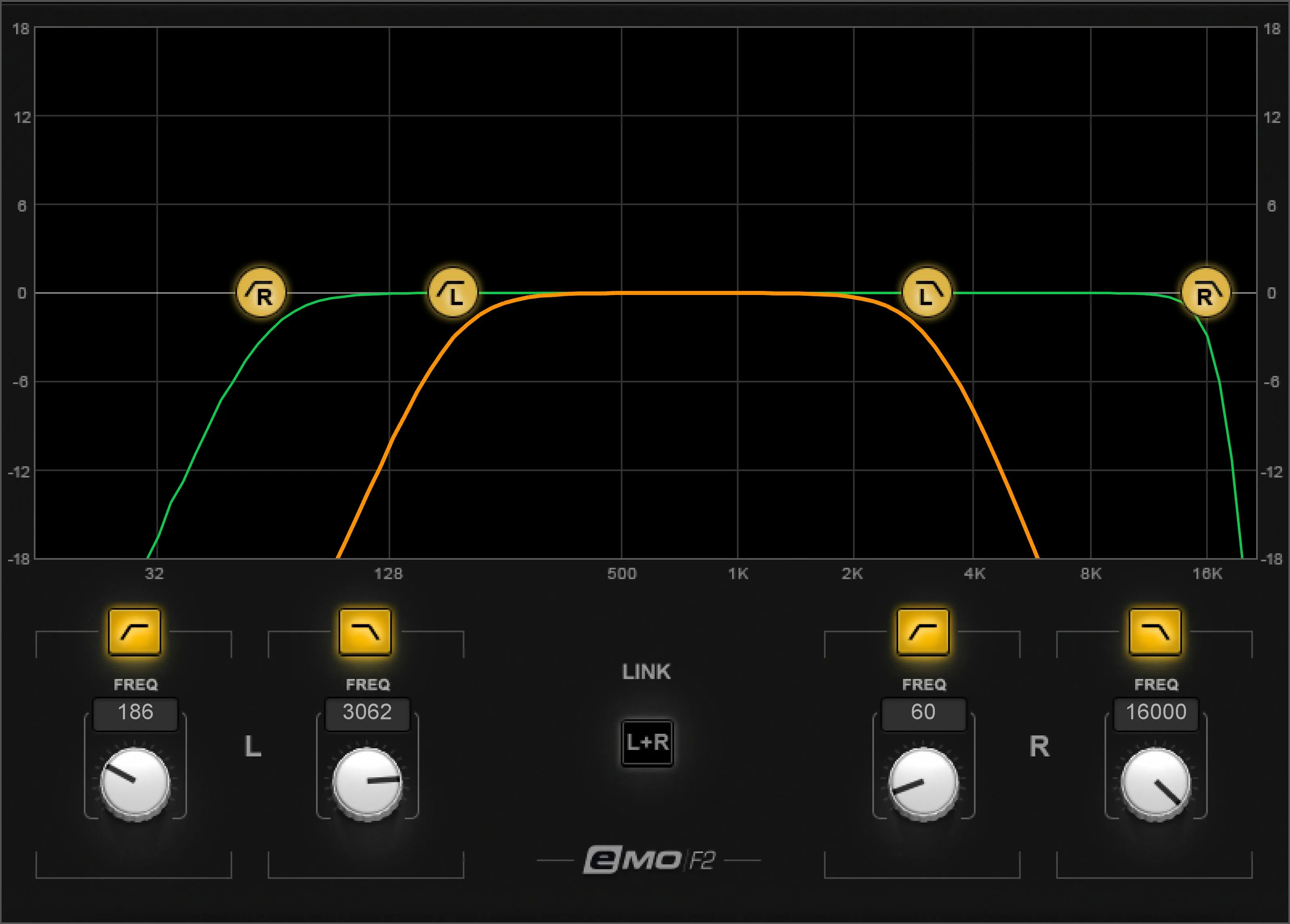
The same filter-control explanations apply to mono and to each side of stereo. The table records the manual's stated values; numbers visible in an example interface are not factory defaults. [1, pp.6–8]
| Control | Documented range or options | Documented default |
|---|---|---|
| HP Filter Switch | On / Off | Off |
| HP FREQ | 16–21,357 Hz | 16 Hz |
| LP Filter Switch | On / Off | Off |
| LP FREQ | 16–21,357 Hz | 16,000 Hz |
| L+R LINK, stereo only | On / Off | On |
HP Filter Switch
This enables or disables the high-pass filter for the relevant channel. Keep the filter's switch distinct from its stored frequency: a chosen value does not, by itself, say that the filter is active.
For troubleshooting, inspect the labeled switch before assuming a frequency adjustment is doing what you expect. The manual lists the filter switches as off by default, even though the frequency controls have default values. [1, pp.6–8]
HP FREQ
This sets the high-pass frequency. Raising it brings more of the low-frequency region into the rolloff; lowering it leaves more of that region available.
On dialogue, the decision is not simply how quiet the pauses become. Too much low-end removal can take body from the voice. On music, what sounds like unnecessary bass in one part may be a fundamental or intended weight in another.
Use a passage containing the lowest useful content when deciding where to stop. This is an evaluation method, not a universal speech cutoff or a tested eMo F2 preset.
HP Marker
The HP graph marker is another way to operate the same high-pass filter. Waves describes it as combining the switch and frequency controls in one click-and-drag marker; it does not add a separate band. [1, pp.6,8]
Use the graph for placement and the frequency control for an exact value. The eMo F2 guide does not specify a separate double-click, modifier-key or reset gesture for this marker, so none is assumed here.
LP Filter Switch
This enables or disables the low-pass filter. As with HP, distinguish the on/off state from the stored frequency.
An inactive LP filter is not applying its displayed rolloff just because a frequency is visible. That matters when comparing a saved setup with one you have just adjusted.
LP FREQ
This sets the low-pass frequency. Lowering it brings more high-frequency material into the rolloff; raising it preserves more top end.
Use that tradeoff deliberately. Dulling everything above a cutoff can reduce some high-frequency noise, but it can also reduce the clarity of consonants, the edge of a transient, or the character of an ambience recording.
When only certain S sounds are distracting, a continuous top-end cut may be too broad. The Waves Sibilance guide explains a more event-focused de-essing approach. That is a different task, not evidence that one processor always sounds better. [4]
LP Marker
The LP marker combines the corresponding low-pass switch and frequency controls on the graph. Its settings follow those controls rather than creating an additional processing stage. [1, pp.7–8]
Dragging a response boundary and entering a frequency are different ways to set the filter—not separate kinds of noise reduction. No undocumented vertical gain, resonance or marker-reset behavior is implied.
The graph: a filter display, not a spectrum analyzer
The curves show the filter state. Stereo uses orange for left and green for right; mono has a single filter curve. They are not documented as a live analysis of the incoming recording. [1, pp.4–8]
A useful distinction is what you set versus what the source contains. The curve helps explain the first. It cannot tell you whether a bass sound is unwanted or whether a particular consonant should survive the cut.
Use the display to confirm the intended shape, then judge the recording itself. There is no target curve that every voice or mix must match.
L+R LINK: linked does not mean identical
With LINK on, Waves says an existing left/right frequency offset is preserved. With LINK off, the channels are independent. Enabling Link is therefore not documented as copying one side's values onto the other. [1, p.7]
For matched filtering, check both sides' values rather than assuming the link button makes them equal. For intentionally different settings, note that linked adjustment retains their relationship instead of necessarily erasing the difference.
The manual does not define the offset's mathematical rule or what happens when a linked adjustment reaches a frequency limit. It also does not provide a separate detailed switching rule for every mixed left/right on/off state. This guide does not invent those behaviors; use the explicit channel switches and inspect their displayed states.
Presets and the shared toolbar
The eMo guide documents preset saving/loading, settings comparison, Undo/Redo, window resizing and access to the WaveSystem guide through the help icon. These are settings/window functions, not additional filter bands. [1, p.3]
The illustrated older toolbar also shows Flat, but the eMo manual does not explain that label's exact action. Do not assume it resets every frequency, switch, link state or preset choice. Likewise, do not import a keyboard shortcut from another plugin without a supporting instruction for the actual interface.
For a known setup, explicitly check the controls listed above. A preset name or a toolbar appearance is not a substitute for knowing which filters are active.
A careful first pass on rumble or excess top end
Keep an untreated version available. Pick a representative section containing wanted low notes, consonants and any pauses; a silent section alone is a poor place to choose tonal changes.
For low-end rumble, evaluate the high-pass filter first. Make a small change, compare, and stop before the wanted material loses useful weight. A burst of handling noise may need a local edit rather than increasingly aggressive filtering over the entire performance.
For excess top end, evaluate the low-pass filter separately. Ask whether the recording becomes more useful in context, not merely darker. Listen for lost articulation as carefully as reduced hiss.
Then check the whole passage with the rest of the processing restored. Later compression can change the apparent balance. On stereo sources, recheck both sides and the combined image after any independent adjustment.
These are suggested evaluation steps. No audio was processed for this article, and no cutoff, noise reduction amount or quality improvement is being promised.
When another plugin is a better fit
The F6 guide is relevant when you need a more focused EQ band or frequency-dependent dynamics, rather than only trimming the extremes. Its different controls deserve their own explanation. [5]
The NS1 guide covers adaptive noise suppression. That does not make it a guaranteed solution, but it is a different approach from cutting a frequency region continuously. [6]
For a straightforward sibilance problem, use the Sibilance link above rather than assuming all bright sound should be low-passed. For wider workflow and licensing decisions, start with the Waves audio-post resource hub. [4][7]
Bottom line
Choose filtering when a frequency boundary is the decision you need to make. Keep more detailed processing for a problem that actually calls for it.
The most useful stopping point is not the smallest bandwidth or the quietest gap. It is the point where the unwanted material is less distracting without sacrificing something the finished recording needs.
Sources
Checked October 2, 2026. The first three sources establish plugin documentation and artwork context; the remaining links are verified related-reading destinations. No listening, host or latency test was performed.
- Waves eMo F2 User Guide, all eight PDF pages; components/toolbar p.3, interface maps pp.4–5, controls/defaults pp.6–8. Product-linked PDF location.
- Waves eMo F2 Filter product page.
- Waves Graphic Library and image-use condition.
- Waves Sibilance explained.
- Waves F6 explained.
- Waves NS1 explained.
- Waves audio-post resources.
Frequently Asked Questions
Can eMo F2 remove all the noise from a voice recording?
No. Filtering reduces a frequency region, not only the unwanted sound inside it. If noise and useful speech overlap, a stronger cut can remove useful speech too. Evaluate the whole phrase rather than judging only the gaps.
What high-pass frequency should I use for dialogue?
There is no universal setting. Start from the actual low-frequency problem and check the lowest useful parts of the voice. Stop before the recording loses body that the finished mix needs; an isolated disturbance may be better handled with a local edit.
Can I choose a steeper slope in eMo F2?
The documented slope is fixed at 18 dB per octave. The frequency controls move the filter boundaries; they do not select a different slope.
Does switching on L+R LINK make both channels identical?
No. Waves states that linking preserves an existing frequency offset. Check the left and right frequency values when matching the channels; do not treat Link as a copy-settings command.
Why might changing a frequency produce no filtering?
Check the corresponding HP or LP switch. The manual lists those switches as Off by default, so the stored frequency is not by itself evidence that the filter is active. Also confirm the component and processing path before drawing a conclusion about the plugin.
What is the difference between mono, stereo and dual-mono operation?
The manual lists two components: Mono and Stereo. Mono has a single set of filters. The Stereo component can operate its left and right channels independently or linked; dual-mono operation does not appear as a third separately listed component.
Is the eMo F2 curve a display of my recording's spectrum?
No. The manual identifies it as a graphical representation of the filters' state. Use it to understand the settings, not to infer that it has measured the source spectrum or certified a noise-removal result.
Should I use the low-pass filter as a de-esser?
A low-pass filter changes the top end continuously while active. When only particular S or Sh sounds need attention, a dedicated de-esser may be the more focused option. Compare intelligibility and tone rather than assuming less high-frequency energy is always better.

About the Author
Joseph Nilo has been working professionally in all aspects of audio and video production for over twenty years. His day-to-day work finds him working as a video editor, 2D and 3D motion graphics designer, voiceover artist and audio engineer, and colorist for corporate projects and feature films.