
Waves Key Detector is a utility plugin that analyzes incoming audio to identify a musical root/key and scale, then lets you transmit that information to supported Waves pitch-related vocal plugins. The current manual also provides two alternative detected scales, manual key/scale entry, flat/sharp display choice, a tuning readout and an option to include tuning when transmitting to the Waves Tune family. Key Detector itself does not process or change the source audio. [1][2]
The useful part is not just the first detected answer. Waves documents a verification period in which the same key remains detected for 30 seconds, alongside alternative suggestions, manual override and Receive Key prerequisites. That makes Key Detector a workflow tool between analysis and pitch/harmony processors rather than an automatic correction plugin by itself. [1]
My Short Version
Insert Key Detector on a track or group that clearly represents the song’s harmony, then play a representative section. Waves specifically recommends avoiding tracks with pitch-shifting plugins and cautions against using the master bus when out-of-tune elements could confuse detection. The plugin does not alter the audio on the analysis track. [1]
Let detection finish when possible. During detection, a key appears in the main display, but the manual says the plugin continues verifying until the same key/scale result has been maintained for 30 seconds or playback stops. You can interrupt by clicking the main display, but the manual says accuracy is best when the process completes. [1]
After a key is found, use Alternative Scales if the first choice does not fit musically, or use Edit to enter the root/scale manually. Transmit Key sends the displayed selection only when compatible receiving plugins are present, Receive Key is enabled and a key is displayed. I did not test detection accuracy or plugin-to-plugin transmission for this article.
What Key Detector analyzes—and what it does not do
The current product page describes Key Detector as using Waves’ neural-network engine to analyze samples, tracks or full mixes. The manual’s operational advice is more conservative: choose a track or group containing the song’s chords/harmony, avoid pitch-shifted material, and avoid the master bus when unrelated out-of-tune elements could affect the result. [1][2]
The manual explicitly says Key Detector does not affect the original audio. It identifies key/scale and can send those values to other plugins; it is not a tuner/corrector inserted for sound processing. [1]
Waiting for Audio
When instantiated, the initial state is Waiting for Audio. Detection begins when the DAW plays audio through the plugin. [1]
This state is operational feedback, not a bypass indicator. If nothing is arriving, the correct troubleshooting question is whether representative audio is passing through the instance, not whether a “processing” knob is turned up.
Detection and the 30-second verification period
While audio plays, Key Detector begins detecting the scale/key. The current manual says detection continues until either: [1]
- the same key/scale result is maintained for 30 seconds, or
- playback is stopped. [1]
A key can appear in the main display before that period is complete. Waves calls the remaining time verification and says the result is most accurate when detection is allowed to finish. [1]
The current product page describes an initial suggestion followed by a verification process. That is consistent with the manual’s distinction between a displayed provisional result and completion. [2]
Main Key Display and Stop Detection
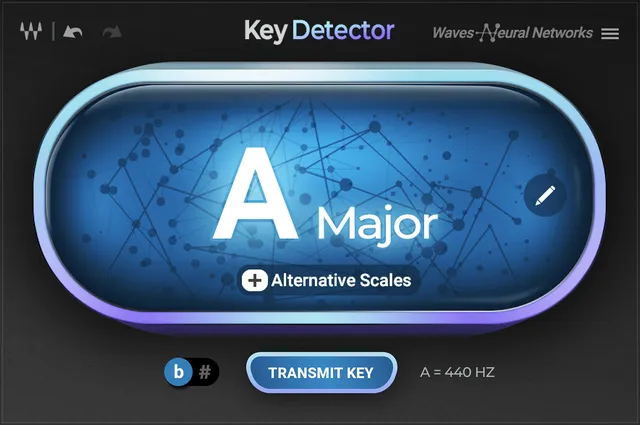
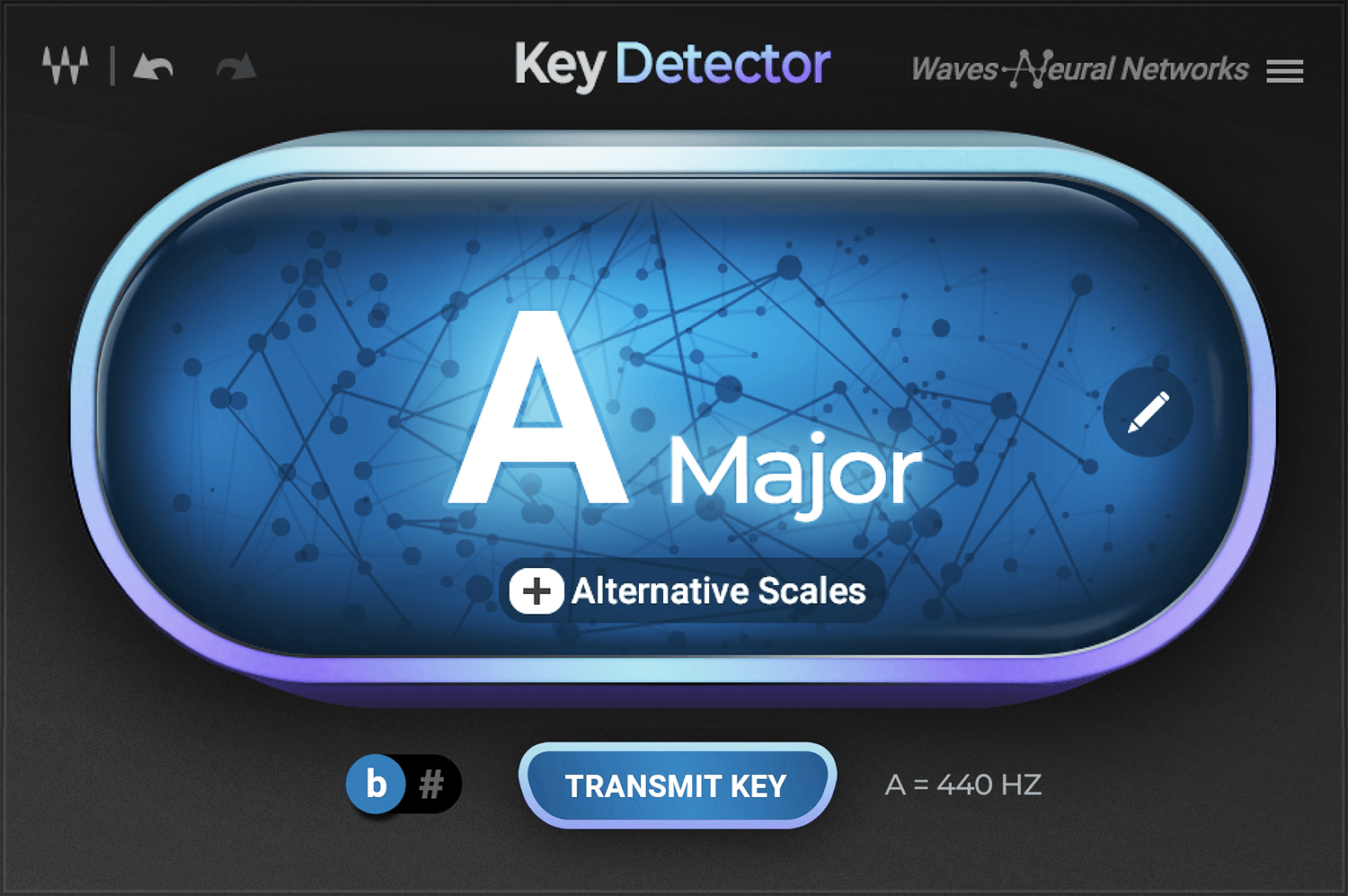
The Main Key Display shows the current detected key during analysis. Clicking anywhere on the main display interrupts detection. [1]
If a key has been calculated when you stop, that displayed key can be transmitted. If no key has been calculated, the manual says the display shows No Results. [1]
This click-to-stop behavior is useful when you intentionally want to analyze only a specific passage, but it should not be described as equivalent to completing the full 30-second verification.
Restart Detection
To analyze a different section or a different sample, click the main key display after a result. The plugin clears the displayed key and returns to a waiting state until audio plays again. [1]
That is the documented reset path for the analysis result; no separate “reset detector” control is needed.
Alternative Scales
After detection finishes, Alternative Scales becomes available. Waves says two alternative keys/scales are calculated during detection. Clicking the control reveals the two alternatives; selecting one changes the displayed choice, which can then be transmitted. [1][2]
An alternative is not a second independent detection pass. It is another candidate calculated from the analyzed audio. Choose it because it fits the musical context, not because the UI ranks it as “better” for a specific production style.
Edit: select root and scale manually
The Edit control opens manual root/scale selection. Use it when you already know the correct key or deliberately want to send a different musical context to receiving plugins. [1]
The current manual UI visibly shows root-note choices and a scale menu containing Chromatic, Minor and Major. Opening Edit stops the automatic detection process. [1]
Manual selection can be transmitted in the same way as a detected result. This is important: Transmit sends the displayed key/scale, whether detected or manually selected. [1]
Flat / Sharp switch
The ♭ / ♯ switch changes how enharmonic keys are displayed. The manual explicitly says this does not alter the key that is transmitted—only its notation. [1]
So if A♯ and B♭ represent the same pitch context for the receiving workflow, toggling the display spelling is not a musical transposition.
Tuning Display
The lower-right Tuning Display shows the detected audio’s tuning reference. The manual explains this as useful when source material is slightly detuned relative to a standard tuning reference. [1]
If Include Tuning is enabled in the top menu, the tuning value can be transmitted along with the key to the Waves Tune family of pitch-correction plugins. [1]
Do not assume every Receive Key-capable plugin receives tuning. The manual specifically ties tuning transmission to the Waves Tune family.
Transmit Key
Transmit Key sends the displayed key and scale to supported Waves vocal/pitch plugins that are ready to receive it. The manual says the button is active when all of these conditions are satisfied: [1]
- compatible Waves vocal/pitch plugins are present in the session;
- those receiving plugins have Receive Key enabled; and
- a key is displayed in Key Detector. [1]
The manual names Harmony, OVox and the Waves Tune family as examples. It notes that Waves Tune Real-Time places Receive at the bottom of its interface, while most other pitch-related Waves plugins expose Receive Key in the WaveSystem toolbar. [1]
The current product page names Waves Tune Real-Time, Waves Tune, OVox and Waves Harmony, and still says related plugins need the “latest v14 release.” Its version inventory lists Key Detector in V17, V16, V15 and V14, but does not say which releases currently support Transmit. Treat the v14 sentence as version-sensitive vendor wording, not a current compatibility guarantee. [2]
Include Tuning
Include Tuning is available from the top/hamburger menu. When enabled, the detected tuning value can accompany key information to the Waves Tune family. [1]
This is separate from the main key/scale transmission. If you only need root/scale context, Include Tuning does not need to be treated as mandatory.
Toolbar: version, undo/redo, resize and utilities
The top toolbar provides: [1]
- plugin version/technical information;
- Undo/Redo, which can step through previously detected or manually selected scales;
- a multipurpose/hamburger menu for interface scaling and default view;
- access to the user guide and WaveSystem Guide;
- a Waves.com information link;
- tooltip enable/disable;
- Include Tuning selection. [1]
Undo/Redo is meaningful here because it can return to earlier detection/manual-selection states rather than merely reversing a knob movement.
A practical Key Detector workflow
Choose the cleanest harmonic source available—a chordal instrument, harmonic stem or representative group—rather than automatically placing the plugin on the master. Let the same result verify for the full documented 30 seconds when practical. [1]
Then compare the primary answer with the two Alternative Scales in the context of the song. If the music clearly belongs to a known key, use Edit rather than forcing the detector’s first suggestion. Decide whether enharmonic display spelling matters for the session, and enable Include Tuning only when a receiving Waves Tune workflow needs that information. [1]
Before clicking Transmit, confirm that the intended receiving instances have Receive Key enabled. This is editorial workflow guidance derived from the manual; I did not perform a transmission test.
Best for / skip if
Key Detector is best for quickly establishing key/scale context and handing that context to supported Waves tuning/harmony tools, especially when you want the analysis and transmission step in one small utility. [1][2]
Skip it when the musical material is intentionally ambiguous/atonal, when your chosen analysis stem is dominated by pitch-shifted or out-of-tune content, or when you need a measured accuracy study rather than a vendor-documented workflow. The detector provides suggestions and verification; it does not replace musical context.
Limitations and evidence boundary
This is a documentation-led guide, not an accuracy benchmark or a current-version Transmit/Receive compatibility test.
The product page's “latest v14 release” wording is a version-sensitive source note, not a claim that v14 is currently latest or a guarantee about current Transmit/Receive pairings. Check the documentation for the receiving plugins and versions used in your session. [1][2]
Related guides
The Waves Tune Real-Time guide explains pitch-correction controls, while the Waves Harmony guide covers harmony generation. Their documented receiving controls are distinct from Key Detector’s analysis step; this guide does not certify current-version pairing compatibility.
Bottom line
Key Detector’s workflow is Analyze → Verify → Choose → Transmit. The main display can show a provisional result before the documented 30-second verification finishes; Alternative Scales and manual Edit provide deliberate overrides; flat/sharp changes notation only; Include Tuning adds tuning information specifically for the Waves Tune family; and Transmit requires receiving plugins to be present and Receive Key-enabled. [1]
That is the complete operational model without treating a detection suggestion as an unquestionable musical answer.
Sources
Checked October 17, 2026. No audio/key-detection or plugin-to-plugin transmission test was performed.
- Waves Key Detector User Guide, current product-linked manual; complete operational controls parsed and detection/Edit/tuning UI pages visually inspected.
- Waves Key Detector product page, current product identity, neural-network positioning, alternative/transmit feature claims and current product-page version wording.
- Waves Graphic Library, current Key Detector listing and product-image reuse rule requiring a relevant Waves product backlink.
FAQ
Does Key Detector change the audio on its track?
No. The manual says the track is used to determine key and scale; Key Detector does not affect the original audio.
How long should I let Key Detector analyze?
The manual says detection continues until the same key is detected for 30 seconds or playback stops. A key may appear sooner; Waves says the result is most accurate when the process completes.
What are Alternative Scales?
Key Detector calculates two alternative keys during detection. After detection, you can view and select either alternative, then transmit the displayed choice.
Can I enter a key manually?
Yes. Edit lets you choose a root and scale from dropdowns; opening Edit stops detection. Transmit sends the displayed manually selected key as well as a detected one.
What does the flat/sharp switch change?
It changes the displayed notation only; the manual says it does not alter the key being transmitted.
When is Transmit Key available?
The manual lists three conditions: a compatible Waves vocal plugin is in the session, Receive Key is enabled there, and a key is displayed in Key Detector.
Can Key Detector send tuning as well as key?
Yes. If Include Tuning is enabled, the tuning value can be sent with the key to the Waves Tune family.
How do I start detection on a different passage?
After a result appears, click the main key display. The manual says this clears the displayed key and returns Key Detector to waiting for audio.

About the Author
Joseph Nilo has been working professionally in all aspects of audio and video production for over twenty years. His day-to-day work finds him working as a video editor, 2D and 3D motion graphics designer, voiceover artist and audio engineer, and colorist for corporate projects and feature films.