

Waves Magma Tube Channel Strip is a compact channel-strip plugin that puts input drive, filtering, three-band EQ, expansion/gating, compression and output metering in a fixed processing chain. The manual documents the signal flow as Input → EQ → Dynamics → output fader → meter and supplies separate mono and stereo components. [1][2]
Its appeal is not that it exposes every engineering parameter. It does the opposite: several stages are intentionally simplified. The Drive control raises input level into the modeled circuit, the EQ has broad fixed-character bands, and one Compressor knob changes threshold and makeup gain together. [1]
My Short Version
Start by setting Sensitivity for the amount of headroom you want, then use Drive for the amount of harmonic coloration and peak reduction you want from the input stage. Clean low-frequency clutter with the HP filter, make broad EQ moves, then use the expander/gate and compressor only as much as the track needs. [1]
The Compressor control is important to understand: it is not simply a threshold knob. Waves says it simultaneously changes threshold from 0 to -35 dB and makeup gain from 0 to +15 dB as the knob moves through its 0–100 range. Smash switches to a higher-ratio, faster-attack, faster-release mode. [1]
I did not audition Magma Tube Channel Strip for this article. The descriptions below are based on Waves’ current documentation and inspected manual UI.
Components and signal flow
Waves provides mono and stereo components. The manual describes the processing order as Input, EQ, Dynamics, output fader and meter. [1]
That order matters. For example, changing Drive changes the signal entering the EQ and dynamics sections, while the Output fader is a final level control rather than another drive stage. [1]
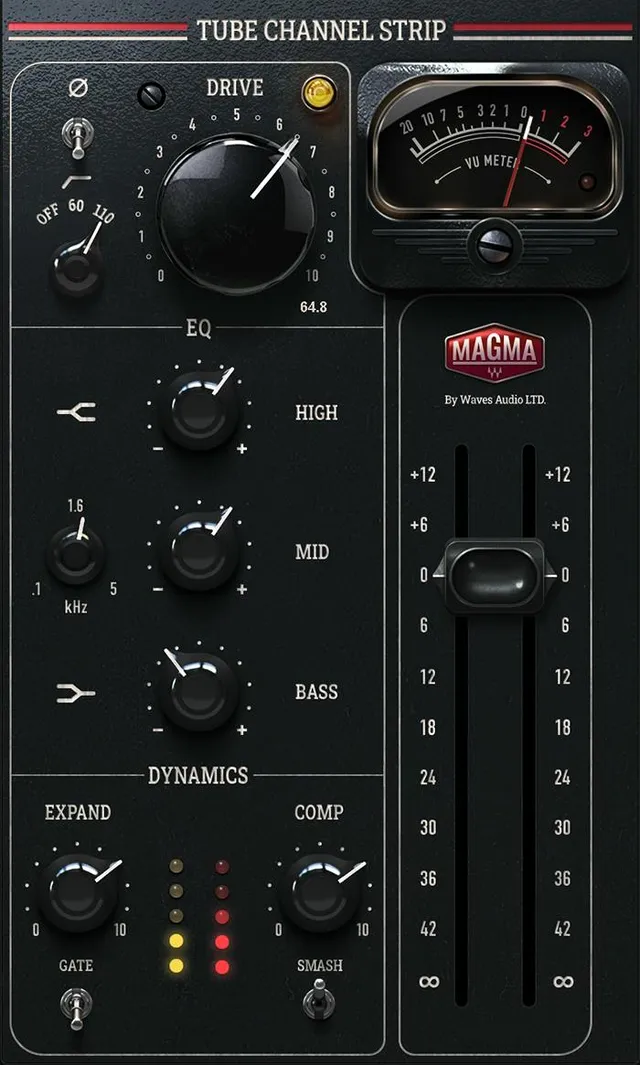
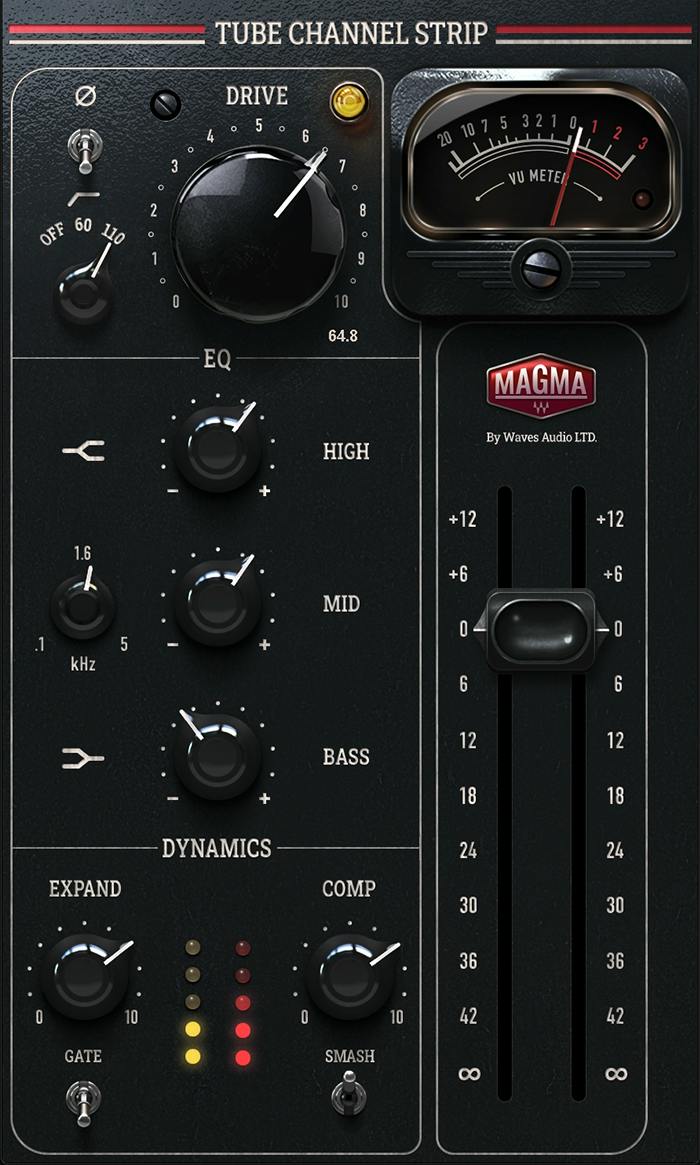
Input section
Phase Reverse
Phase Reverse is an On/Off switch that inverts the polarity of the input signal. [1]
Use it when polarity relationship is part of a multi-mic or layered-source problem. It is not a time-alignment control and does not move the waveform in time.
HP filter
The input high-pass filter has three positions: Off, 60 Hz, and 110 Hz. Waves describes it as a rumble-removal/low-frequency-definition control. [1]
The fixed choices make it fast rather than surgical. If the source needs a precise cutoff or slope, a dedicated EQ may be more appropriate.
Sensitivity
Sensitivity is the small screw-style control that changes available headroom and therefore how the Drive section behaves. [1]
- Range: -12 dB to +12 dB.
- Waves says the adjustment is compensated later in the chain so output gain remains the same. [1]
This makes Sensitivity a tone/headroom control rather than a normal output-trim control. The manual does not publish a reset/default value for this control.
Input Gain / Drive
Drive controls input gain into the modeled stage. Waves states that increasing it increases harmonic distortion and reduces peaks. [1]
- Range: 0–100.
- Default/reset: not specified in the current manual. [1]
A practical approach is to set overall input/headroom first, then raise Drive while watching the downstream dynamics and output level rather than treating 100 as a target.
EQ section
The EQ is deliberately broad: a high shelf, a sweepable mid bell, and a low shelf. [1]
High
High is a wide shelving EQ that begins at 2.5 kHz. [1]
- Gain range: -14 to +14 dB.
- Default: not specified. [1]
Mid gain
Mid is a wide bell boost/cut. The manual notes an unusual shape detail: at a given Q, positive-gain settings produce a wider bell than negative-gain settings. [1]
The current manual visually identifies the Mid gain knob but does not publish its numeric gain range or default. Do not silently assume the shelf controls’ ±14 dB range applies to the mid band.
Mid Frequency
The separate frequency control selects the center frequency of the mid bell. [1]
- Range: 100 Hz to 5 kHz.
- Default: 1.6 kHz, the middle position. [1]
Bass
Bass is a low-shelf boost/cut. [1]
- Gain range: -14 to +14 dB.
- Default: not specified. [1]
Dynamics section
Expand
Expand controls the opening/closing behavior of the dynamics stage. Waves says raising the value increases the difference between loud and soft peaks, which normally reduces noise. [1]
- Range: 0–100.
- Default: not specified. [1]
Gate / Expand switch
The two-position Gate/Expand switch chooses how the Expand control behaves. [1]
- Options: Gate or Expand.
Use Expand for gentler level-dependent attenuation and Gate when you actually want the more decisive gate behavior. The manual does not publish independent threshold/attack/release knobs for this stage, so do not describe it as if those controls are user-adjustable.
Compressor
The Compressor knob controls two documented values at once. [1]
- Knob indication: 0–100.
- Threshold span controlled by the knob: 0 to -35 dB.
- Makeup-gain span controlled by the knob: 0 to +15 dB. [1]
This is a macro control. As you increase it, you are not just asking for a lower threshold; Waves also changes makeup gain. That is why level-matched judgment is useful when deciding whether more compression actually helps.
Smash
Smash switches between two compressor behaviors. [1]
- Smash On: higher ratio, quicker attack, quicker release.
- Smash Off: lower ratio, slower attack, slower release. [1]
Waves does not publish exact numerical ratios or time constants in this manual, so those values should remain unspecified.
Gain-reduction meters
The Dynamics section has separate multi-LED meters for Expander gain reduction on the left and Compressor gain reduction on the right. [1]
The documented states are:
- blank: no gain reduction;
- yellow: moderate gain reduction;
- red: significant gain reduction. [1]
These are qualitative reduction indicators, not calibrated LUFS or true-peak meters.
Output section
Output fader
The output fader sets final plugin level. [1]
- Range: -48 to +12 dB.
- Default: not specified. [1]
Use this to bring processed level into a sensible range after the tone and dynamics moves. It is downstream of the main processing stages.
VU meter and clip indicator
The VU meter displays output level on a -20 dBVU to +3 dBVU scale. A red LED indicates clipping at 0 dBFS; clicking the red LED resets the clip indicator. [1]
That clip LED is a digital peak warning. The VU scale itself is an averaging-style level display and should not be confused with LUFS or true peak.
Meter Sensitivity
The meter screw calibrates the VU meter to the DAW reference. [1]
- Range: -12 to +12 dB.
- Default: not specified. [1]
This changes the meter reference, not the actual output gain.
WaveSystem toolbar
The shared WaveSystem toolbar provides preset load/save, compare, undo/redo and interface resizing. [1]
Those functions are accounted for separately from the Magma processing controls.
A practical workflow
Begin with the HP filter and phase only if the source calls for them. Then set Sensitivity and Drive together: Sensitivity changes headroom while Drive determines how hard the input stage is driven. [1]
Make broad EQ moves rather than trying to turn this into a surgical equalizer. The high and low shelves cover broad tone shaping, while the sweepable mid gives one movable bell. If you need narrow notches, additional bands or exact Q control, use another EQ.
Next set Gate/Expand and Expand only if the source benefits from level-dependent cleanup. Add Compressor gradually and compare both Smash states. Because the compressor macro includes makeup gain, watch the meters and use the Output fader to keep comparisons sensible. [1]
Finally, verify the output VU and clip indicator, reset the clip LED after an over if needed, and use Meter Sensitivity only when you want to change the VU reference. [1]
This workflow is documentation-led. No listening comparison or gain-reduction measurement was performed for this article.
Best for / skip if
Magma Tube Channel Strip is best when you want one compact channel-strip workflow with deliberate drive coloration, broad EQ and simplified dynamics. Its macro-style compressor and fixed-character EQ are features if you want speed and a constrained control set. [1][2]
Skip it as the only processor when you need a fully parametric EQ, separately adjustable compressor attack/release/ratio/threshold, or detailed gate timing. Those controls are not exposed in this plugin’s documented interface.
Limitations and evidence boundary
This article is based on current Waves documentation and visual inspection of the current manual interface/control pages. I did not audition the plugin, measure distortion, verify host automation, benchmark CPU/latency, or test the mono/stereo components in a DAW.
The current manual does not publish a numeric range/default for the Mid gain knob and omits defaults for several other controls. Those fields remain explicitly unspecified rather than inferred from the artwork or neighboring controls. [1]
Related guides
For other Magma-family processing, see the Magma BB Tubes guide and Magma StressBox guide. The SSL EV2 Channel guide explains a more conventionally detailed channel-strip control set.
Bottom line
Magma Tube Channel Strip is a deliberately simplified colored channel strip. Sensitivity and Drive set input behavior, the three-band EQ handles broad tone shaping, Gate/Expand and Compressor provide macro dynamics, Smash changes compressor character, and the output stage gives both VU reference and digital clipping feedback. [1]
The key is to treat the macro controls as macros. Do not assume hidden attack, release, ratio or mid-band gain values that Waves does not publish.
Sources
Checked October 16, 2026. No listening or native-host test was performed.
- Waves Magma Channel Strip User Guide, current product-linked manual; complete control text parsed and interface/control pages visually inspected.
- Waves Magma Tube Channel Strip product page, current product identity and positioning.
- Waves Graphic Library, current Magma Tube Channel Strip listing and product-image reuse rule requiring a relevant Waves product backlink.
FAQ
What does Waves Magma Tube Channel Strip do?
It combines input drive, filtering, broad three-band EQ, gate/expansion, compression and output metering in a single fixed-order channel strip. [1]
What is the difference between Sensitivity and Drive?
Sensitivity changes the modeled stage’s headroom over a -12 to +12 dB range and is compensated later in the chain, while Drive raises input gain from 0 to 100 and increases harmonic distortion/peak reduction as it is raised. [1]
What does the Magma Compressor knob actually control?
It is a macro: across its 0–100 travel it simultaneously changes threshold over a documented 0 to -35 dB span and makeup gain over 0 to +15 dB. [1]
What does Smash do?
Smash changes compressor behavior. Waves documents Smash On as higher ratio with quicker attack/release and Smash Off as lower ratio with slower attack/release. Exact numerical ratio/time values are not published in the current manual. [1]
Is Magma’s Mid EQ fully parametric?
No. It has a broad Mid gain control and a separate center-frequency control from 100 Hz to 5 kHz, but the current manual does not publish a user Q control or a numeric Mid gain range. [1]
What does the meter screw change?
It calibrates the VU meter reference over -12 to +12 dB. It does not change the actual output level; the separate Output fader handles that. [1]

About the Author
Joseph Nilo has been working professionally in all aspects of audio and video production for over twenty years. His day-to-day work finds him working as a video editor, 2D and 3D motion graphics designer, voiceover artist and audio engineer, and colorist for corporate projects and feature films.