

Waves Renaissance Vox, usually called RVox, combines vocal compression, a soft gate and output limiting in a compact interface. Comp sets the compression, Gate controls low-level expansion, and Gain sets the limiter's output ceiling. It is designed to bring a voice into a more controlled working range without exposing a full compressor's timing controls. [1][2]
The important detail is that Gain is not just an ordinary volume fader. It interacts with the limiting stage. Likewise, lowering Comp can change both the dynamics and the apparent loudness.
This guide explains the documented controls and a conservative way to evaluate them. It does not report a new listening test.
About the imagery: the cover is an AI-generated editorial illustration. The plugin interface is official Waves product artwork, not a capture of a listening test.
My Short Version
RVox makes sense when you want a compact vocal dynamics tool and do not need to choose attack, release or a separate ratio.
Start with compression. Bring the output back into a fair comparison range. Add gating only when it helps the recording.
Keep the ends of words and the natural transition into room tone. A silent gap is not an improvement if the sentence before it gets cut short.
What RVox is for
The three processes address different parts of a voice track. Compression reduces dynamic variation. The gate section uses gentle expansion to reduce quieter material. Limiting controls the upper output level. Waves places the gate before the compressor in the internal signal path. [1]
For a voiceover edit, that suggests a useful evaluation sequence: fix large level jumps with editing or clip gain, then ask whether RVox improves the remaining consistency.
For a sung vocal, listen in the arrangement rather than only in solo. A setting that makes one sustained note sound finished may make a quieter line too constrained.
RVox does not offer frequency-selective repair, a noise profile, a de-essing section or a dereverb control. Treat it as a dynamics tool, not a replacement for those jobs. [1][2]
The interface at a glance
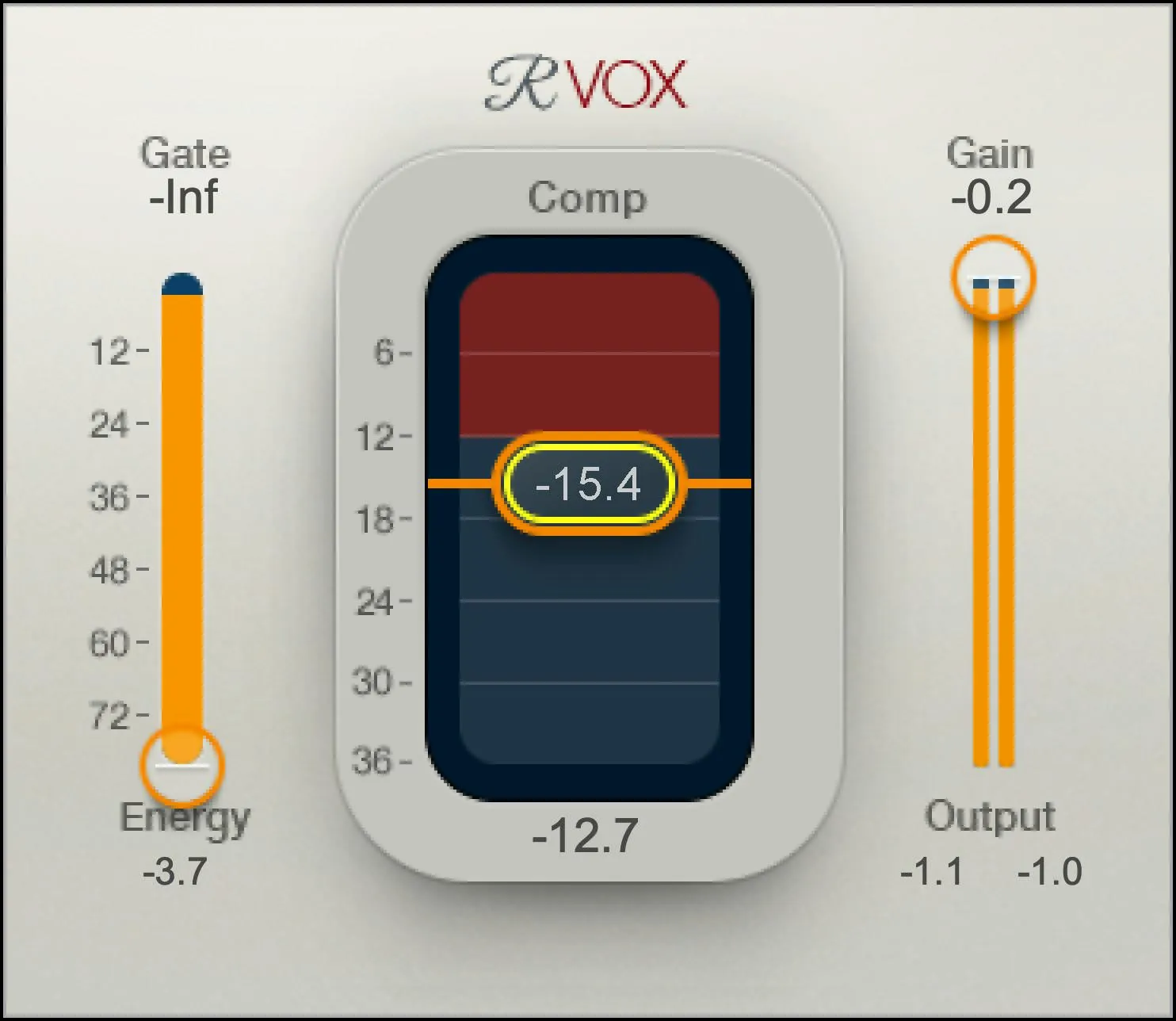
The controls sit beside the readings they affect: Gate overlays the input-energy display, Comp sits over the total-compression meter, and Gain is beside the output meters. The manual identifies each of these areas in its interface diagram. [1, p.3]
Use the full-size interface image when following the tour. Product artwork illustrates the interface; it is not a capture of a test performed for this article.
Every control and readout
Comp: linked compression behavior
Comp combines the compression threshold and ratio behavior in one control. Moving it down increases compression; RVox also applies automatic level compensation. There are no separate attack, release or ratio knobs in the documented interface. [1, p.5]
Do not read the fader position as the amount of gain reduction happening at every instant. A threshold setting and a meter reading answer different questions: one is your instruction; the other reflects the signal going through the processor.
For speech, adjust while listening to a passage containing both ordinary words and a stronger phrase. Then replay a quiet ending. That makes it harder to choose a setting from the loudest sentence alone.
You can double-click the control's value box to enter a value. The current manual prints an inconsistent range for Comp: “-36 dB to -36 dB.” That is not a usable lower-to-upper specification. This guide does not silently replace it with a guessed endpoint; check the displayed limits of the version you are using. The manual also does not state a single default for this control. [1, p.5]
Gain: the limiter ceiling
Gain sets the ceiling of RVox's output limiter. Changing it affects the final level and the way peaks encounter that limiter; it is not equivalent to placing a simple gain plugin after RVox. [1, p.5]
This matters during comparisons. If the processed voice is louder, reduce the comparison-level difference before deciding that it is clearer. If the result sounds strained, reconsider how hard the compressor and limiter are working rather than only turning down a later fader.
The manual repeats the same malformed numerical range for Gain and does not establish an unambiguous default. Those omissions are documentation limits, not extra hidden controls. [1, p.5]
RVox's limiter ceiling is not a promise of a finished programme's LUFS or encoded true-peak result. Use the appropriate meter on the actual delivery file. The separate dialogue loudness guide explains that distinction.
Gate: soft expansion below the threshold
Gate sets the level below which RVox applies low-level expansion. Its documented range is negative infinity to 0 dB. Moving the threshold upward makes more of the incoming signal eligible for reduction. The response is soft rather than a simple on/off cut. [1, p.6]
Set this from the recording, not from the desire to see no meter movement during pauses.
An intimate read may have wanted breaths and quiet syllables close to the room level. A gate cannot make that separation perfect simply because the interface has one slider. Compare the beginning and end of each phrase, and leave the section less aggressive when the transition sounds unnatural.
The manual does not specify a separate gate attack, hold, release or hysteresis control. There is also no published universal threshold for voiceover. [1]
Input Energy meter
The meter beside Gate shows the incoming signal level and provides context for its threshold. It is an input display, not a measurement of noise alone. [1, pp.3,6]
Use it to see where the pauses and quieter speech sit relative to the threshold. Do not infer a speech-to-noise ratio from the display: the meter does not tell you which part of the incoming energy is wanted.
Total Compression display
The central display combines the gain reduction from compression and gating. That means a large reading cannot automatically be attributed to Comp alone. The numerical maximum below this meter can be reset by clicking the held number. [1, p.5]
When checking a passage, clear the old maximum first. Otherwise, a value left over from a previous loud phrase can mislead you about the setting you are evaluating now.
This reset clears a reading. It does not reset the processing controls.
Output meters and peak readouts
The output meters show the processed digital level, documented from negative infinity to 0 dBFS. The manual describes peak values beneath the meters and clicking the meter to reset the peak indication. [1, p.6]
Check these after any substantial Comp or Gain adjustment. A controlled-looking meter is useful information, but it is not a substitute for checking the words or the final mix.
These are not integrated-loudness or true-peak readouts. They also do not tell you whether a downstream processor or export stage changes the level.
Moving Comp and Gain together
The manual describes drawing a selection box around Comp and Gain so they can move together. This is a linked adjustment of existing controls, not a fourth compressor parameter. [1, p.5]
It can make a comparison easier to manage, but it does not prove exact loudness matching. Check the audible balance and actual output rather than assuming two linked faders cancel every level change.
Mono, stereo and skins
RVox provides Mono and Stereo components with the same documented control set. Choose the component appropriate to the source and host routing. A stereo component is not a separate product or a reason to turn mono dialogue into stereo. [1, p.2]
Light, Dark and Legacy are interface skins. They change presentation, not the parameter values. The skin selector is in the WaveSystem area, and the manual notes that the last selected skin can become the choice for new instances. [1, p.2]
A different-looking RVox screenshot therefore does not, on its own, establish different compression settings. Compare labels and values rather than the colour scheme.
Presets, comparison and the WaveSystem toolbar
The toolbar manages the plugin's settings and window. It is separate from the three processing controls. The shared guide and current preset instructions explain its operation. [3][4]
About shows product identification. Undo and Redo step through recent adjustments. Previous and Next move between presets.
Setup A/B switches between two stored settings inside the instance. Copy A to B, or the reverse, makes them identical before you try a change. A/B is not the host's bypass: both setups can contain active processing.
The preset name/menu loads factory or user settings. Save stores your own preset. The newer preset browser includes search and Factory, User and Favorite views; the star marks a favorite. Its Save, Copy, Paste, Reset to Default and Detach functions manage settings or the browser window, not compression timing.
The toolbar menu provides window sizing and documentation. Other menu items can vary with the installed version; do not infer a unique RVox parameter from a screenshot of another Waves product. [3][4]
A preset is a starting point. It does not know the level of your source, whether the room is noisy, or which pauses should remain audible.
A conservative way to use RVox
First edit obvious level differences. Keep a copy of the unprocessed voice and choose a passage that includes a strong line, a quiet ending and a pause.
Start with Gate out of the decision. Adjust Comp until the vocal is easier to place, then check Gain and the output level. Do not select the setting merely because the processed version sounds more forward in solo.
Next evaluate Gate against the pauses and quiet words. If the transition into silence becomes distracting, use a lower threshold or handle that edit manually.
Finally compare in the programme or arrangement. Ask whether the simpler version works just as well. A processor that improves one phrase but requires repair on the next may not be the right tool for the whole track.
This is a suggested evaluation method, not a report that these steps were tested on Joseph's recordings for this page.
Related plugins: choose the job, not the smallest interface
Waves MV2 is worth reading about when the question is how to raise low-level material as well as control stronger passages. Its upward-processing side introduces a different decision from RVox's gate.
Renaissance Compressor exposes timing and ratio choices that RVox keeps behind a compact control set. Choose between them by the adjustments you need, not by assuming one must sound better.
Vocal Rider approaches consistency through level riding. That is a different control task from choosing how a compressor responds to peaks.
For the broader order of work, use the Waves voiceover and dialogue guide. For licensing rather than settings, see subscription versus perpetual.
Bottom line
Comp, Gate and Gain are enough to make substantial changes. The limited control count should encourage a focused decision, not aggressive processing by default.
Use RVox when the compact approach suits the track. Use a more adjustable tool when timing or a specific dynamic problem calls for it. In either case, keep the words and the context more important than the amount of meter movement.
Sources
Documentation and artwork sources checked September 19, 2026. No new product listening test is claimed.
- Waves Renaissance Vox User Guide, pp.2–7. Numerical range error retained as a limitation.
- Waves Renaissance Vox product page.
- Waves WaveSystem guide, toolbar, presets and interface-control sections.
- Waves plugin preset instructions.
- Waves Graphic Library and image-use condition.
Frequently Asked Questions
What do the three RVox controls do?
Comp combines compression threshold and ratio behavior, Gate sets the threshold for gentle downward expansion, and Gain sets the output limiter ceiling. RVox does not expose separate attack, release or ratio controls.
What is the exact range of the RVox Comp and Gain controls?
The current manual prints the malformed range “-36 dB to -36 dB” for both controls, so it does not establish usable endpoints. Check the displayed limits in your installed version instead of guessing a range or default.
How should you set the RVox Gate without cutting off words?
Set Gate while listening to quiet syllables, breaths and phrase endings as well as pauses. Raise it only while the soft downward expansion reduces unwanted low-level material without making the transition into room tone unnatural.
What does the RVox Total Compression meter show?
It shows the combined gain reduction from the compressor and gate, not compression alone. Click the held number below the meter to clear its peak value before checking a new passage.
Is RVox Gain just an output volume control?
No. Gain sets the output limiter ceiling and affects how hard the signal hits that limiter. It does not prove that a finished programme meets a LUFS or encoded true-peak requirement.
Does RVox have mono and stereo versions?
Yes. Waves documents mono and stereo components with the same controls, differing only in the number of channels. Choose the component that matches the source and host routing.

About the Author
Joseph Nilo has been working professionally in all aspects of audio and video production for over twenty years. His day-to-day work finds him working as a video editor, 2D and 3D motion graphics designer, voiceover artist and audio engineer, and colorist for corporate projects and feature films.