
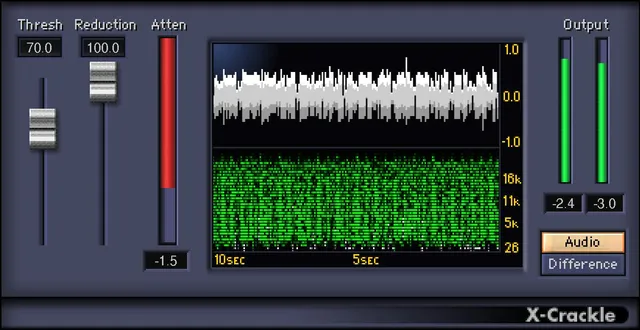
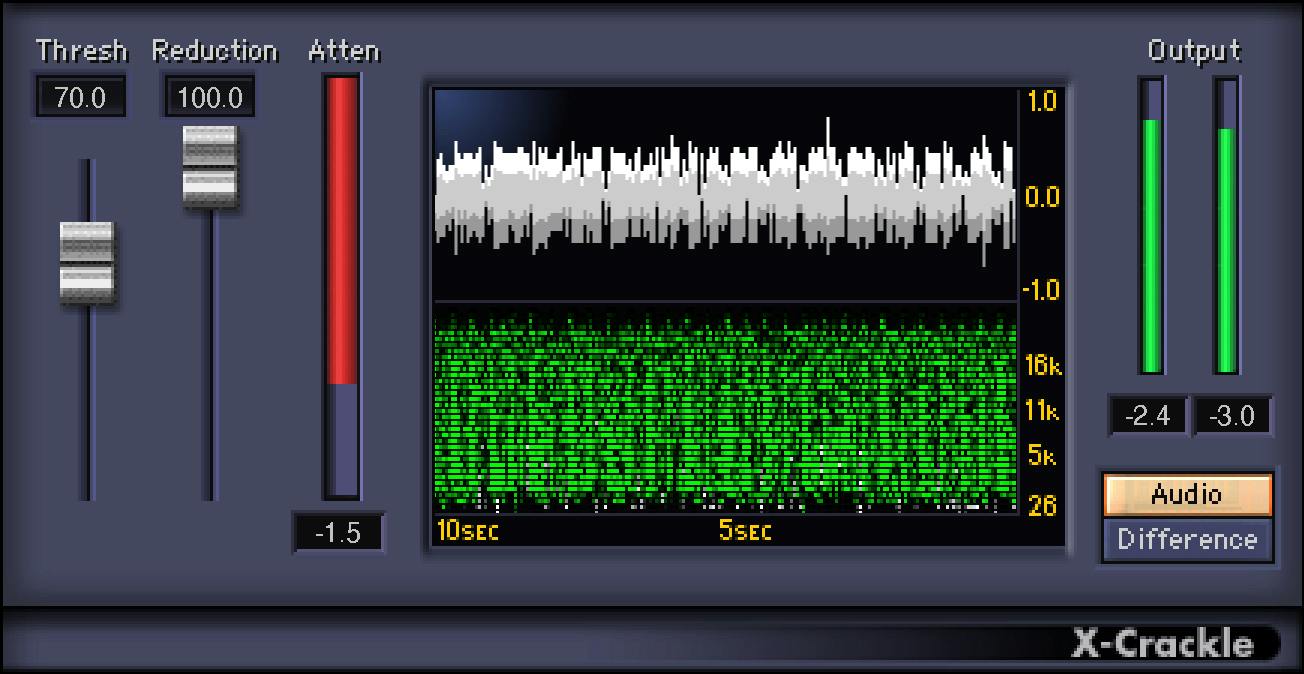
Waves X-Crackle has two processing controls: Threshold selects crackles to target, and Reduction sets the attenuation applied to detected crackles. It also offers Audio and Difference monitoring, a ten-second scope, a crackle-attenuation display and output meters. The manual says higher Threshold values select smaller crackles; it does not document a dB or percentage unit for either parameter.
This is a documentation-based explainer, not a restoration test. The currently linked Waves guide is historical, and its page 3 contains a cross-reference to X-Click where page 4 defines X-Crackle’s own Difference monitor. This guide preserves that wording issue rather than inventing an additional X-Click control. No audio was processed or auditioned.
My Short Version
Threshold sets which crackles are targeted. The manual lists 0–100, default 60, and says higher values select smaller crackles. It gives suggested starting ranges for different material, but these are vendor suggestions, not a guarantee that wanted attacks will be preserved. Reduction controls attenuation of detected crackles; its manual range is 0–100 and default is 0. Neither control’s scale is labeled dB or percent, and the guide does not provide an exact attenuation law.
The Audio monitor is the default and plays processed output. Difference plays the signal removed under the selected settings, which the guide suggests using to check whether musical transients are being removed. That is a proposed listening check; I did not audition any audio. Page 3 says the removed signal is by X-Click, but page 4 defines the X-Crackle Output Monitor; the cross-reference is retained as a source typo, not treated as a separate control.
The scope covers the last 10 seconds: gray at the top is incoming waveform, while the green lower display plots frequency vertically against time horizontally. Output meters follow the selected monitor and are logarithmic dBFS peak meters. Clicking anywhere in their area resets numeric peak hold. The manual also states 2624 samples of latency—about 60 ms at CD-quality rate—an attributed vendor specification, not a measurement here.
What X-Crackle is for
Waves describes crackles as low-level transients or small clicks and pops, and positions X-Crackle for that finer surface noise. Its guide distinguishes these from more obvious clicks addressed by X-Click, and recommends X-Click before X-Crackle for complete vinyl restoration. That chain is Waves’ suggestion, not a workflow tested here. The manual’s broader claims about comparative performance and artifacts are vendor claims and are not repeated as independently verified results.
The current product page lists Mono and Stereo components and versions V9–V17. The linked manual discusses mono restoration workflows but does not provide a current component-by-component operation table. These listing details are not a compatibility test.
Threshold and Reduction
| Control | Documented behavior | Range and default | Limits and coverage |
|---|---|---|---|
| Threshold | Sets amplitude level for targeted crackles. Higher values select smaller crackles. | 0–100; default 60. | Scale unit not stated. Suggested 50–70, up to 80 for noisier sources, and 100 for heavily corrupted sources are manual recommendations/examples, not defaults or guarantees. |
| Reduction | Sets attenuation applied to detected crackles. | 0–100; default 0. | No dB/percent unit, exact attenuation law or equivalence between 0 and bypass is documented. |
| Output Monitor | Audio plays processed audio; Difference plays removed signal. | Audio is default; Audio / Difference. | The page 3 sentence says X-Click for removed content; page 4 identifies the X-Crackle monitor. This is a source cross-reference error, not a third control. |
Waves suggests testing sections and deciding whether one setting fits the recording or whether sections should be treated individually. It also recommends headphones for assessing settings. These are manufacturer suggestions, not a result of an audio test in this guide. A high Threshold can include smaller crackles; the manual says its maximum setting may smooth the input, so avoid treating 100 as a universal “more is better” setting.
Difference, scope and meters
Use Difference to hear the signal removed under the current settings. Waves suggests lowering Threshold or Reduction if that signal contains wanted audio transients. Whether an individual source’s attacks remain intact must be judged in the user’s session; no listening evaluation was performed here.
The X-Crackle Scope shows the last 10 seconds of processing history. The guide labels the upper gray trace as incoming waveform. The lower green display places frequency-domain data on the vertical axis and time on the horizontal axis. It is a history visualization, not an editable EQ or a standalone measurement of audio quality.
The Crackle Attenuation meter displays amount of crackle removal and is said to correlate with the Difference monitor. The guide does not give a full scale, unit, ballistics or reset behavior for this meter. Do not label it dB or percent from its appearance.
The output meters correspond to the selected Audio/Difference monitor and are logarithmic dBFS peak meters. Numeric peak-hold values remain until reset by clicking anywhere in the meter area. No output gain control, limiter, automatic gain or separate attenuation-meter reset is documented.
Latency and mono workflow: vendor guidance, not a test
The guide states that X-Crackle delays the source by 2624 samples, described as about 60 ms at CD-quality material. It says the delay matters when a noisy track runs with other tracks, advises compensating other tracks by the same amount, and does not recommend X-Crackle for monitoring a singer or instrumentalist. Those are statements from the linked manual; latency was not measured, and the approximate milliseconds should not be generalized to every sample rate.
For mono records, the guide recommends recording to two channels, processing each separately with mono restoration components, then merging to mono. It claims this can improve signal-to-noise ratio by at least 3 dB versus processing one mono channel. That figure is a vendor claim, not a measurement or result from this guide. The manual also says extreme settings may smooth high-frequency content and suggests changing settings or applying EQ afterward; that is manufacturer advice, not a guarantee that damage can always be corrected.
WaveSystem toolbar
The manual names shared WaveSystem functions for preset Save/Load, Compare, Undo, Redo, Resize and opening the WaveSystem Guide. These window utilities are not additional restoration controls. Host interaction and shortcuts were not tested.
A conservative way to approach the controls
- Start from the manual-documented Threshold 60 and Reduction 0 only if that is useful as a reference; the default does not establish a correct setting for a particular recording.
- Listen to representative sections using Audio. Adjust Threshold and Reduction gradually; Waves’ suggested ranges are starting points to evaluate, not promises.
- Switch to Difference and check whether wanted transients are present in the removed signal. If they are, Waves suggests lowering Threshold and/or Reduction, then checking Audio again.
- Review both the incoming/scope displays and output meters as aids; the Crackle Attenuation display is not a documented calibrated dB readout.
- Account for the manual’s vendor-stated latency in an offline session. Do not rely on this guide as evidence of live-monitoring suitability or measured timing.
This workflow follows the guide’s advice; no audio was processed, auditioned or measured.
Who it may suit—and when to look elsewhere
The documented controls may suit someone evaluating low-level crackles in vinyl or shellac transfers, with a Difference monitor and short processing-history display. If you need published units or a calibrated attenuation scale, a latency measurement for your sample rate, guaranteed artifact-free cleanup, or a tested live-monitoring workflow, the linked guide does not provide that evidence. For larger clicks, Waves points readers to X-Click; this is a vendor distinction, not a side-by-side test.
Related Waves tools
Waves’ manual suggests X-Click before X-Crackle for larger clicks followed by finer crackles. The live X-Click guide explains that separate documented task; the Waves Audio Post Resources hub provides broader site navigation. These sources describe adjacent workflows, not a tested restoration chain.
Sources
Primary sources checked October 19, 2026. Waves X-Crackle product page, which lists product metadata and links the guide; X-Crackle User Guide, six pages, the historical guide currently linked by Waves; and the Waves Graphic Library. No plug-in installation, audio processing, listening test, latency measurement or restoration comparison was performed.
FAQ
What does X-Crackle do?
Waves positions X-Crackle for low-level crackles and small clicks or pops. Its two processing parameters are Threshold, which selects crackles to target, and Reduction, which controls attenuation of detected crackles. No restoration result was tested for this guide.
What are the Threshold and Reduction defaults?
The linked manual lists Threshold at 0–100 with a default of 60 and Reduction at 0–100 with a default of 0. Neither scale has a documented dB or percentage unit, and the guide does not give an exact attenuation law for Reduction.
What happens when I raise Threshold?
The manual says higher Threshold values select smaller crackles. Its suggested 50–70 range, recommendation up to 80 for noisier material and example of 100 for heavily corrupted sources are vendor guidance, not universal settings or a guarantee that wanted transients will be preserved.
What does the Difference monitor play?
Difference plays the signal removed under the current settings; Audio is the default and plays processed audio. Waves suggests using Difference to check for wanted transients and lowering Threshold or Reduction if they are removed. Page 3 names X-Click in one sentence, but page 4 defines X-Crackle’s Output Monitor; that cross-reference is retained as a manual wording error.
What does the X-Crackle Scope show?
The guide says it covers the last 10 seconds. The upper gray trace is incoming waveform; the lower green display plots frequency vertically and time horizontally. It is a processing-history display, not an editable EQ or a calibrated quality measurement.
Is the Crackle Attenuation meter measured in dB?
The guide says it displays the amount of crackle removal and correlates with Difference, but does not provide a full scale or unit. Its reset behavior and ballistics are also unspecified, so the display should not be labeled dB or percent from the artwork.
How do I reset the output meter peak hold?
The manual says numeric peak-hold values remain until you click anywhere in the output meter area. Those meters follow the selected Audio or Difference monitor and are logarithmic dBFS peak meters. No separate reset for the Crackle Attenuation display is documented.
How much latency does X-Crackle add?
Waves’ linked guide states 2624 samples, about 60 ms at CD-quality material, and advises against using it to monitor a singer or instrumentalist. That is a historical vendor specification, not a measured result here or a universal millisecond figure for every sample rate.

About the Author
Joseph Nilo has been working professionally in all aspects of audio and video production for over twenty years. His day-to-day work finds him working as a video editor, 2D and 3D motion graphics designer, voiceover artist and audio engineer, and colorist for corporate projects and feature films.