
My Short Version
Waves IR360 is a surround convolution reverb. It uses an impulse response to add the acoustic character of a space or device to a surround mix. Start by choosing the component for your input and output format, then load a response and decide how much of the effect belongs toward the front or rear.
This guide is based on Waves’ documentation. I did not audition the plug-in. The cover is an AI-generated editorial illustration.
Choose the surround component

The Waves guide separates Discrete and Sound Field configurations and provides diagrams for mono, stereo and surround inputs. Match the input you have and the output layout you need to the named component in the host. For the documented 5.1-to-5.1 routing, Waves shows LFE passing through. Check the component diagram before assuming how a particular channel is processed.
Load an impulse response and check the graph
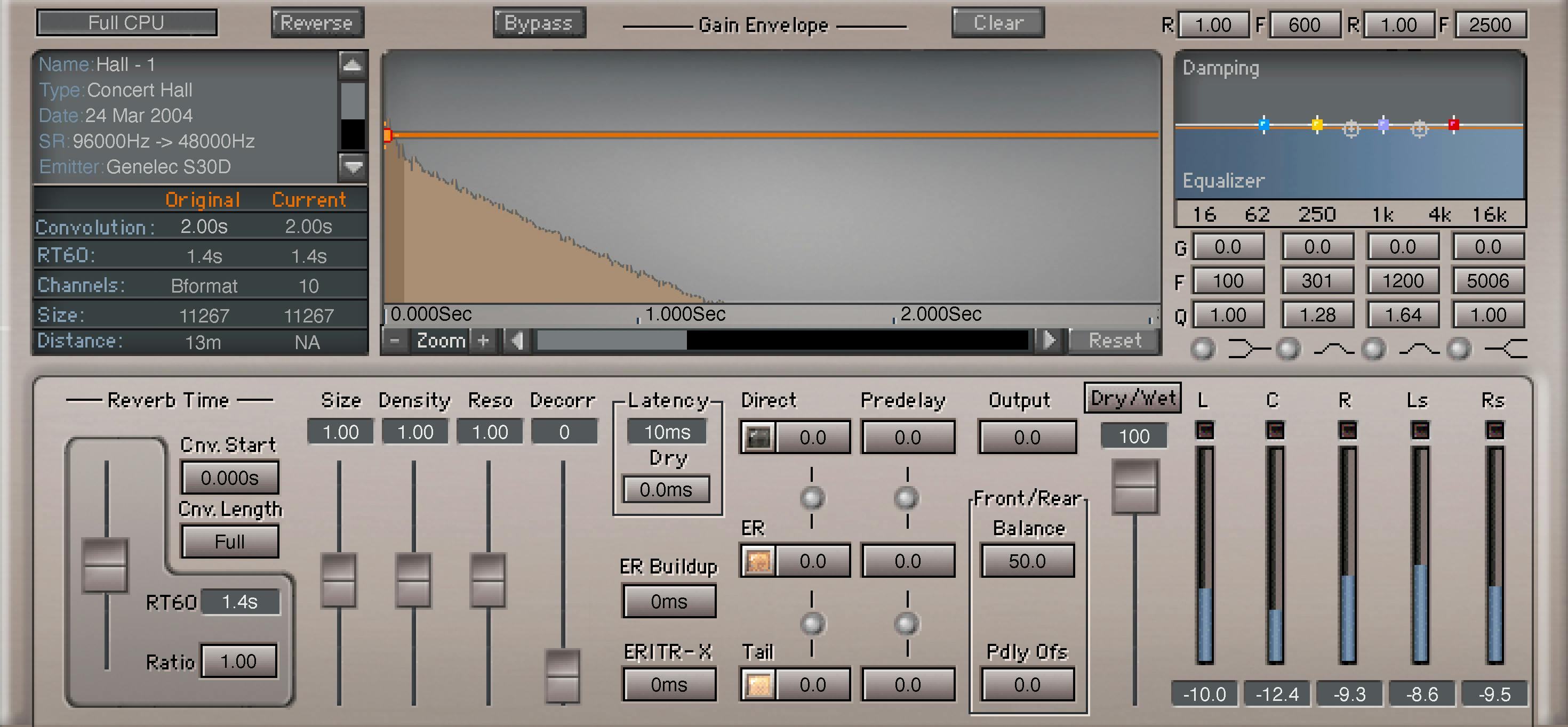
Choose a response from the library or import a compatible existing impulse-response file. The IR-only load option lets you compare a different response while retaining the current parameter settings. Confirm the loaded response in the information pane and use its graph to see how the energy falls away. Convolution Length lets you use less of the response if it carries over into the next phrase.
Place the effect with Front/Rear Balance
Front/Rear Balance adjusts how the reverberation is shared between the front and rear. Start with a moderate contribution and compare the same cue after adjusting the balance. Listen to whether the sense of space supports the picture and dialogue. On a surround return, monitor the full speaker layout while making that decision.
Read the meters and shape the wet sound
The surround meter section shows the combined wet and dry output for each displayed channel. The pictured panel shows L, C, R, Ls and Rs. Use Dry/Wet to set the effect contribution when the plug-in is on an insert. The reverb EQ shapes the wet signal, and damping changes the decay by frequency. Set the level and front/rear balance before making fine tonal changes.
Related Waves guides
Waves IR1 Convolution Reverb and Waves IR-L Convolution Reverb cover the other IR-series workflows.
Sources
Frequently Asked Questions
What is Waves IR360 Convolution Reverb?
It is a surround reverb plug-in that uses impulse responses and provides dedicated multichannel routing and balance controls.
How do I pick an IR360 component?
Match the source and destination channel layouts to the named component and consult the Waves routing diagrams for its Discrete or Sound Field configuration.
Can I load an existing impulse response?
Yes. Waves documents loading library responses and importing compatible impulse-response files.
What does Front/Rear Balance do?
It changes how much reverberation is sent toward the front versus the rear of the surround field.
What do the surround output meters show?
They show the combined wet and dry output for the displayed channels.

About the Author
Joseph Nilo has been working professionally in all aspects of audio and video production for over twenty years. His day-to-day work finds him working as a video editor, 2D and 3D motion graphics designer, voiceover artist and audio engineer, and colorist for corporate projects and feature films.