
What is Waves LFE360 Low-Pass Filter?

Waves LFE360 is a low-pass filter and level tool for a mix’s dedicated low-frequency effects channel. It provides a cutoff control, output meter, and gain reduction for the LFE signal. It can help when you want to inspect or prepare that channel for a surround delivery.
Keep the LFE channel separate from bass management
LFE is the dedicated channel commonly identified as the .1 in a surround layout. Bass management in a playback or monitoring system can also route low frequencies from other channels to a subwoofer. Use LFE360 to work on the dedicated LFE signal and use the system’s own controls for monitoring or playback routing.
Set the filter cutoff
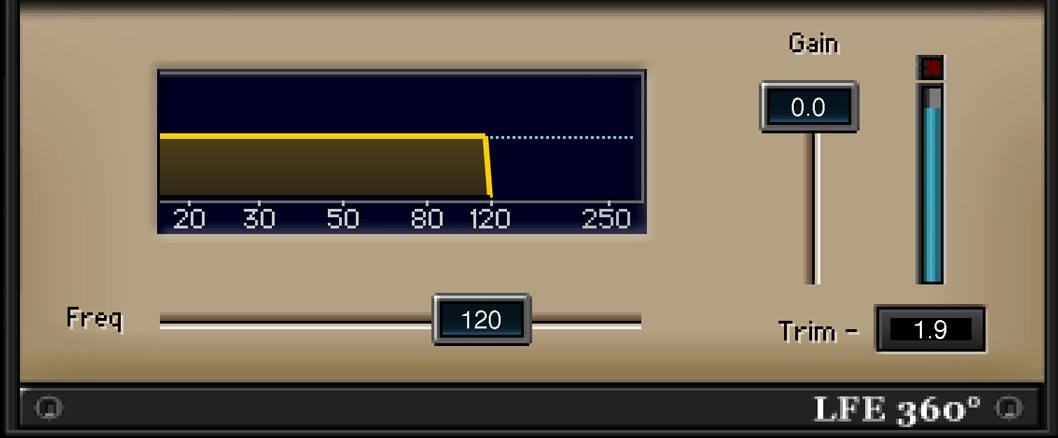
Use Freq to set the low-pass cutoff. The graph illustrates the selected response. Choose the cutoff for the specific monitoring or delivery workflow, and check the actual requirement for your project before committing a change. Listen to the LFE contribution alongside the main channels.
Use Gain and the output meter
The Gain control reduces LFE output level. Watch the LFE meter on a section with strong effects and lower the gain if you need extra headroom. The manual says the gain control acts only on the LFE channel in the multichannel component.
Use Trim after an overshoot
The Trim readout below the output meter shows an overshoot amount. The guide describes clicking the readout to reduce gain by the indicated amount. Recheck the loud passage afterward. Use the output meter to make sure the result still fits both the technical delivery target and the rest of the mix.
A starting workflow before delivery
Identify the LFE path in the surround session. Confirm the intended cutoff for the job, then listen to a reference passage with and without the filter. Check the highest peaks on the LFE meter and adjust level if needed. Revisit a quieter section so the effect stays in balance.
Related guides and sources
See Waves M360 for monitoring and mixdown and Waves L360 for multichannel peak control.
Sources: Waves LFE360 product page and LFE360 User Guide. This guide is based on Waves’ documentation. I did not audition the plug-in. The cover is an AI-generated editorial illustration.
Frequently asked questions
What does the Freq control do?
It sets the low-pass cutoff. The graph shows the selected response.
Does LFE360 manage the subwoofer feed?
It processes the dedicated LFE channel. Monitor or playback bass management determines how low frequencies from other channels reach a subwoofer.
Does Gain affect the other channels in the multichannel component?
The manual says Gain affects the LFE channel only.
What does clicking Trim do?
The guide describes it as reducing Gain by the amount of overshoot displayed below the LFE output meter.
When is LFE360 useful?
Use it when evaluating or preparing the LFE response and level for a particular surround workflow.

About the Author
Joseph Nilo has been working professionally in all aspects of audio and video production for over twenty years. His day-to-day work finds him working as a video editor, 2D and 3D motion graphics designer, voiceover artist and audio engineer, and colorist for corporate projects and feature films.